Guide 086 min read
LlamaPresenter - Transitions

Transitions control how the next visual replaces the one already on screen. A simple cut can keep lyrics quick, while a crossfade, push, or wipe can give announcements and media a more deliberate change.
LlamaPresenter uses the same visual picker throughout the Studio. The useful part is not just choosing an effect—it is choosing the right scope, so one change can apply to a whole workspace or only one item.
What this guide helps you do
Set a transition once, save the versions you use, and override only the content that needs different movement.
01
Set the transition for the active workspace
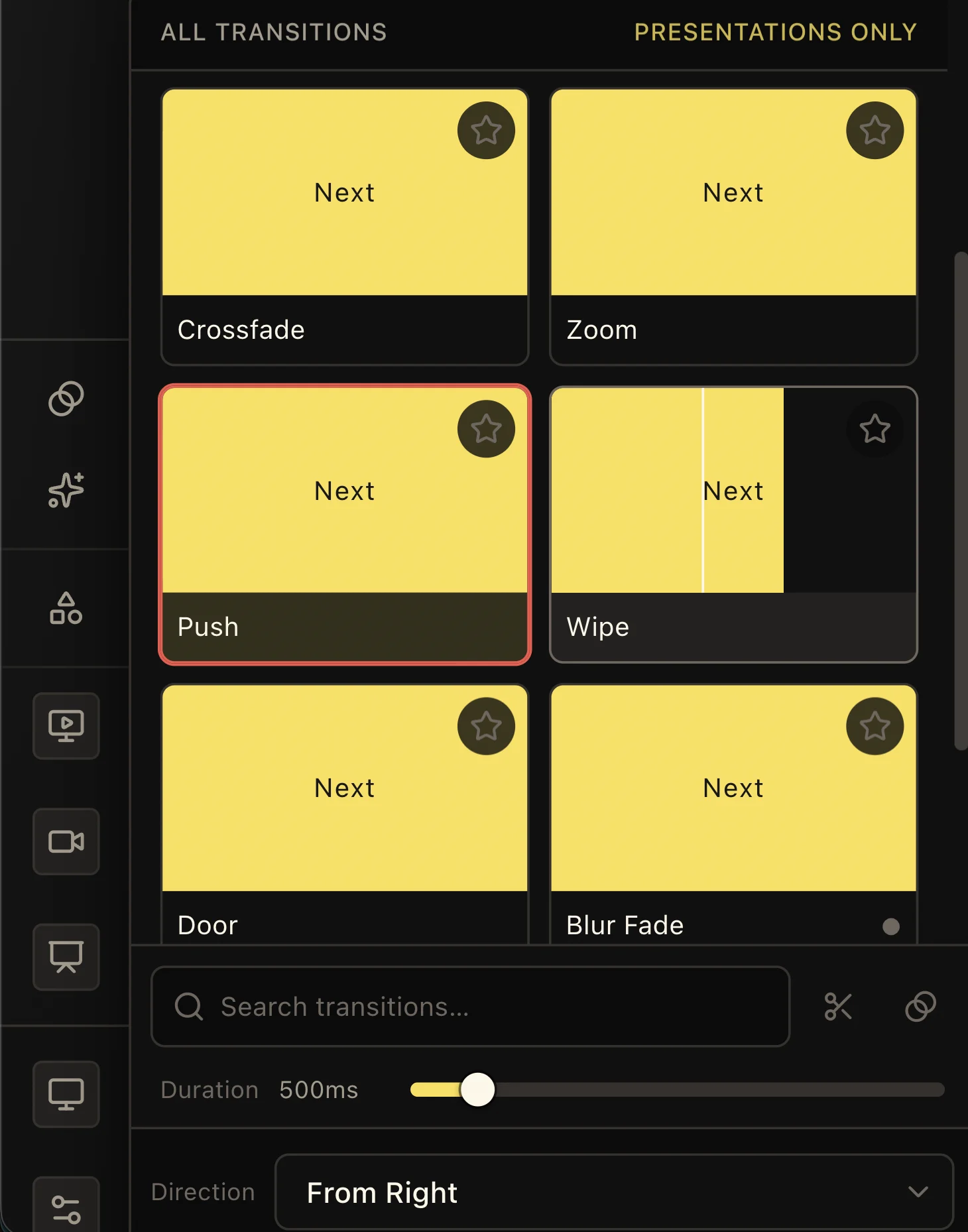
Open Lyrics, Scripture, or Presentations before choosing the main transition. The picker shows the active scope beside “All transitions,” such as “Presentations only,” so you know which part of the service will change.
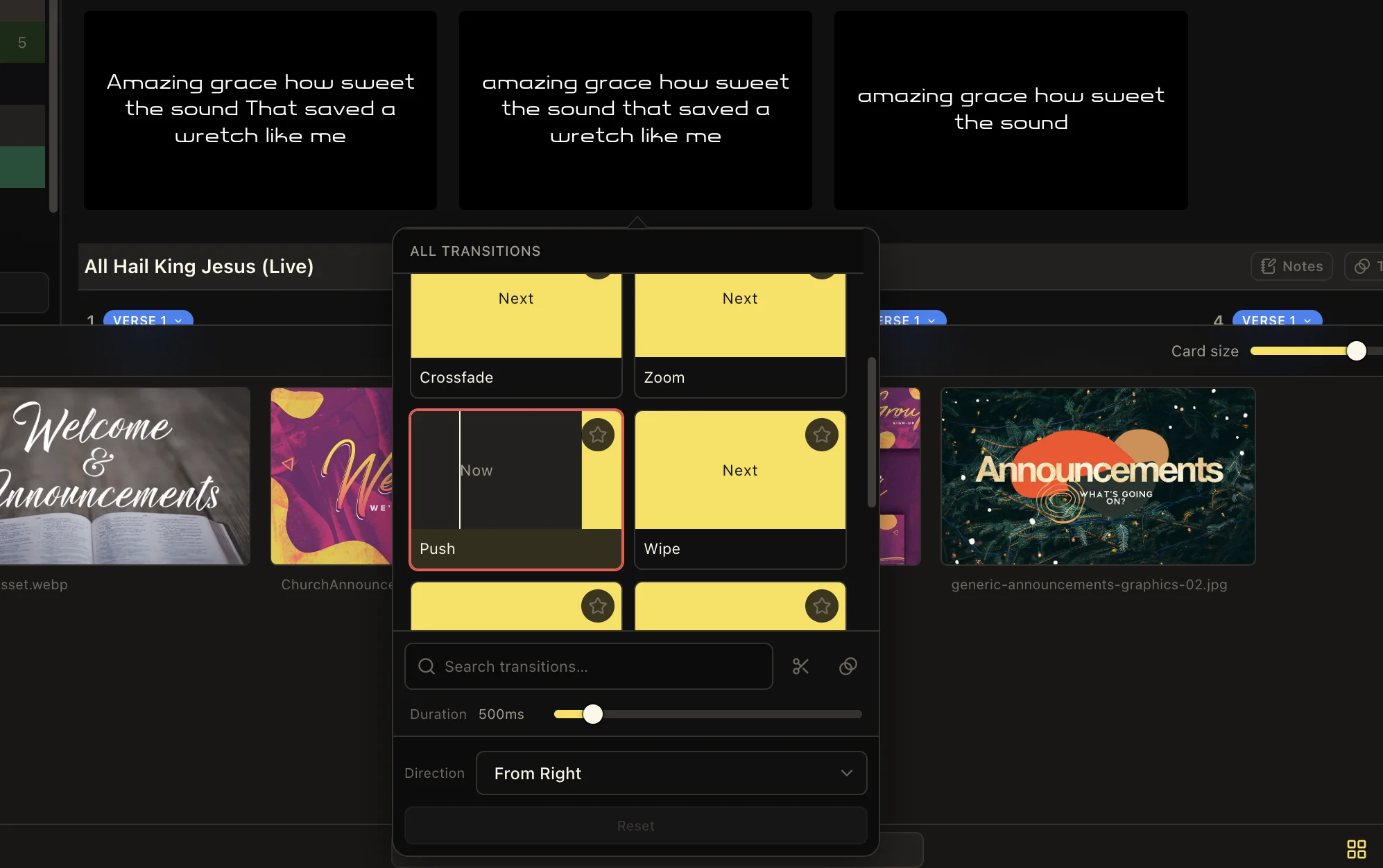
Use Cut when the next slide should appear immediately. Fade is also available as a quick choice for a softer change. Open the full picker when you want Crossfade, Zoom, Push, Wipe, Door, Blur Fade, or Ripple.
02
Preview, tune, and save the exact movement
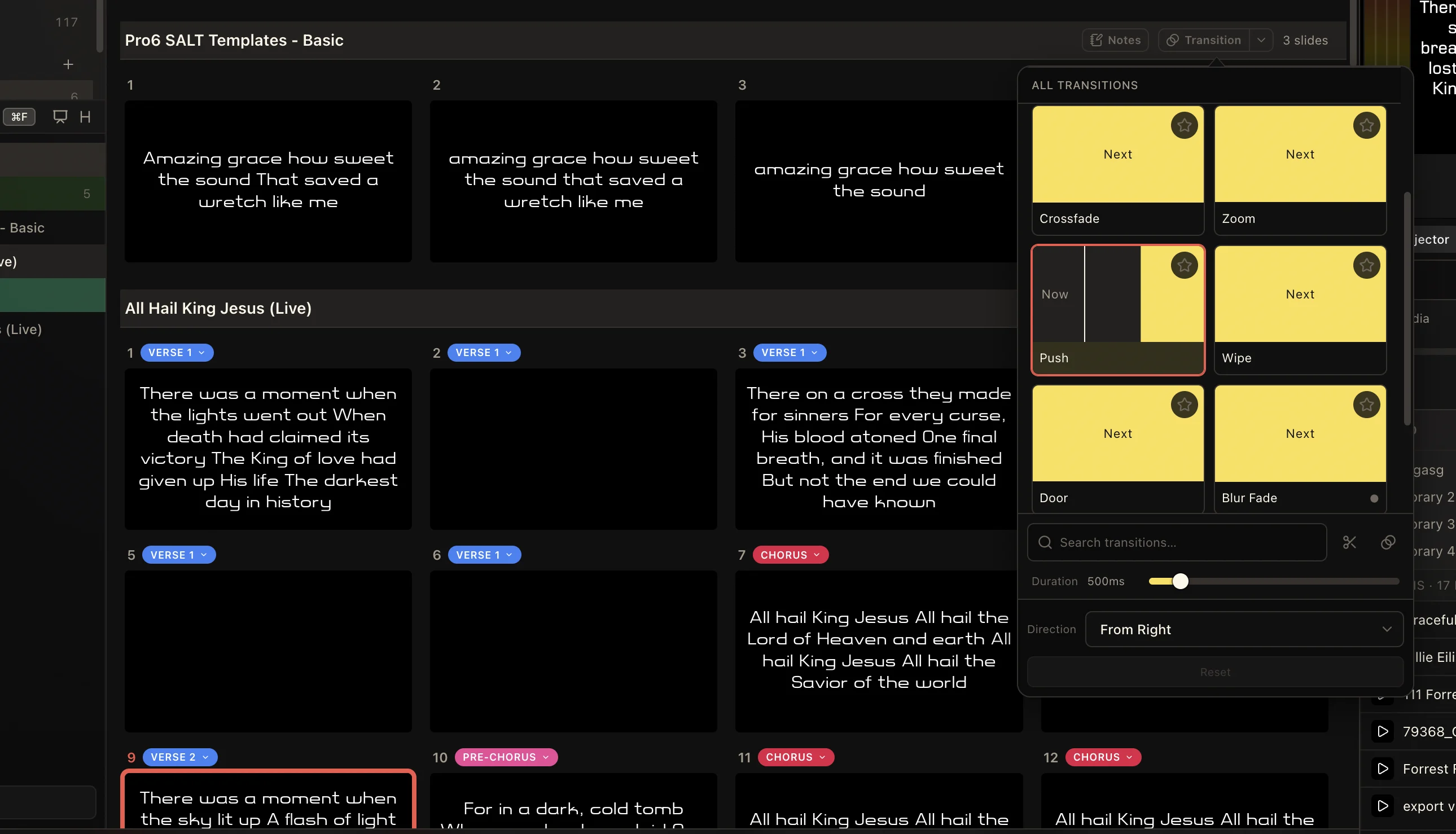
Each transition tile previews the movement between “Now” and “Next.” Move across a tile to inspect the effect, or search by name when you already know what you need. The selected tile is outlined clearly before it is used live.
Adjust Duration to make the effect quicker or slower. Push and Wipe also offer a direction, including sides, top, bottom, and corners. Reset returns that transition to its designed speed and direction without changing the other transition types.
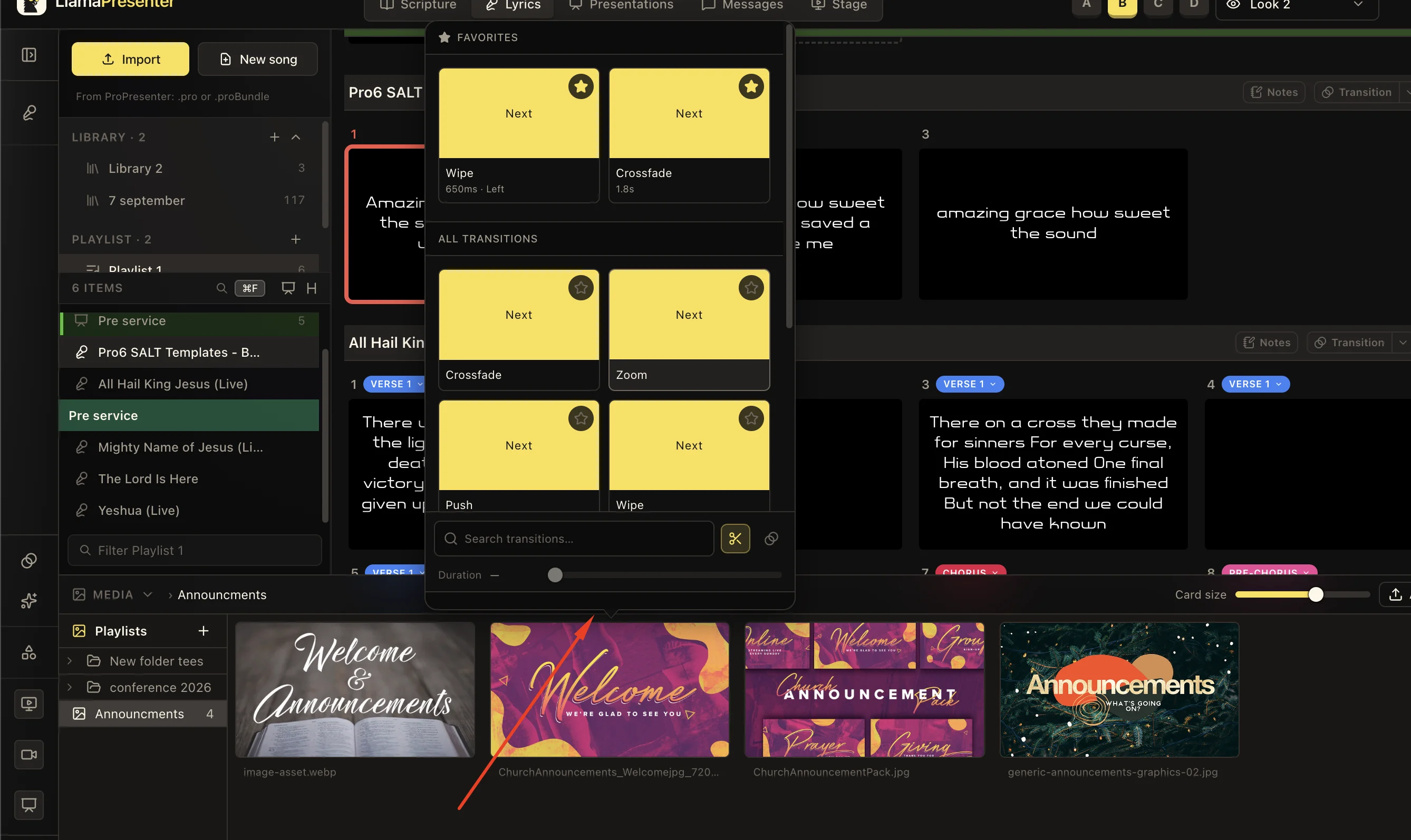
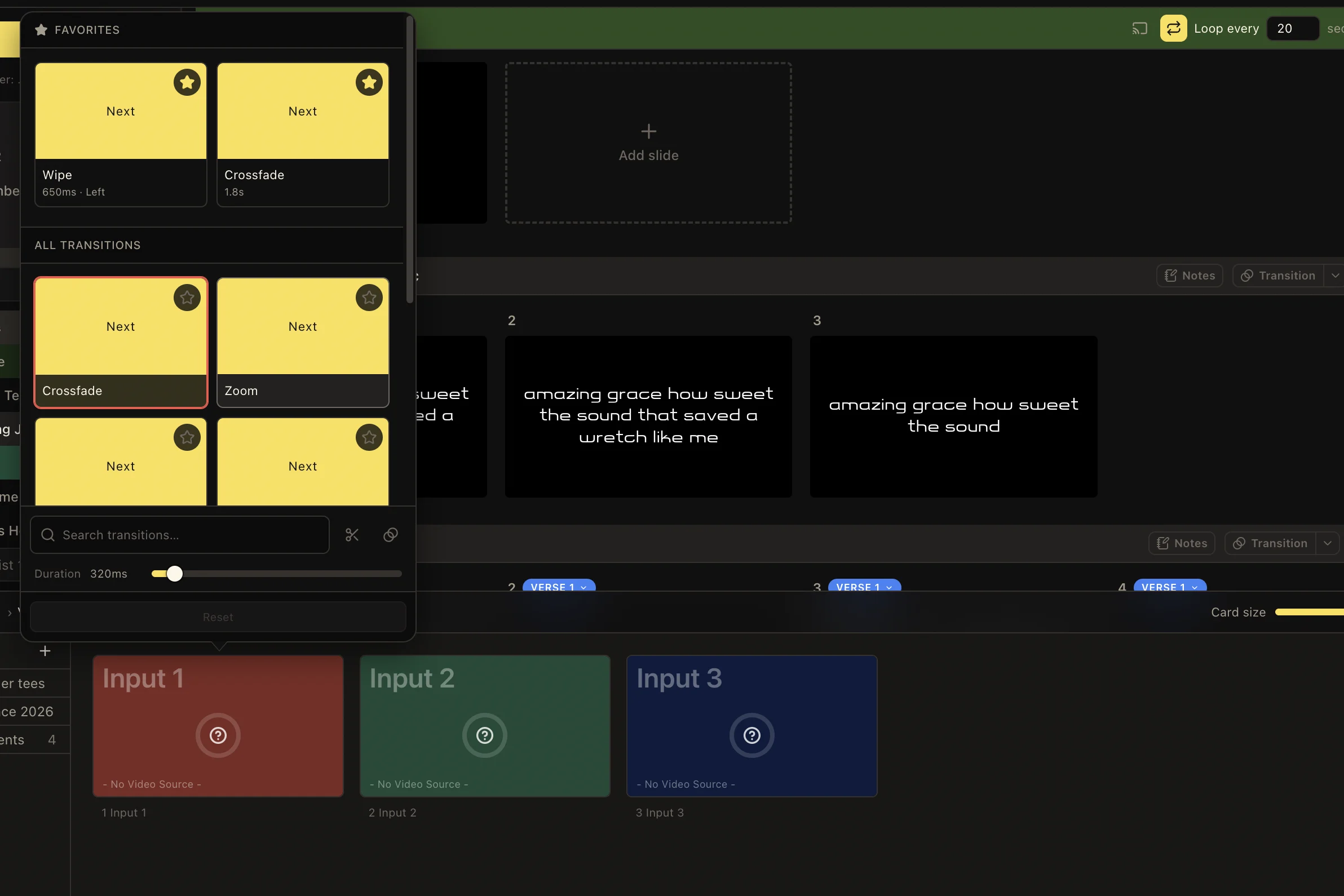
Select the star to save the current effect as a favorite. A favorite keeps its own transition, duration, and direction together, so a 650 ms left wipe and a 1.8 second crossfade can stay ready for the next service.
Keep motion easy to read
Fast changes work well for lyrics and scripture. Slower movement is easier to notice on announcements, videos, and section changes. Use the preview to check the result before the service.
03
Override one presentation slide
A presentation uses the Presentations transition by default. When one slide needs a different entrance, open that slide’s Transition menu and choose another effect. Clearing the override sends the slide back to the presentation default.
Presentation slides can also have a separate exit transition. This is useful when a special announcement should enter with a push but leave with a quiet fade, without changing the rest of the deck.
04
Use one transition for a song or one lyric slide
Choose Transition in a song header to give every slide in that song the same movement. This keeps a song consistent even when another song or the main Lyrics workspace uses something different.
A single lyric slide can still have its own transition. Use that for a title, chorus, or important moment that needs a different entrance. Clear the slide transition to return to the song setting; clear the song transition to return to the Lyrics setting.
05
Control media playlists and video inputs separately
A media playlist can have one transition for every picture or video inside it. Give one media file its own transition only when it should replace the playlist setting—for example, a logo that should cut while announcement graphics crossfade.
Camera and video inputs have their own transition control as well. This keeps input changes separate from lyric and presentation movement, so switching a camera does not require changing how the next song slide appears.
Keep these three
The short version
- Choose the workspace scope before changing a default transition.
- Save favorite combinations of effect, duration, and direction.
- Override a song, slide, playlist, media file, or input only when it should behave differently.