Guide 066 min read
LlamaPresenter - Messages
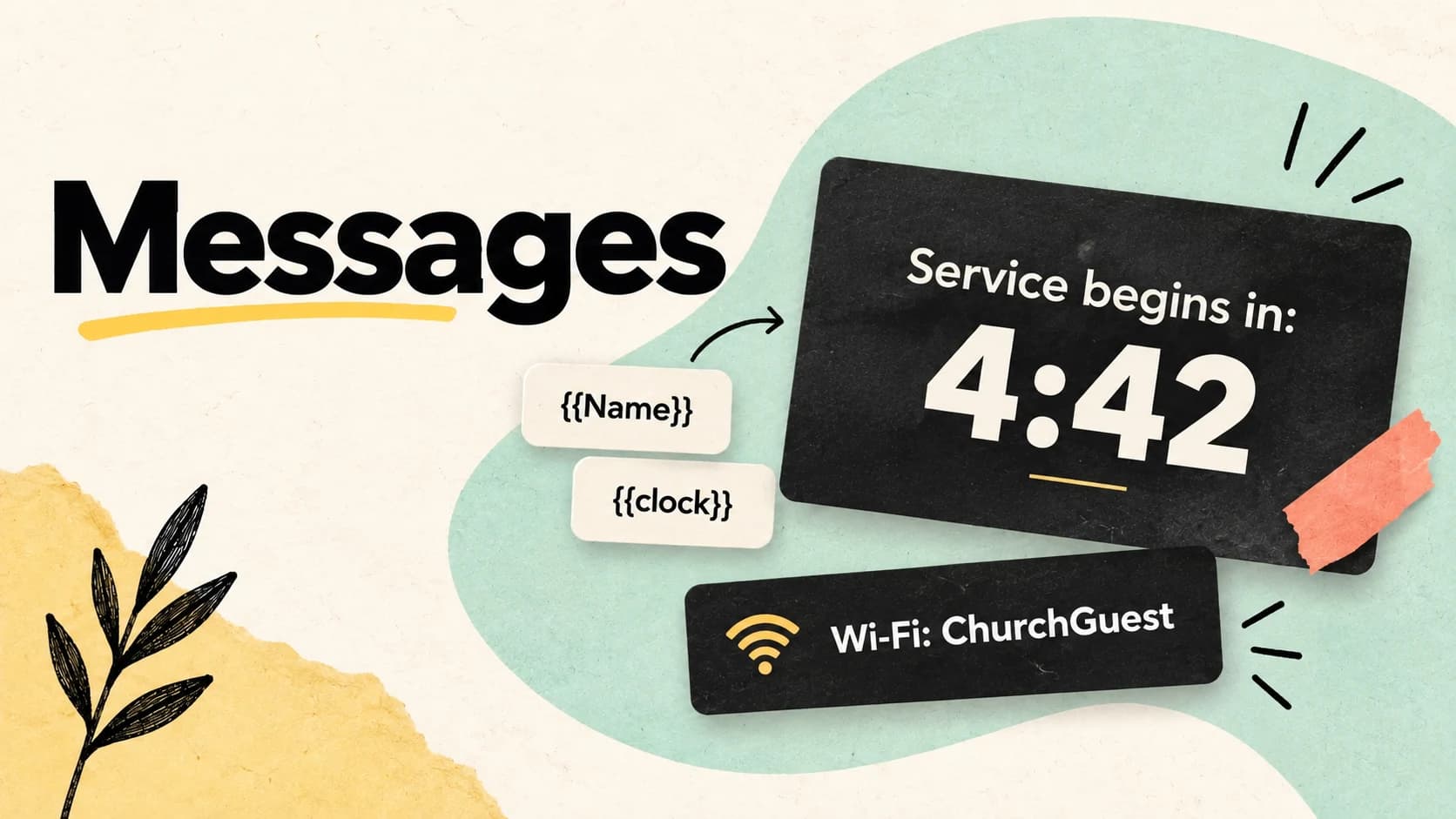
Some information belongs on screen without becoming part of the slide sequence: a service-start countdown, the Wi-Fi details, a speaker lower third, a room change, or a short announcement. Building those as ordinary slides makes them harder to reuse and easier to send to the wrong place.
Messages are independent live layers. Each one keeps its own content and theme, can read values from variables, clocks, and timers, and can be routed to the exact projector or stream screens that need it. The operator can show, flash, or clear a message without advancing scripture, lyrics, or presentations.
What this guide helps you do
Create reusable messages, add live details, and choose exactly where and how long they appear.
01
Operate messages beside the live service
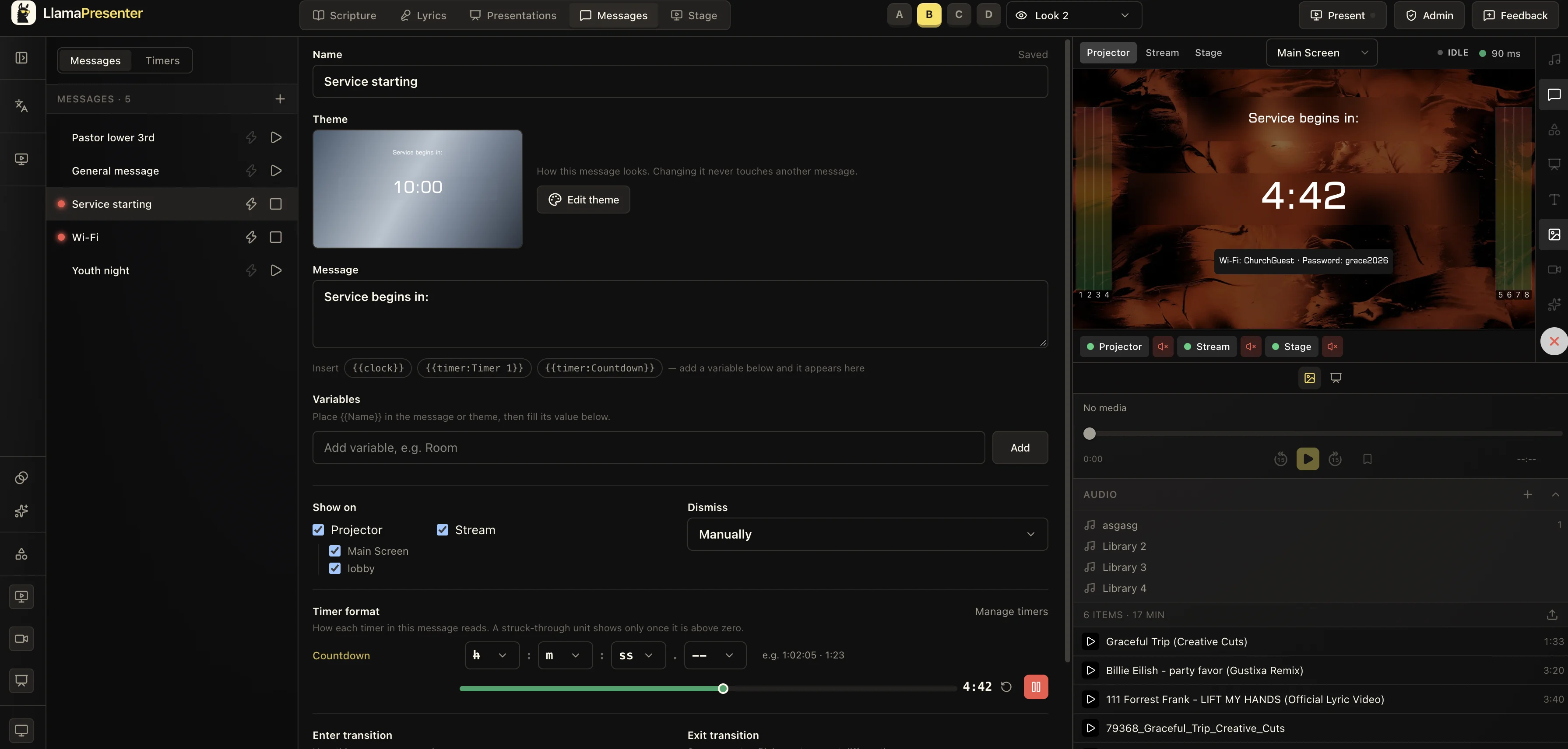
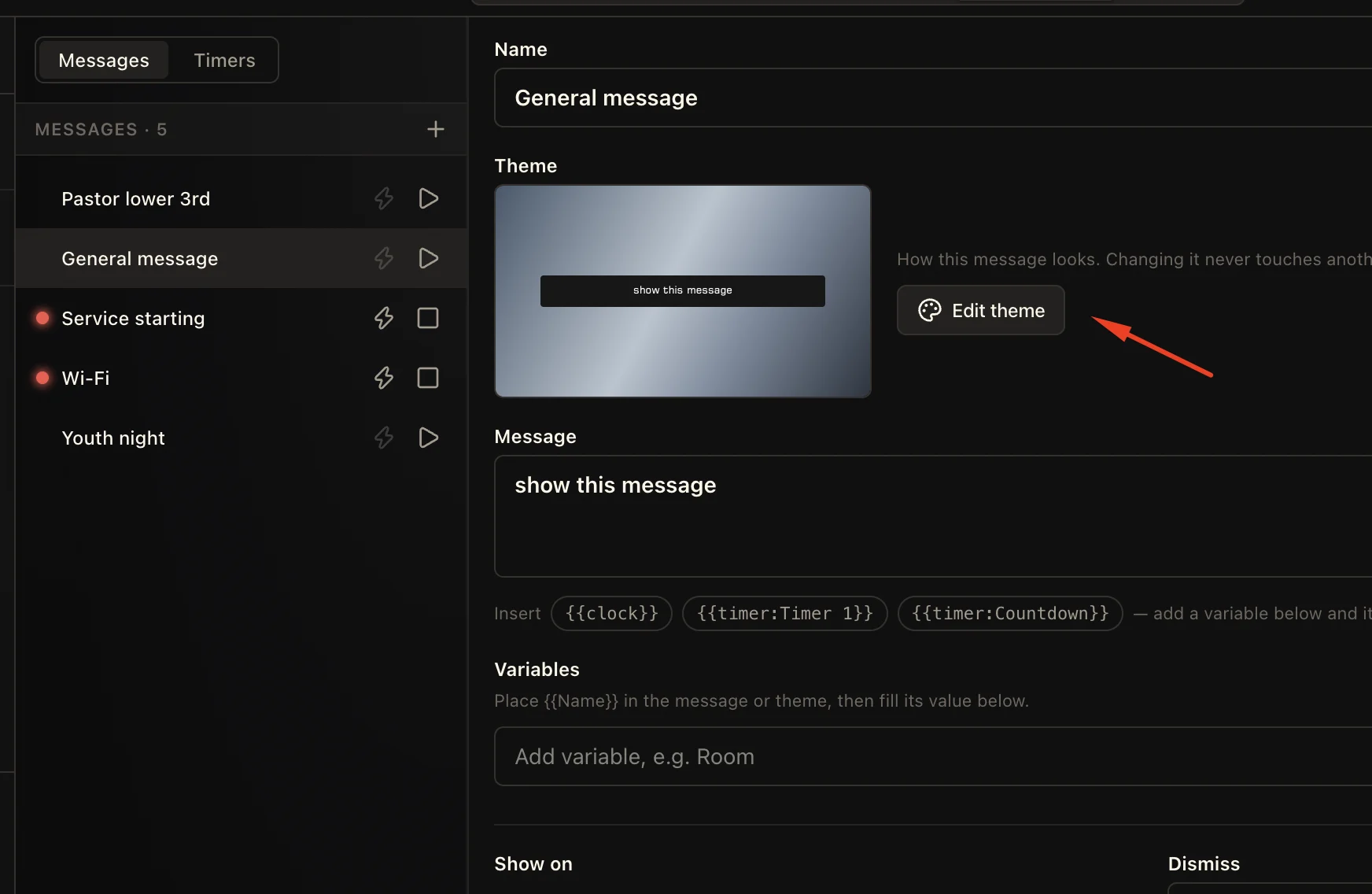
The Messages workspace keeps saved messages in a reorderable list while the selected message opens for editing. A live indicator shows what is already on screen, and the play, stop, and flash controls stay beside every message so the operator does not have to leave the list during a service.
The output preview remains visible at the same time. That makes it possible to confirm a countdown, Wi-Fi card, or lower third on the projector or stream before changing anything else in the service.
02
Give every message its own theme
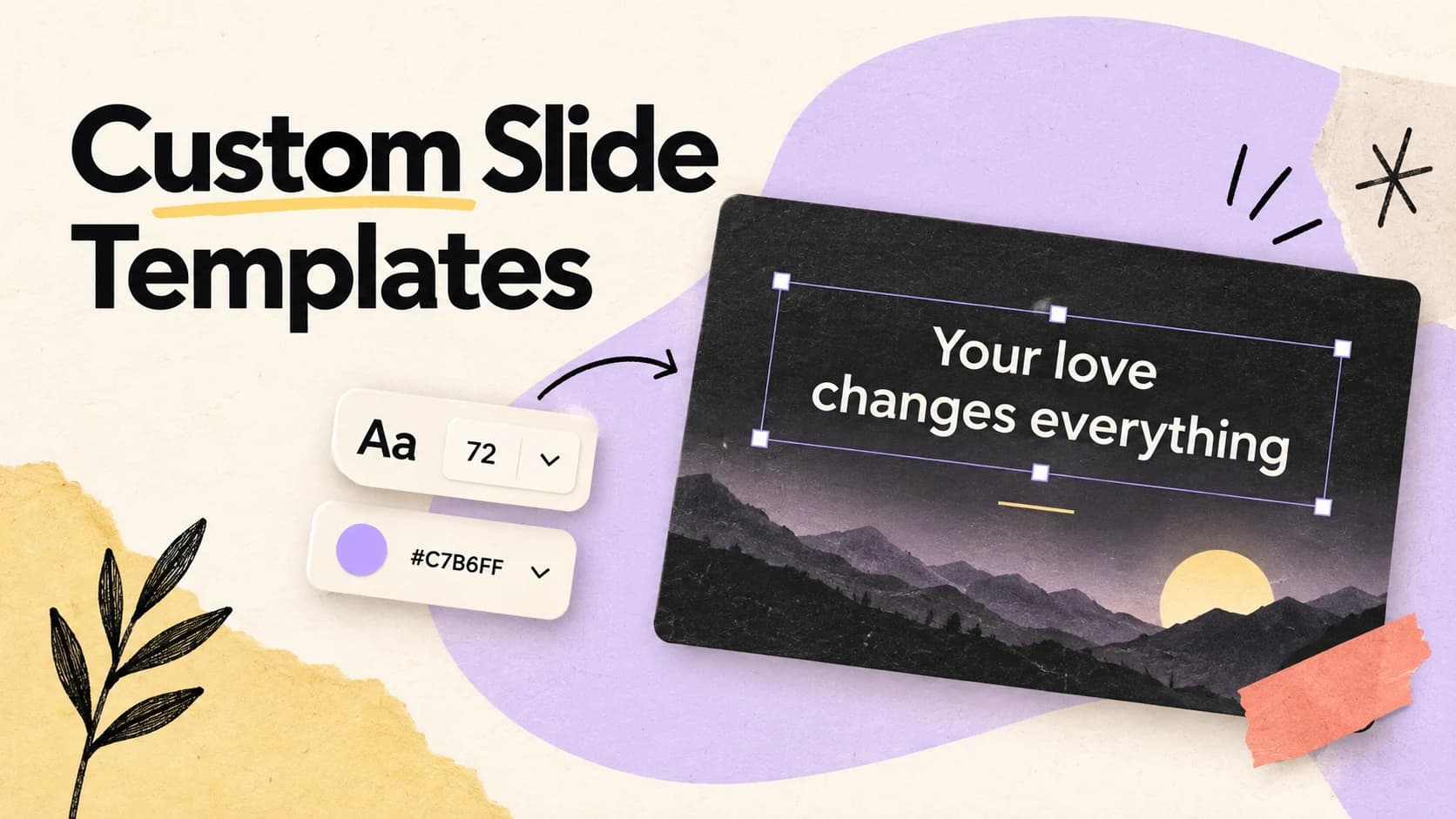
A speaker name, a service countdown, and Wi-Fi details should not share the same composition. Every saved message owns an independent theme, so changing one message never alters another. Open the theme editor from the selected message to arrange its text, background treatment, typography, and supporting elements.
Because the design is stored with the message, frequently used graphics remain ready for the next service. The operator changes the content or live values instead of rebuilding the visual treatment each week.
03
Fill messages with variables, clocks, and timers
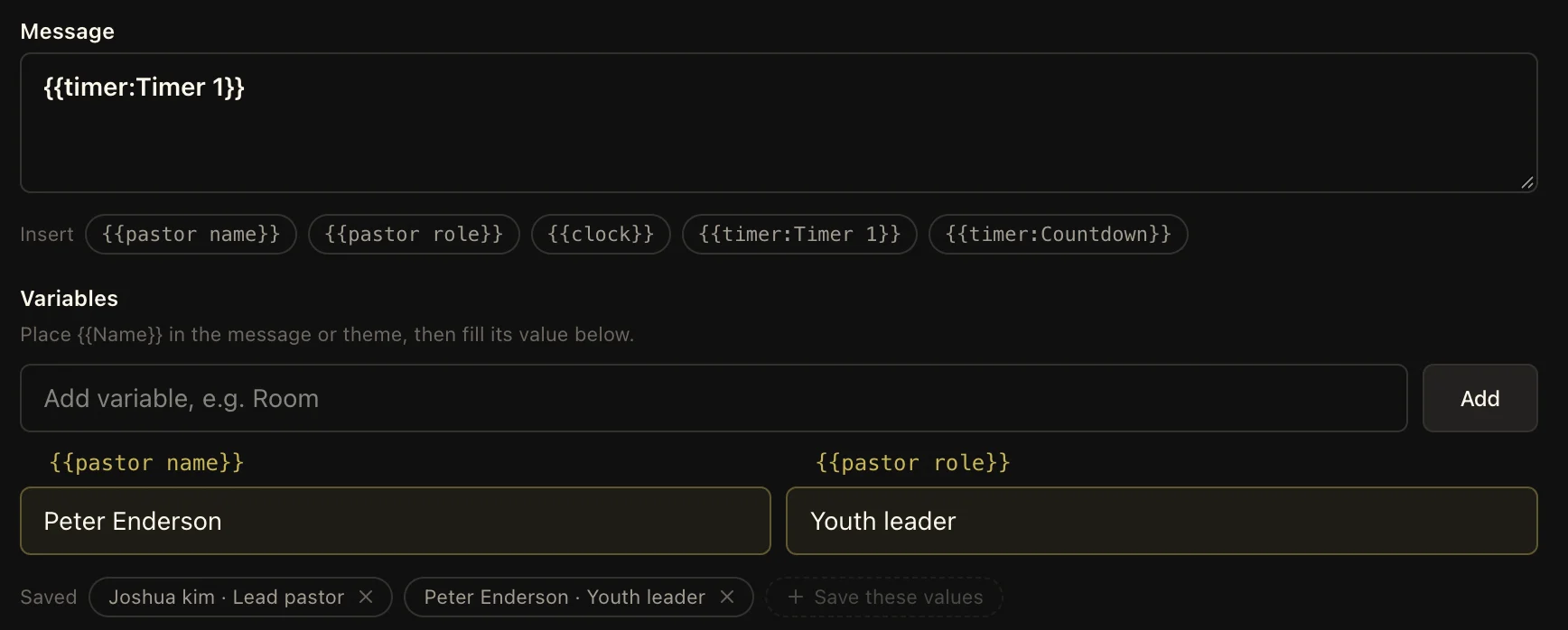
Insert custom variables such as {{pastor name}}, {{pastor role}}, or {{Room}} into the message or its theme. The operator fills those values before showing the message and can save common combinations as presets, turning one lower-third design into a reusable graphic for every speaker.
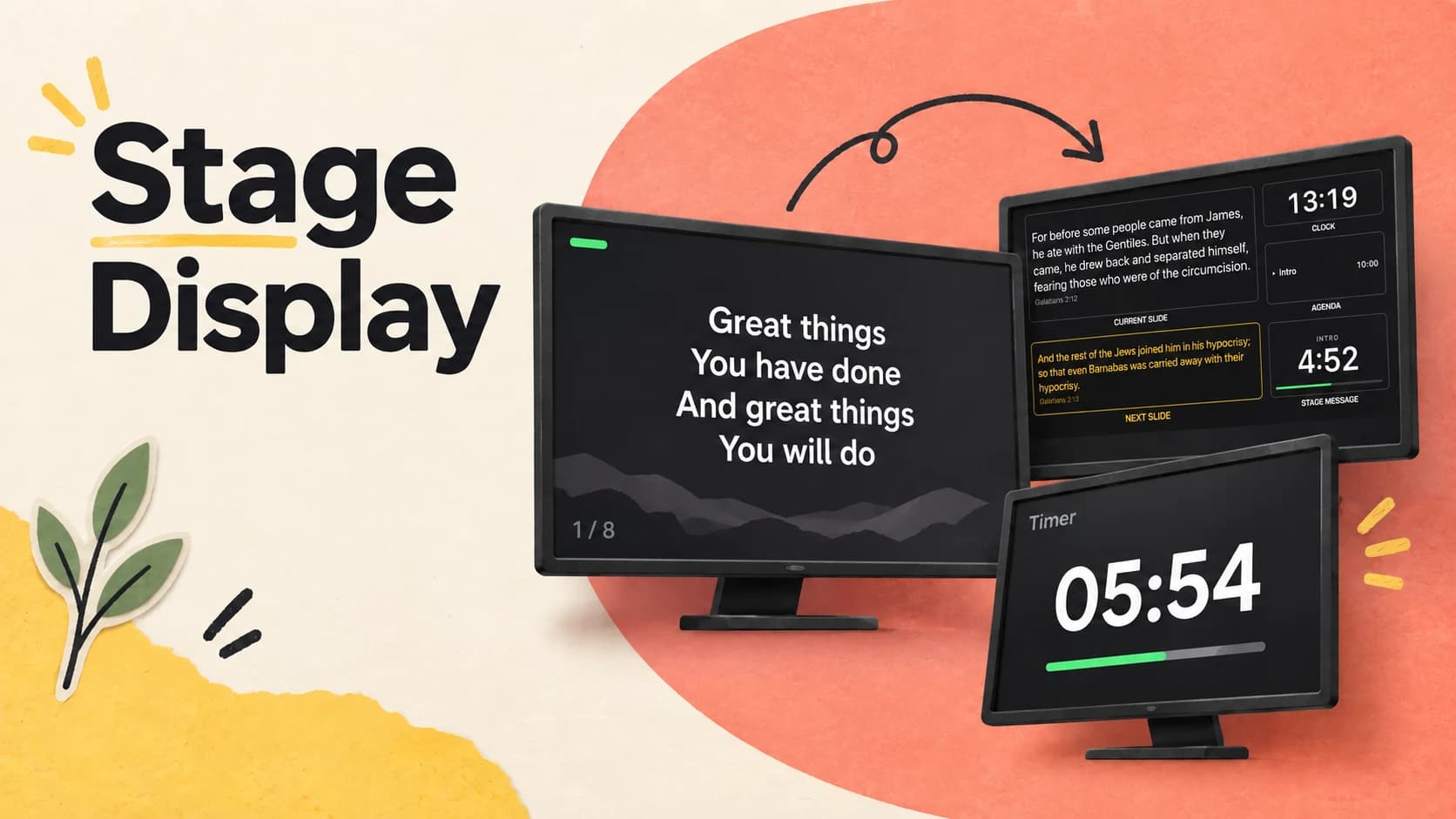
Messages can also include the system clock or a named timer such as {{timer:Timer 1}}. Those tokens stay live on screen. Timer units can be formatted per message, and the clock can use the required date, time, and 12- or 24-hour presentation.
04
Choose the exact screens and dismissal rule
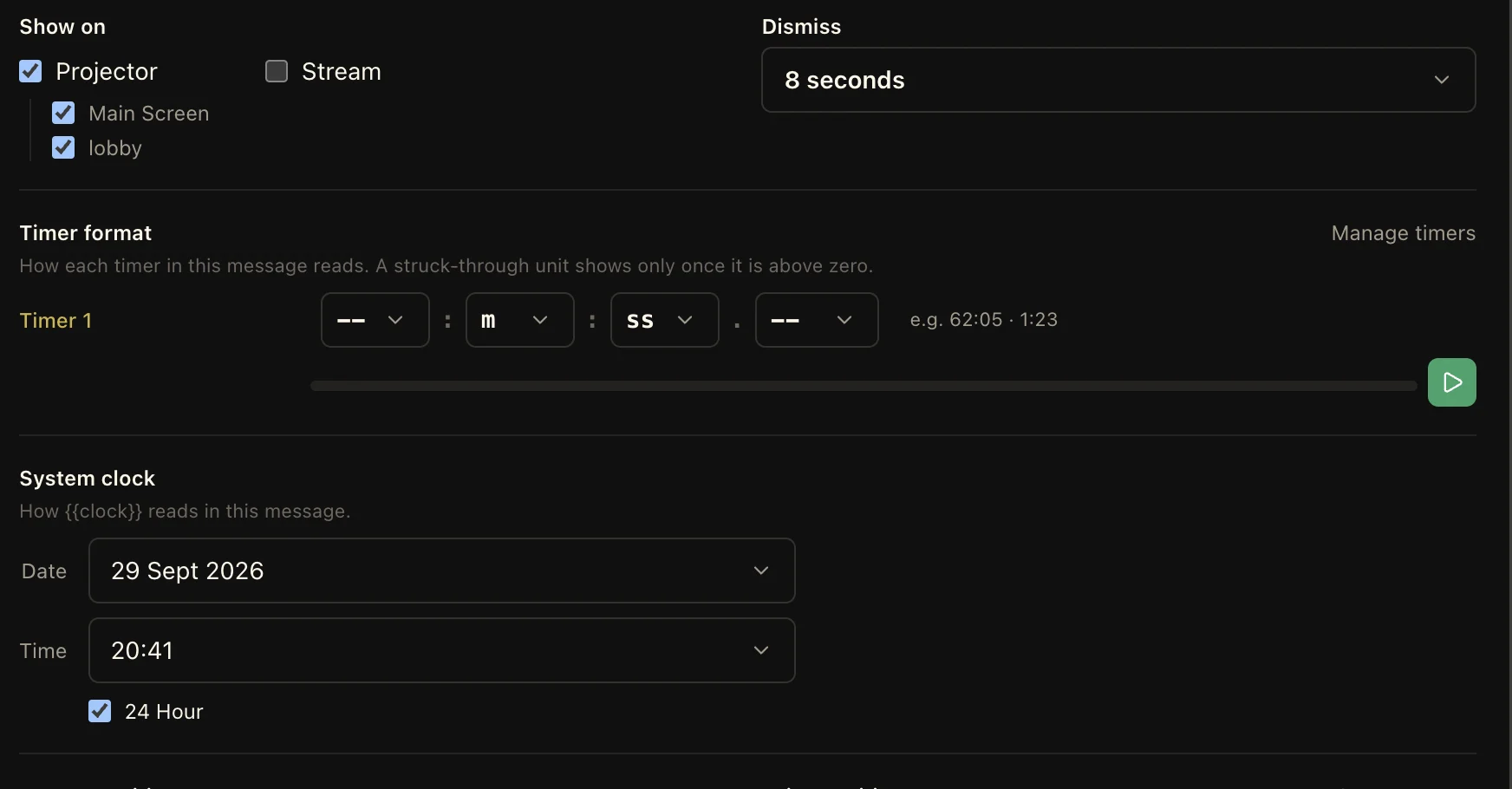
A message can target the projector, the stream, or both. When several screens belong to an output, choose the individual destinations too—for example, Main Screen and lobby on the projector while leaving the stream untouched.
Keep a message live until the operator clears it, or give it a timed dismissal for short notices that should disappear automatically. When a message contains timers or the system clock, its readout format is configured in the same place, so every destination receives the intended result.
05
Control transitions and every live message independently
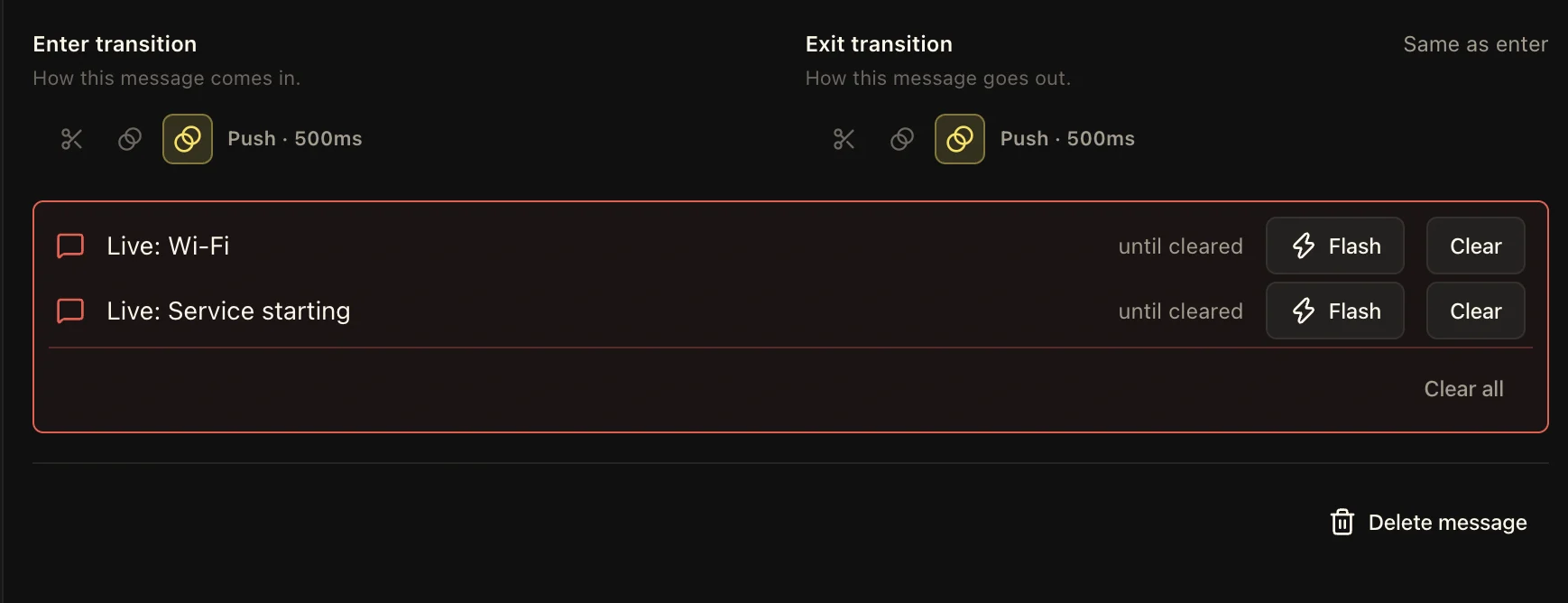
Choose how a message enters and leaves. The exit can match the entrance or use a different transition, with its own timing. That gives a quiet lower third, an urgent announcement, and a countdown the motion each one needs.
Several messages can remain live at the same time. Flash one to catch attention, clear only the item that has finished, or use Clear all when the screen needs to reset. These controls affect message layers without clearing the active slide, media, or timer elsewhere in the service.
Keep these three
The short version
- Save each recurring message with its own content and visual theme.
- Combine reusable variables with live clock and named-timer values.
- Target exact screens and control dismissal, transitions, flash, and clear independently.