Guide 016 min read
LlamaPresenter - Migrate from ProPresenter
If you already run services in ProPresenter, learning LlamaPresenter starts with familiar ideas. Libraries and playlists organize your content, slide cards provide the next cue, and an output preview helps you see what the congregation, stream, or stage receives. The workspace follows a similar layout, so your experience has a useful starting point.
You can also upload ProPresenter song files to import their lyrics instead of copying and pasting every song. Start with a few songs for one service, choose their layouts, and recreate the screen settings and recurring cues your team uses most.
What this guide helps you do
Import your song lyrics, recognize the familiar controls, and prepare your first service in LlamaPresenter.
01
Bring your song lyrics across
LlamaPresenter reads song lyrics from ProPresenter .pro documents and .proBundle exports. A single .pro file is useful for trying one song; a bundle lets you bring several songs across together. In ProPresenter, select the songs you need and export a presentation bundle from File → Export. Depending on the version, the option may be named Bundle or Presentation Bundle.
In LlamaPresenter, open Lyrics and choose the Import button beside Library. Select your exported files, or drag and drop them anywhere on the Lyrics tab. The importer extracts the lyric text into song cards, giving you a library you can work with straight away.
- 01Export the songs from ProPresenter as a .proBundle, or use individual .pro documents.
- 02Open Lyrics in LlamaPresenter and choose Import beside Library, or drop the files on that tab.
- 03Open each imported song and check its words, line breaks, and slide sequence.
- 04Choose a LlamaPresenter lyric layout and add the songs to your service playlist.
What the import brings over
This is a lyrics import. ProPresenter themes, media, screen configuration, Looks, Props, Messages, and Macros need to be recreated in LlamaPresenter. Check repeated sections and arrangements too: identical lyric slides are deduplicated during import. If the import reaches your song allowance, choose which songs to bring in first.
02
Find your way around a familiar workspace
The working rhythm will feel familiar: find a song in the library, organize the service in a playlist, and select its slide cards to present the lyrics. You can prepare content while keeping the live output preview in view. Familiar panel roles and a similar overall arrangement help an experienced ProPresenter operator learn where things live.
The preview has Projector, Stream, and Stage tabs, plus a screen selector when you have several outputs. Choose the destination you want to inspect before changing its layout. In the example below, Projector and the Audience screen are selected, and the lyrics use a black-on-white strip design.
Treat this as a familiar workflow to learn rather than a promise that every control or shortcut is identical. Rehearse selecting a slide, checking another output, and clearing a layer before your first live service.
03
Set up the screens your team already uses
If you know ProPresenter’s screen configuration, the Display window will be recognizable. LlamaPresenter groups outputs under Projector, Stream, and Stage on the left. Select a screen to configure its destination, size, placement, and picture settings on the right.
Use the plus button beside a group to add the outputs your service needs, and give them practical names such as Audience, Lobby, or Stage. In Signal, choose Sends to and the Format or pixel dimensions for that screen. Check the result on the actual destination before moving on to the next output.
The supplied screenshot shows a placeholder destination while preparing in the browser. Connected physical displays are available in the desktop app, so finish that assignment on the computer you will use for the service.
04
Use Looks and layouts in a familiar way
Looks carry the same useful idea you know from ProPresenter: a named preset decides which content belongs on each output. Open the Looks menu and choose Edit Looks… to create presets for moments such as Pre service, Worship, and Sermon.
Each screen has a column. The Presentation, Scripture, Lyrics, Media, and Camera rows let you choose which content types are visible there. Theme selections choose the Scripture and Lyrics layouts for each output. This makes it easy to prepare full-size room lyrics alongside a different stream treatment.
The layout editor will also feel recognizable: arrange text, shapes, and pictures, then adjust their position, size, and appearance. Build the designs your church needs in LlamaPresenter and test them with both short and long lyric slides. Choose Make Live when the Look is ready to use.
05
Keep thinking in layers
LlamaPresenter uses the same broad layer idea: several independent pieces of content can contribute to one output. A camera can sit behind media, lyrics or scripture can appear above the background, and Props and Messages can remain visible while the main content changes.
For the normal projector composition, the stack runs from Screen color at the bottom through Camera, Media, Lyrics / Scripture, Presentation, Props, and Messages at the top. An opaque upper layer can cover content below it. That is useful to remember when a full-screen presentation hides the lyrics underneath.
Clear the layer that has finished instead of removing everything. For example, clear a Message after its notice has been read while leaving the active lyrics and background running. Looks control which supported content types appear on each screen; Props and Messages have their own destination choices.
Check the destination as well as the layer
Stage uses its own layouts, and Stream can use a different composition. The diagram describes the normal projector stack; a full-screen timer and blackout can override that view.
06
Recreate your reusable Props
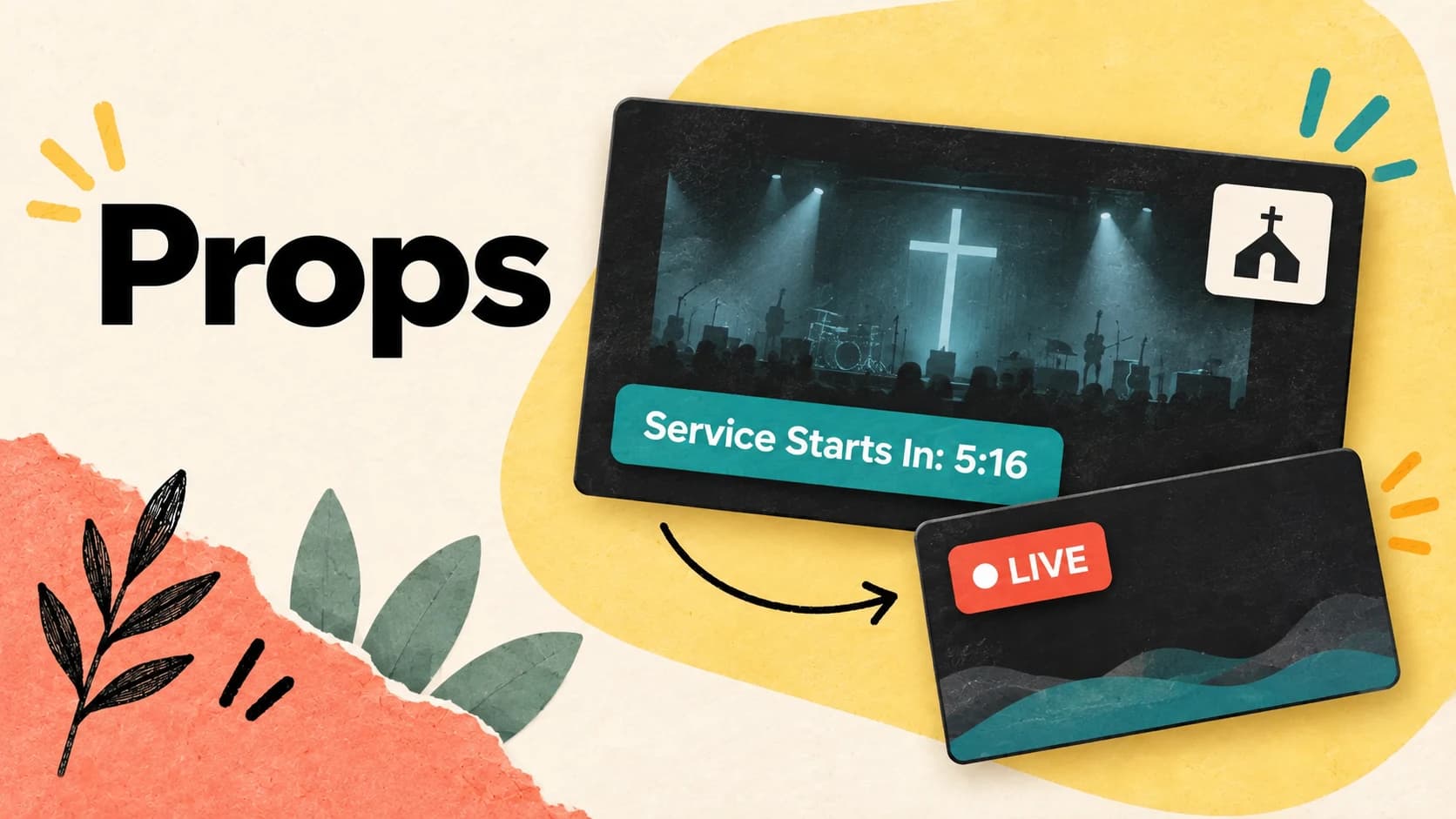
Props follow the familiar overlay idea: save a church logo, countdown design, or supporting graphic once, then show it above the live content when you need it. Several Props can be live together, so the logo and a countdown do not have to become one permanent slide.
Open Props, create the design in its editor, and choose the projector or stream screens where it should appear. Click its tile to show or hide it. Rebuild your most-used Props first and check their size and placement over real service content.
07
Rebuild your Macros as Actions
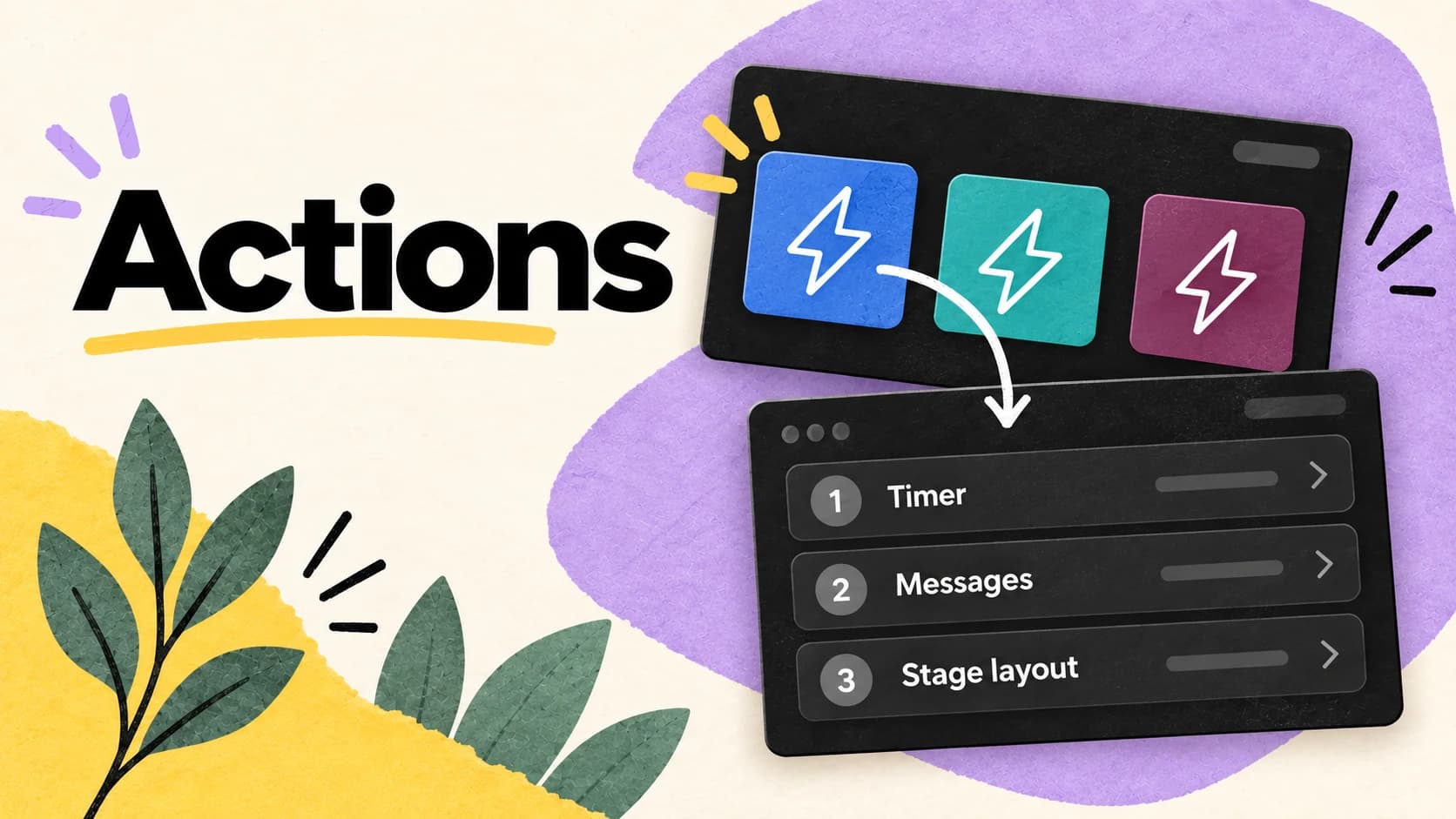
If your ProPresenter workflow uses Macros, look for Actions in LlamaPresenter. A saved Action combines ordered steps into a named, colored button. The familiar goal is to run a service cue with one click.
Open Actions from the lightning-bolt control, create a new Action, and use Add step to build its sequence. For a Service starting cue, you might clear old Messages, start a timer, show a welcome Message, and select the required Look or Stage layout. Put clearing steps before showing new content so a later clear does not remove what you just put up.
Save the Action and click its tile to rehearse it. You can also right-click a song or presentation slide, open Actions, and attach a saved Action to run when that slide goes live. Your ProPresenter Macros are a useful plan for these cues; recreate their supported steps and verify the result on each output.
08
Bring back your transitions and Messages
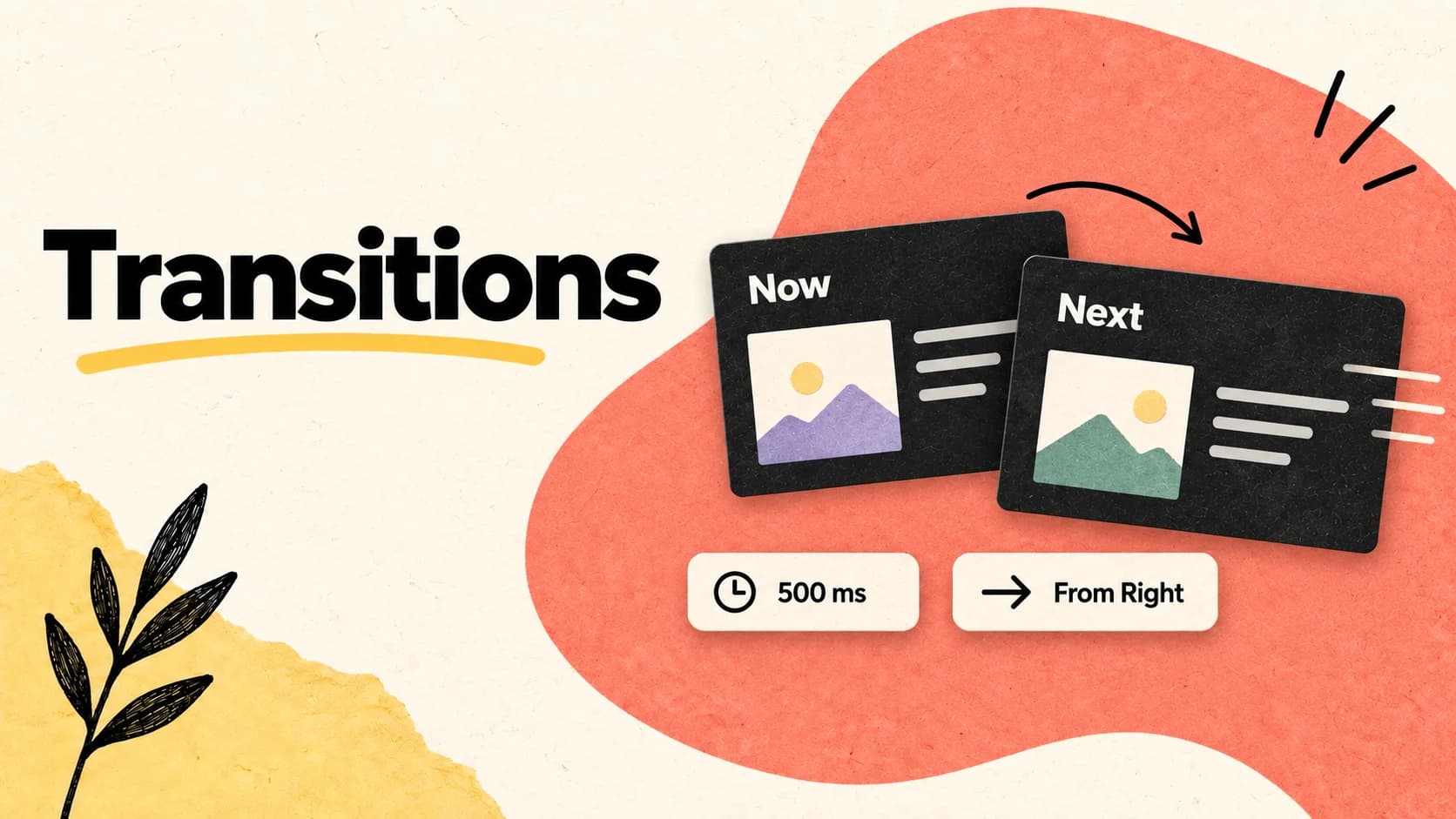
Choose the active Lyrics, Scripture, or Presentations workspace before setting its transition. Use Cut for an immediate change or choose a fade or another effect in the picker, then set its duration. You can override transitions for content that needs different movement, so start with the timing your operators are already comfortable using.
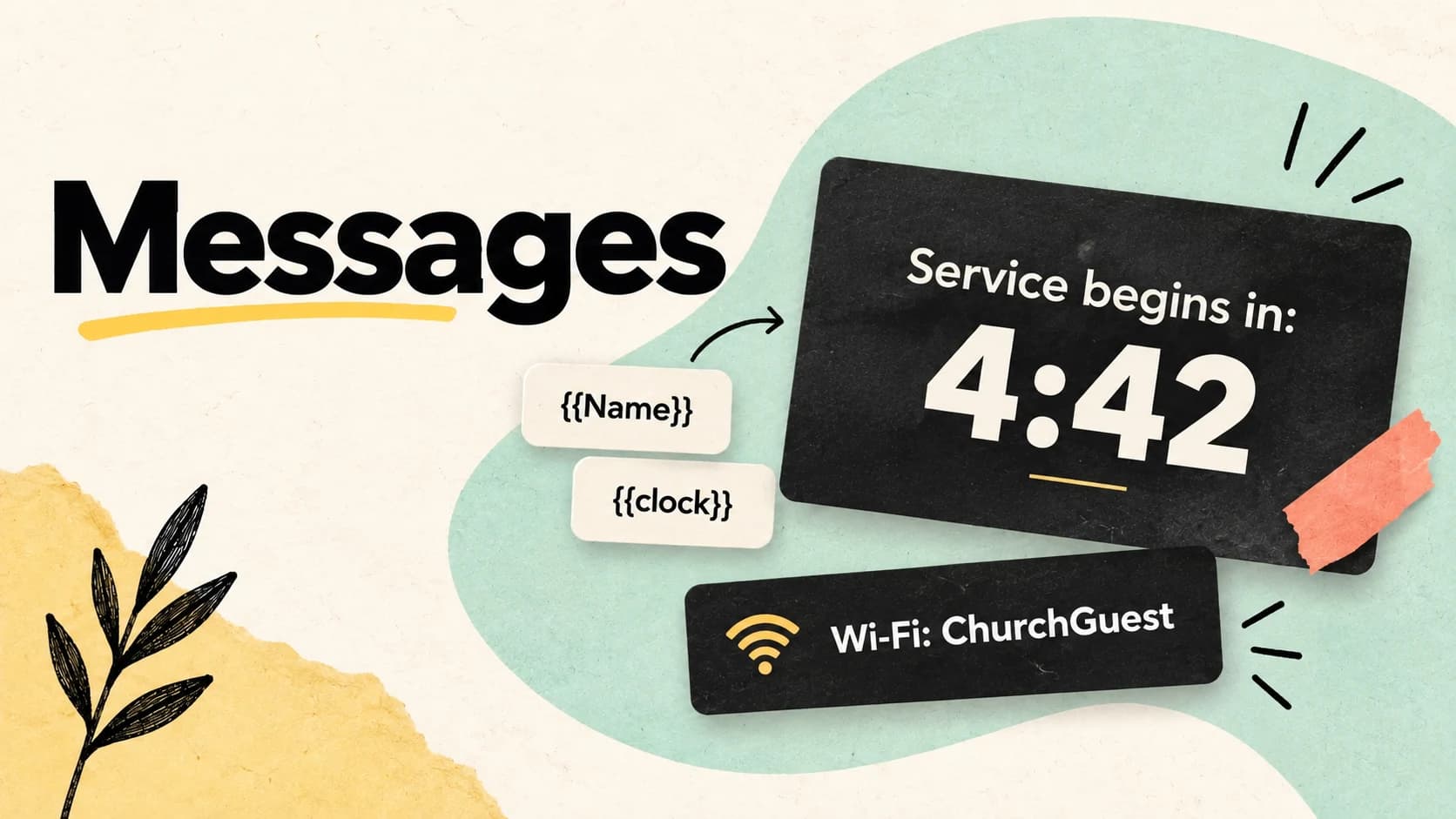
Messages are another familiar concept: show a notice or speaker name independently of the current slide. Each saved Message has its own theme and can target projector or stream screens, use variables or live timers, and remain visible until cleared or dismiss after a chosen time.
Recreate one common notice and one countdown Message, then practice showing, flashing, and clearing them while a song stays live. Use the separate Stage message controls for a private cue to the band or speaker.
09
Make the first service a small, complete migration
The easiest first step is one service you already know. Import its songs, arrange the playlist, prepare the Bible passages and presentations, and recreate only the recurring cues that service needs. This gives the team a complete workflow to learn without having to rebuild the whole library at once.
Run the service from start to finish with an operator who knows ProPresenter. Check the room screens, stream, and stage; switch Looks; show and clear Props and Messages; and trigger the saved Actions. Familiar concepts make the learning easier, and rehearsal confirms that the new setup behaves as your team expects.
- 01Review every imported song and its presentation order.
- 02Confirm each screen’s destination, dimensions, and lyric or scripture layout.
- 03Rehearse the Looks, Props, Messages, transitions, and Actions used in that service.
- 04Let another operator run the playlist and check every output before using it live.
Keep these three
The short version
- Import .pro and .proBundle song lyrics to avoid retyping your song library.
- Build on familiar libraries, screens, Looks, layouts, layers, Props, and Messages.
- Recreate Macros as Actions, then rehearse one complete service on every output.