Guide 024 min read
LlamaPresenter - Multilingual Song Lyrics

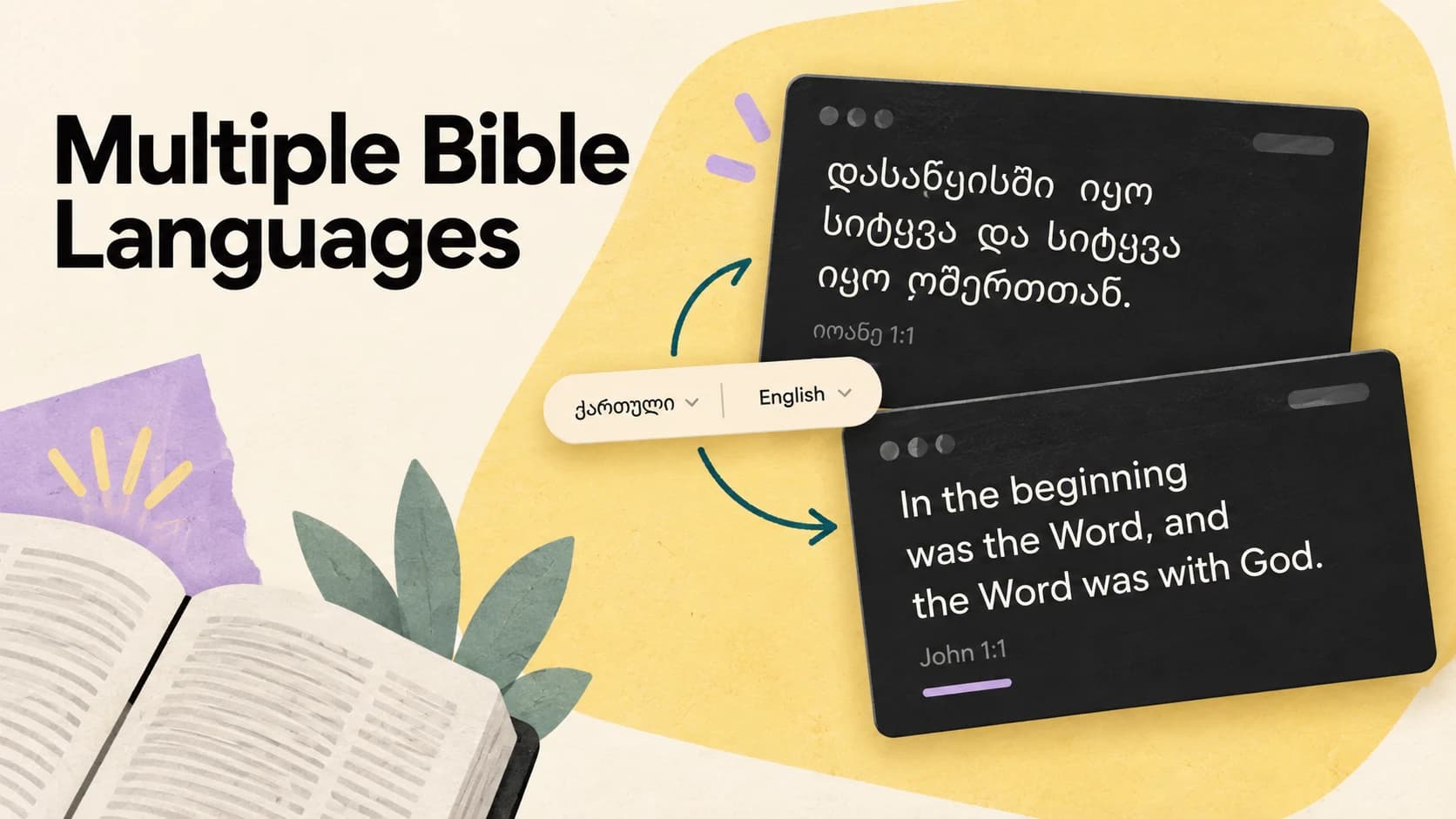
A translated song should not become two separate presentations that an operator has to keep in step. LlamaPresenter stores each language on the same lyric slide, so the original and translation always move together.
You can show both languages in the room, choose a single language for a confidence monitor or lower third, and build the visual treatment once in the template editor.
What this guide helps you do
Prepare one bilingual song, keep every lyric slide synchronized, and design exactly how both languages appear.
01
See both languages live together
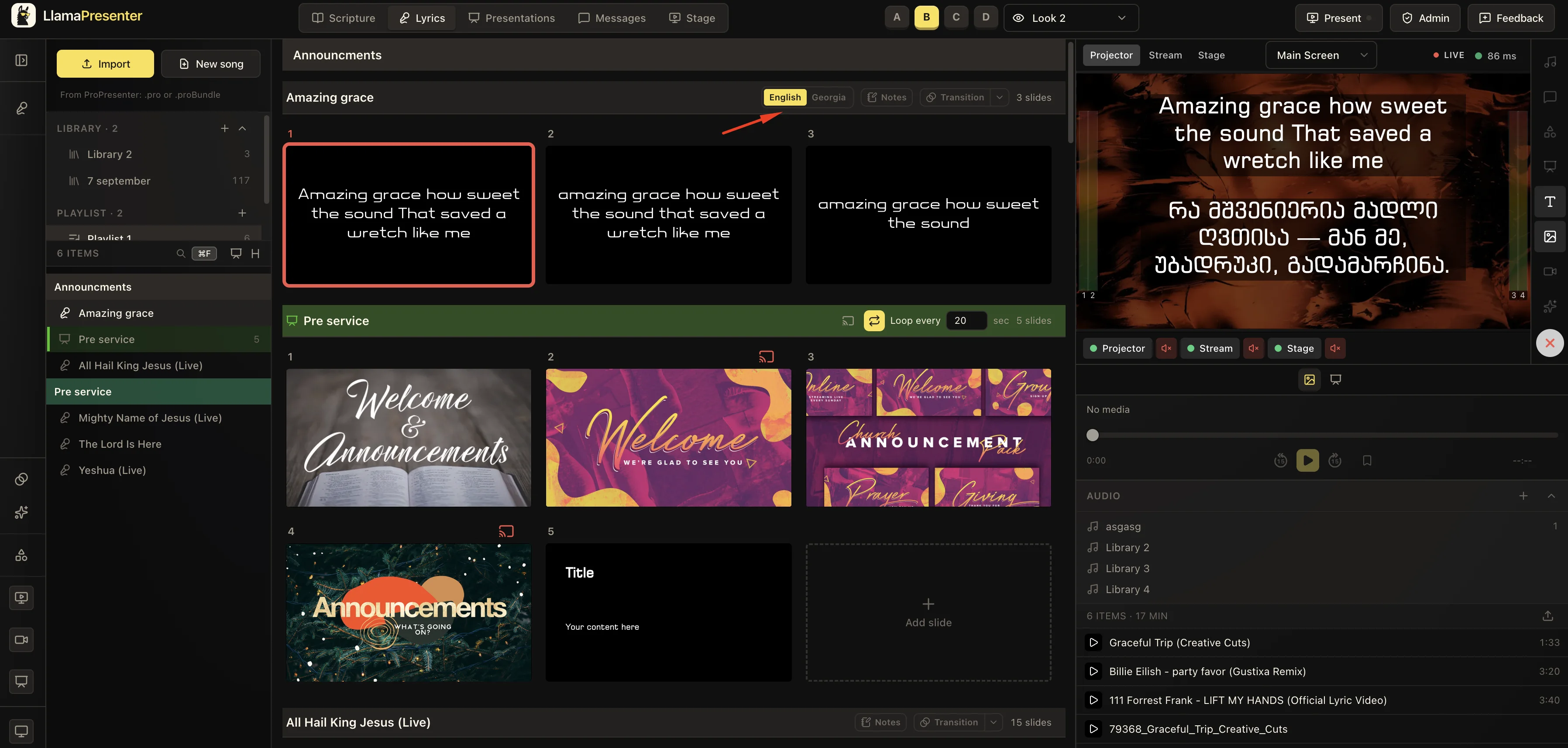
In the Lyrics workspace, every slide remains a single cue even though it carries both language versions. Select a slide once and the projector renders the bilingual layout—there is no second presentation for the operator to follow.
The live preview shows the real result before it reaches the room, so you can confirm the line breaks, spacing, background, and language order while keeping the rest of the service visible and ready.
02
Build one song in two languages
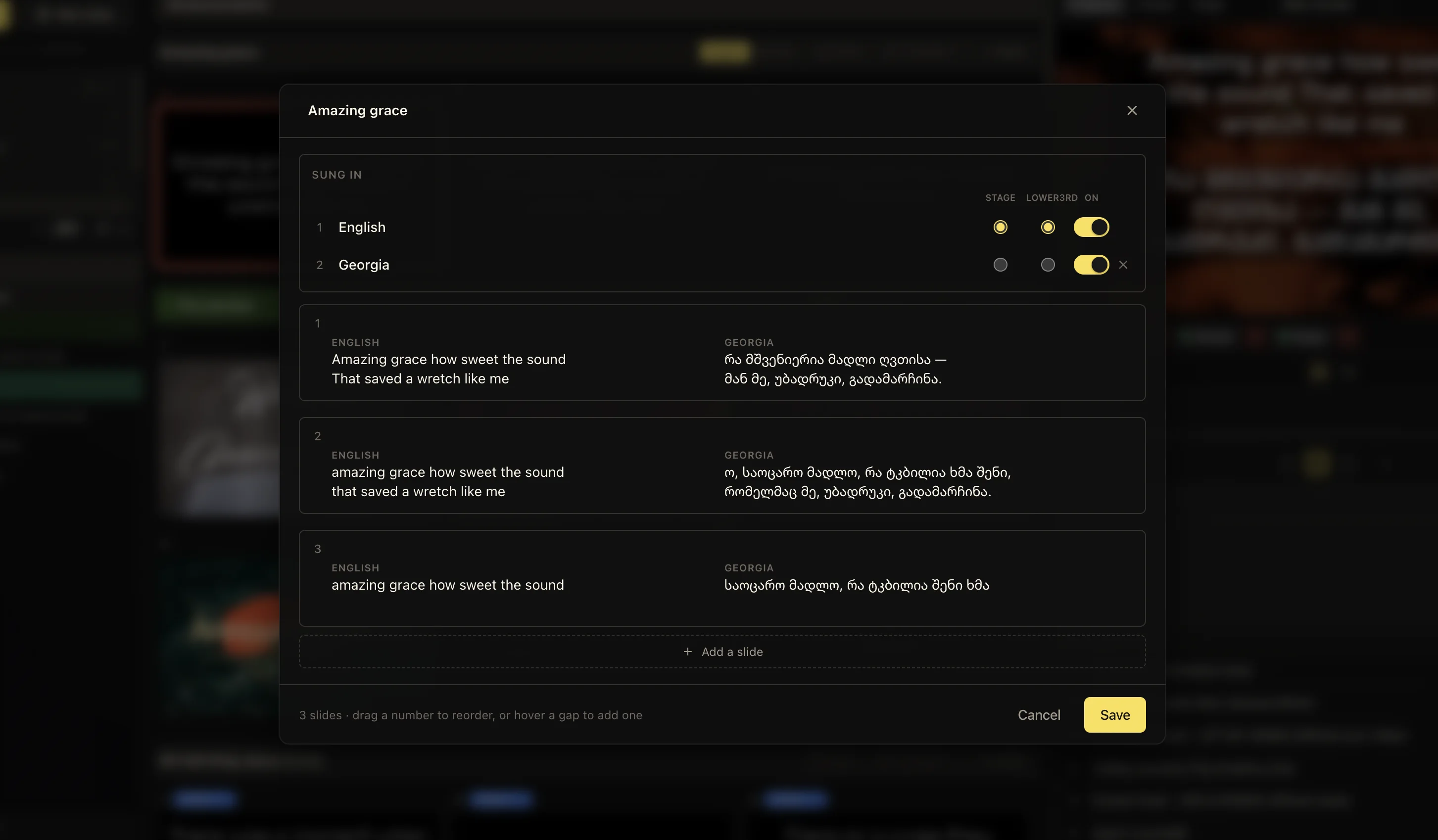
Open a song and add its second language under “Sung in.” Name the language, then enter both versions beside each other on every lyric slide. The two text blocks belong to the same slide, so changing slides advances them together.
This keeps the song structure simple. Verses, choruses, and bridges stay in one order, and the operator never has to trigger a second deck or repair two timelines during a service.
- 01Open an existing song or create a new one.
- 02Choose “Add a language” and name the original and translated languages.
- 03Enter the matching lyrics on each slide, then save the song.
03
Choose what each audience sees
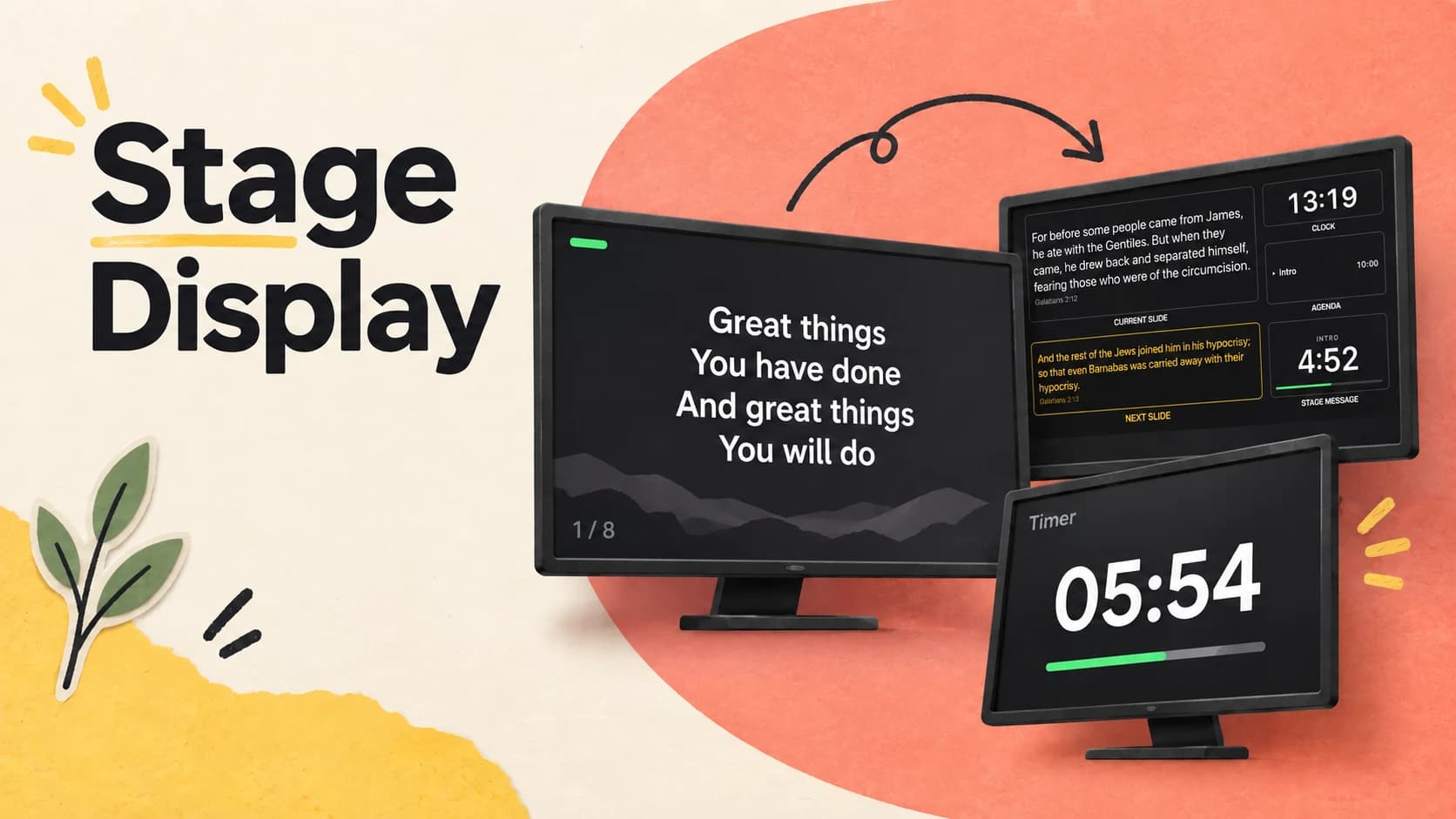
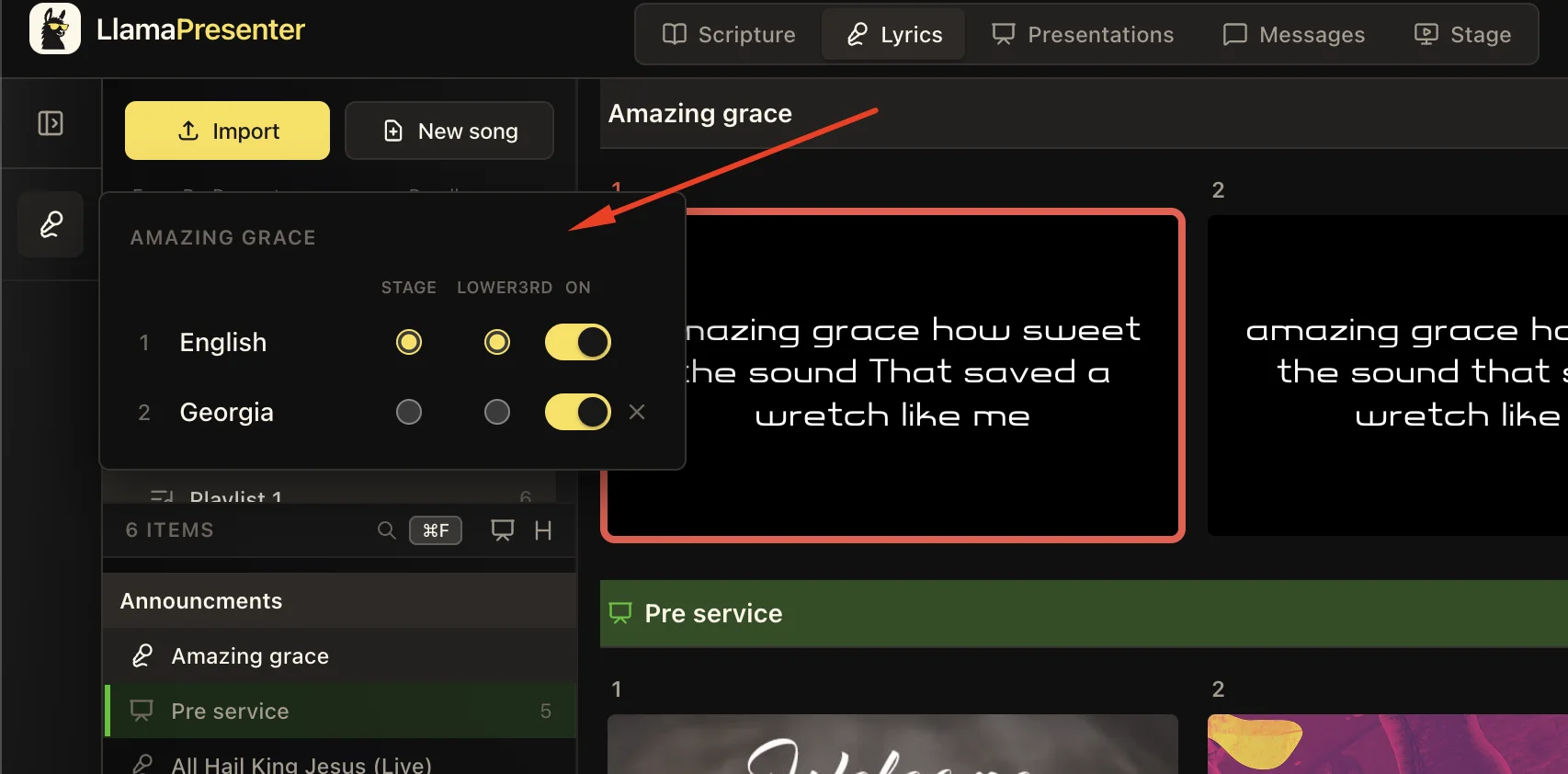
Turn on both language rows when the projector should show the original lyrics and translation together. The Stage and Lower3rd selectors can each use one language, so musicians can read the language they need while the livestream receives a cleaner single-language graphic.
These choices change the destination, not the song. Everyone still follows the same live slide, even when the projector, confidence monitor, and stream use different language combinations.
A practical bilingual setup
Keep both languages on for the congregation, choose the worship team’s language for Stage, and select the online audience’s language for Lower3rd.
04
Style both languages in the template editor
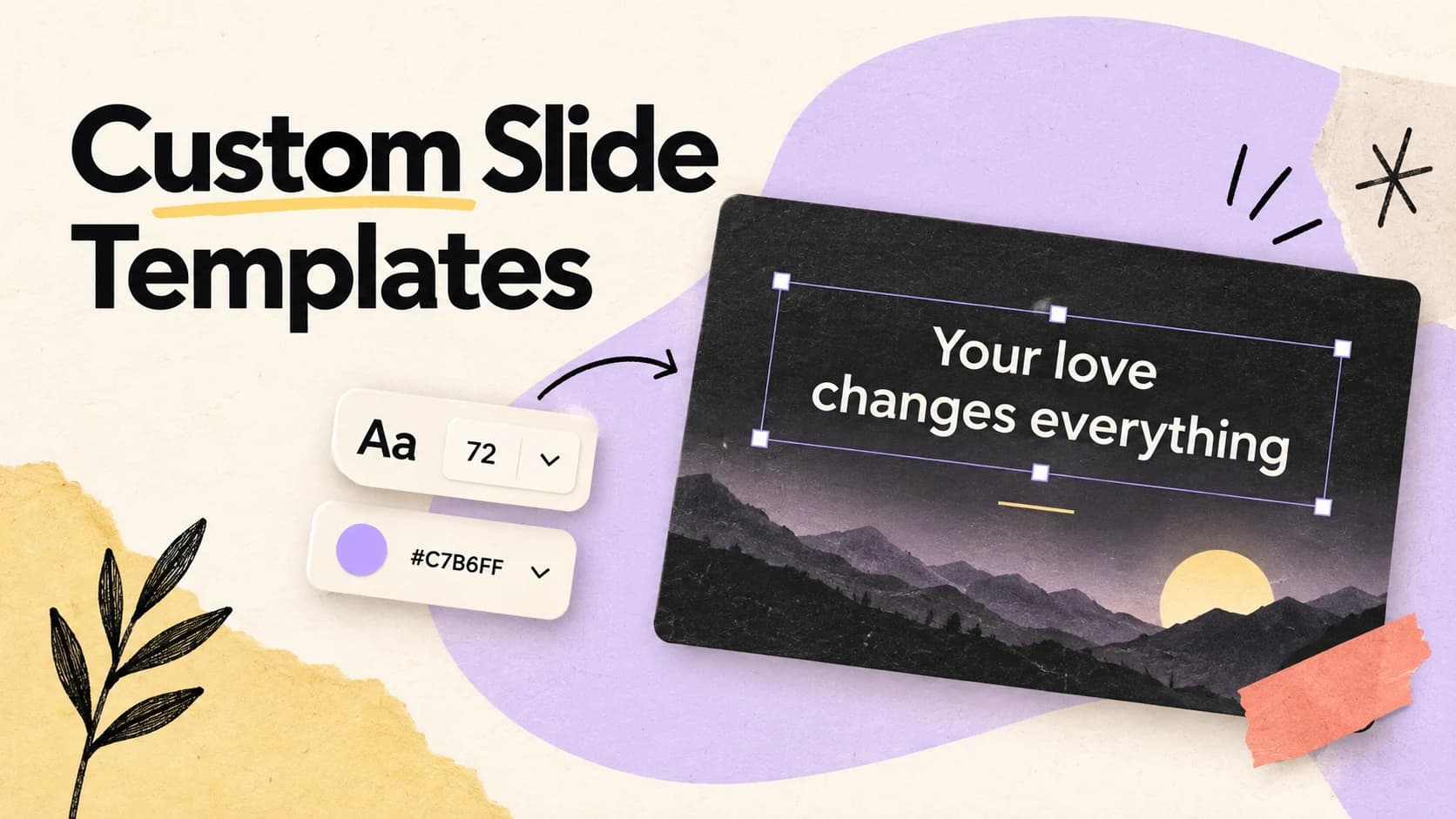
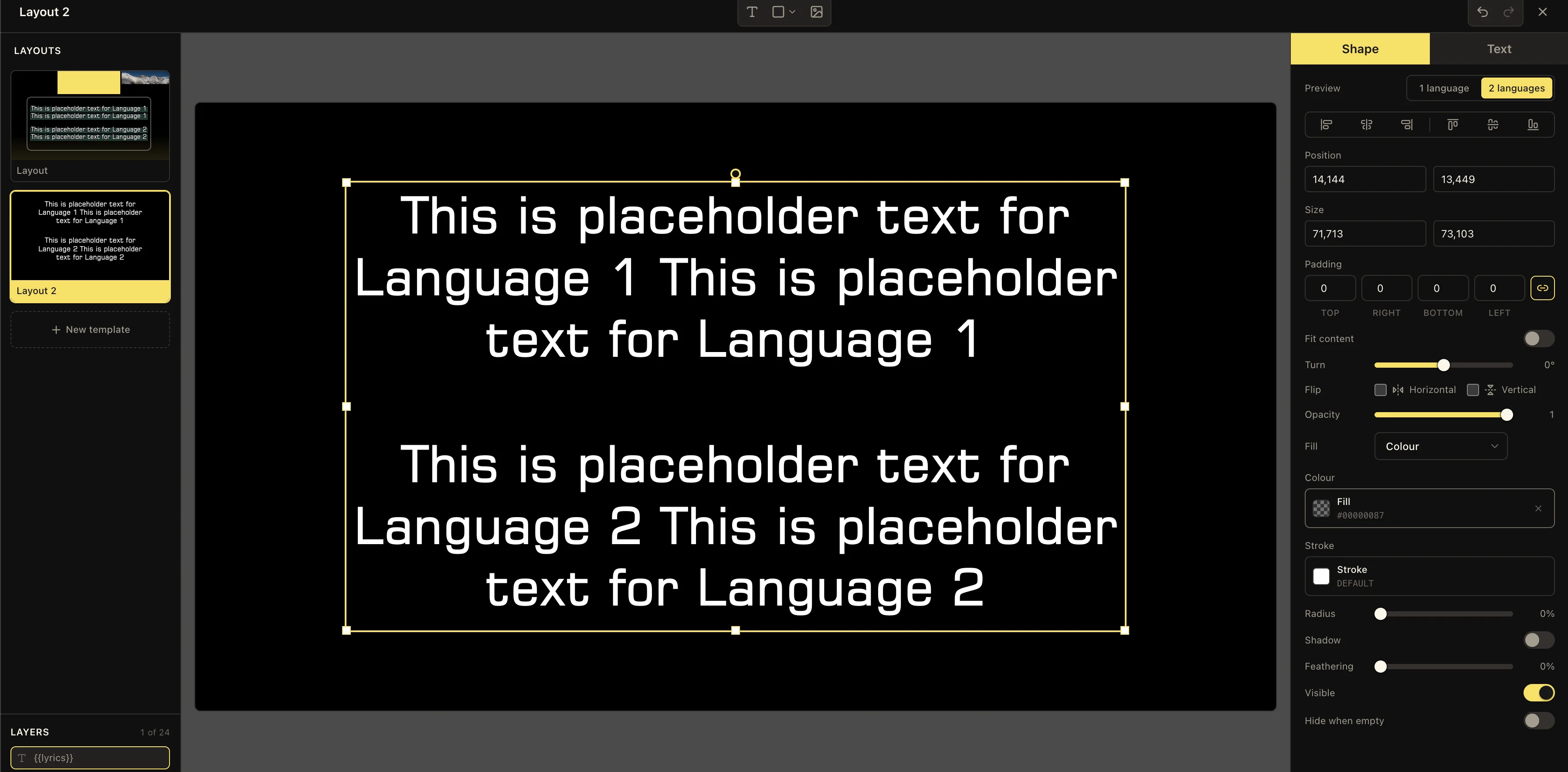
Open the lyrics template editor and switch the preview to “2 languages.” The canvas fills with representative text, making it easy to judge spacing and readability before the service. Arrange the languages in one stacked text area or give each language its own share of the box.
Control the position, typeface, size, alignment, line spacing, colour, outline, shadow, and background treatment just as you would for any lyric design. When the languages use separate areas, the second language can match the first or receive its own typography.
Save the result as a reusable template. New bilingual songs inherit the same visual rules, while their actual words and line lengths can change from week to week.
Keep these three
The short version
- Keep the original lyrics and translation on the same synchronized slides.
- Show both languages in the room while routing one language to stage or lower thirds.
- Save the bilingual layout as a template instead of styling every song again.