Stage view
See what is live, what comes next, the time, the agenda, and the countdown on one confidence monitor.
Stage display guideGive speakers and worship leaders the current slide, what comes next, the time, and private cues on a confidence monitor only they can see. Stage View follows the same presentation that runs the projector and livestream.

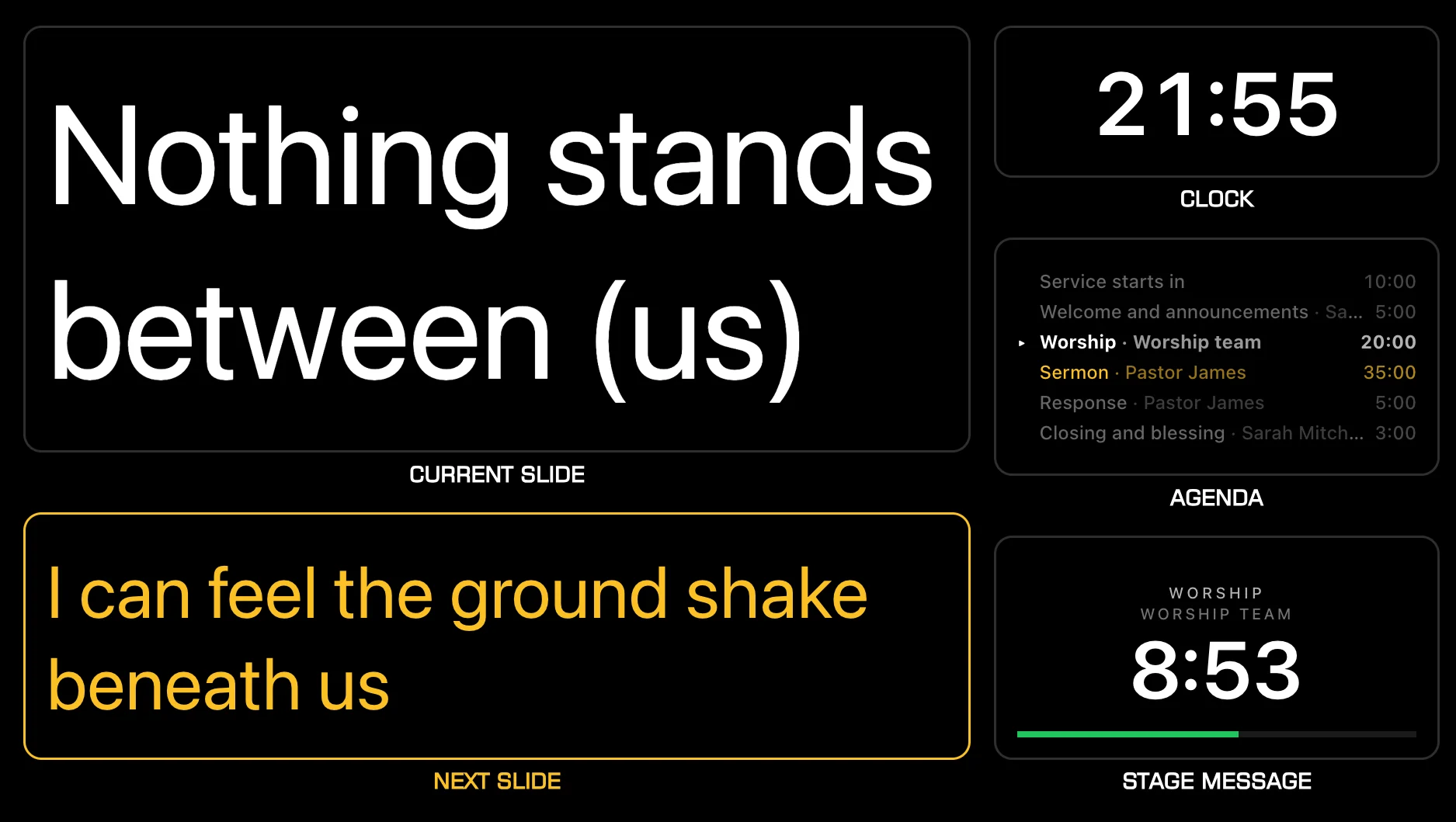
Put the current slide, next slide, clock, agenda, and timer where the people on stage expect to find them.
See what is live, what comes next, the time, the agenda, and the countdown on one confidence monitor.
Stage display guidePlace and resize each field on the canvas, style it in the inspector, and save a layout for the worship team, the speaker, or backstage.
Build a stage layout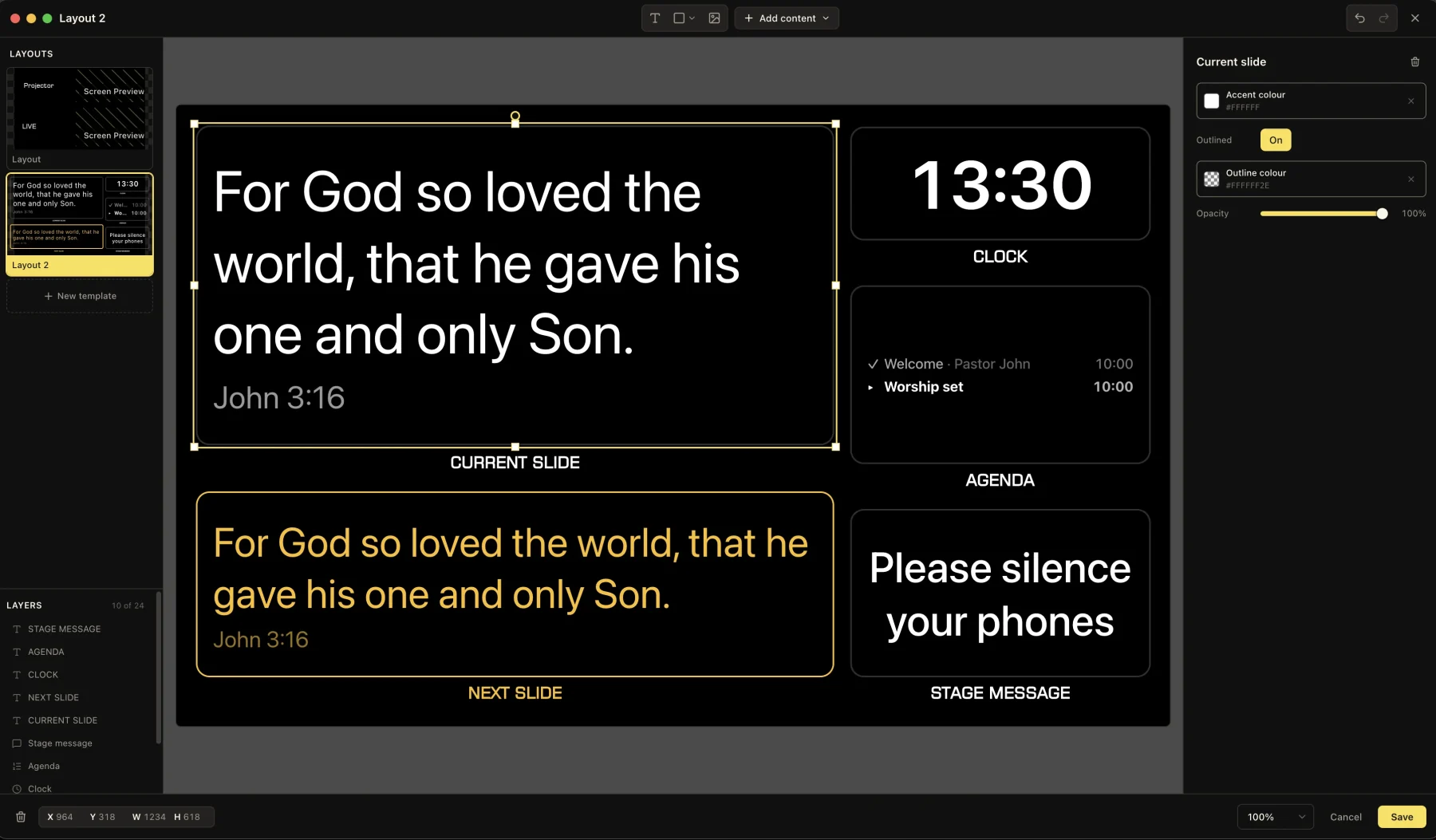
Check the projector, livestream, and stage outputs together from one workspace without changing what is live.
Check outputs with Multiview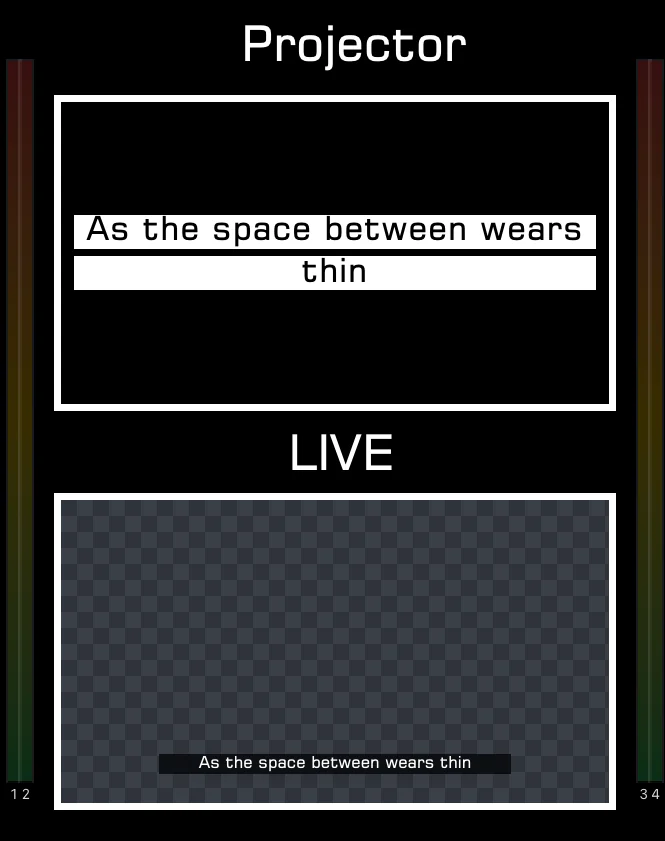
Run the clock and send private messages that only the people on stage can see.
Build the order of service as agenda timers, each with a speaker, labels, and notes. Start each item when it begins; one runs at a time, and its countdown stays on stage.
Set up agenda timers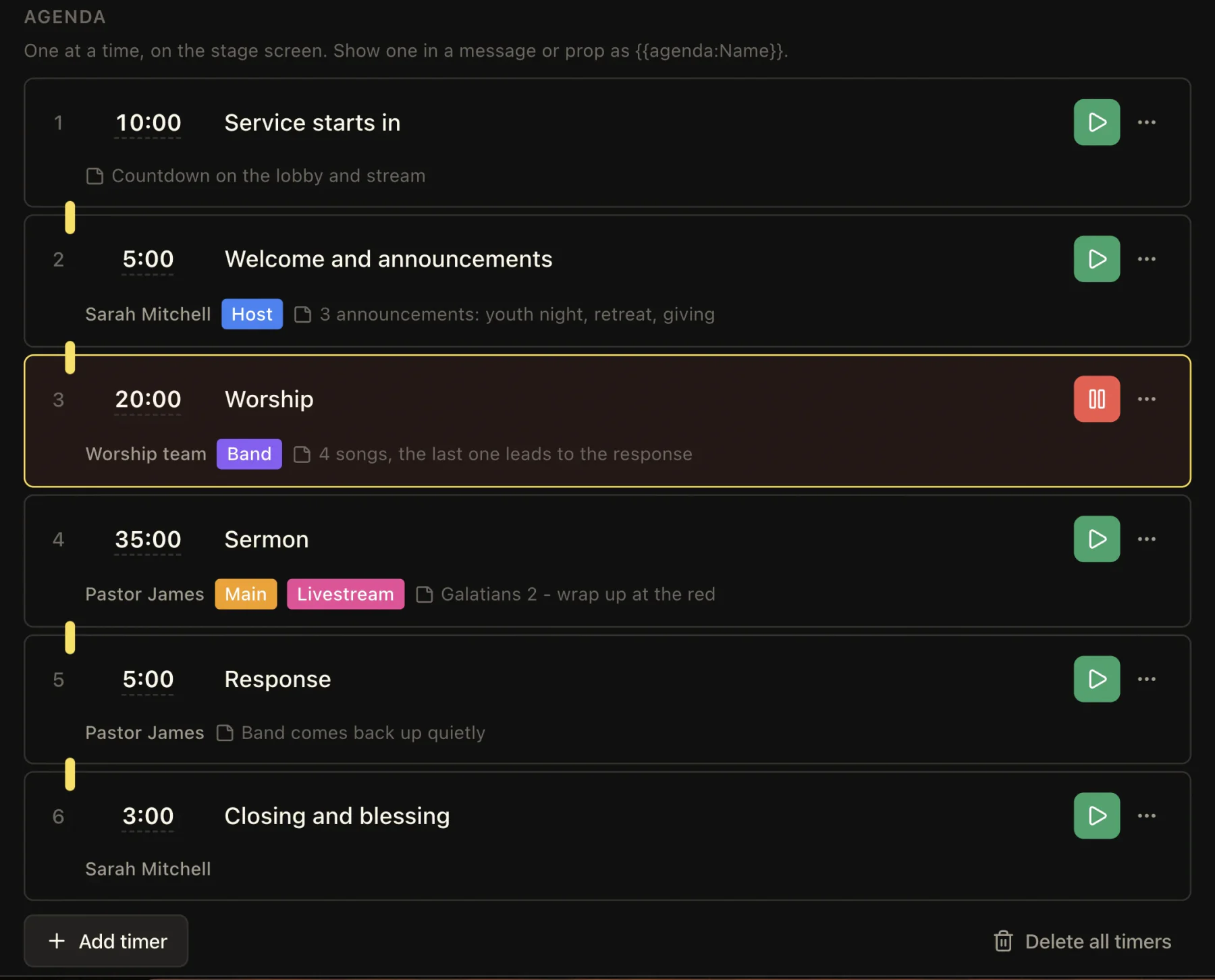
Prepare cues like “Please wrap up” with their own color and size, then show, expand, or flash them on stage. The audience screen stays as it is.
Send stage messagesUse the stage link on the screen facing your pastor, musicians, or production team.
Pick a stage layout and language, with the current slide, next slide, clock, agenda, and timer where the team expects them.
Stage View follows every change made from the console or phone remote.
Start each agenda timer as its part begins, add or remove a minute, and send a stage message when someone needs to wrap up.
A church stage display, sometimes called a confidence monitor, faces the platform and shows useful information such as the current slide, next slide, clock, and countdown.
Yes. Open the Stage View link in Safari on the iPad and place it where the speaker or worship team can see it.
Yes. The stage layout editor lets you place and resize the current slide, next slide, clock, agenda, timer, and stage message fields, then save more than one layout.
Yes. Stage messages appear only on the stage display. Prepare them before the service, then show, expand, or flash one when it is needed.
Yes. Stage View can use a different language from the projector or livestream.
Yes. The timer also has its own output for a screen that should show the countdown without slide content.
Stage View works in the browser on the Free plan. Pro adds extra outputs and the Mac and Windows desktop app.
Pricing
Stage View works in the browser on Free. Choose Pro for extra outputs and the Mac and Windows desktop app. One subscription covers web and desktop.
See what each plan includesThe essentials for your church service.
$0forever
No card required.
Desktop access and more room to create.
$19per month
Monthly subscription. Cancel any time.
A seat activates the desktop app on one computer, with all of its screens and remotes. Pro includes 1 seat. A second campus, youth room or kids' service on its own computer? Add a seat for $9 a month.
Seats
1 seat included with Pro
$19/month
$19 Pro, before applicable tax
Set up stage layouts, private messages, Multiview, and stage timers step by step.
Build agenda timers for the order of service and show them on stage.
Run the projector, livestream, and stage outputs from one console.
Search scripture and show it on the projector, stage, and stream.
Compare LlamaPresenter timing tools with a standalone stage timer.
Compare stage, presentation, livestream, and remote-control workflows.
Open the stage output on any screen the team can see, then keep the slides, the clock, and your cues in front of them.
Try LlamaPresenter