Guide 054 min read
LlamaPresenter - Stage Display
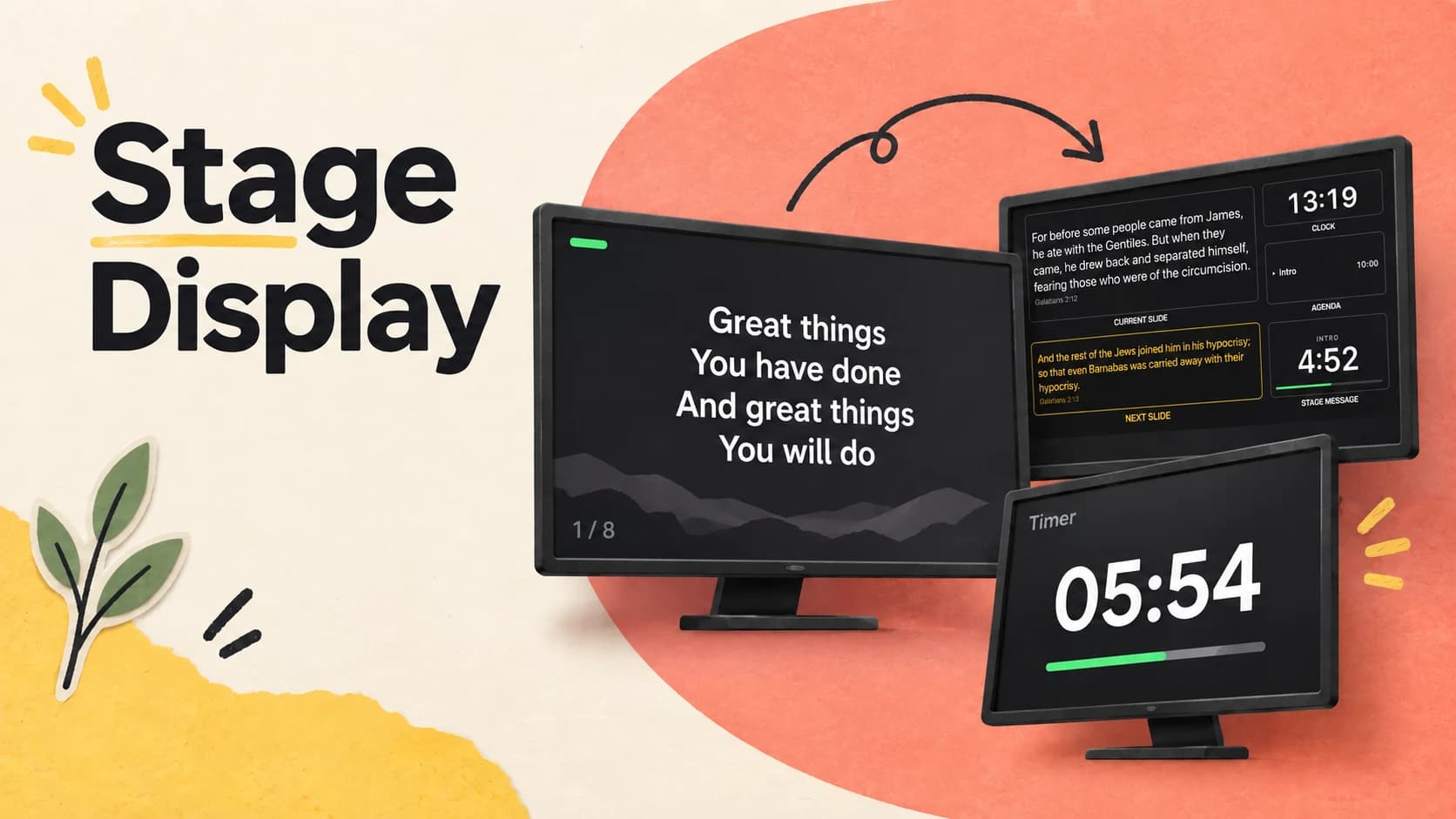
The audience screen explains the service to the room. The stage screen does something different: it removes uncertainty for the people leading it.
A useful confidence monitor answers a handful of questions at a glance. What is live? What comes next? How much time is left? Are we early or late? The screen should answer those questions without becoming another thing the team has to interpret.
What this guide helps you do
Give the people on stage the next slide, private messages, and the right timer.
01
Send private messages to the stage
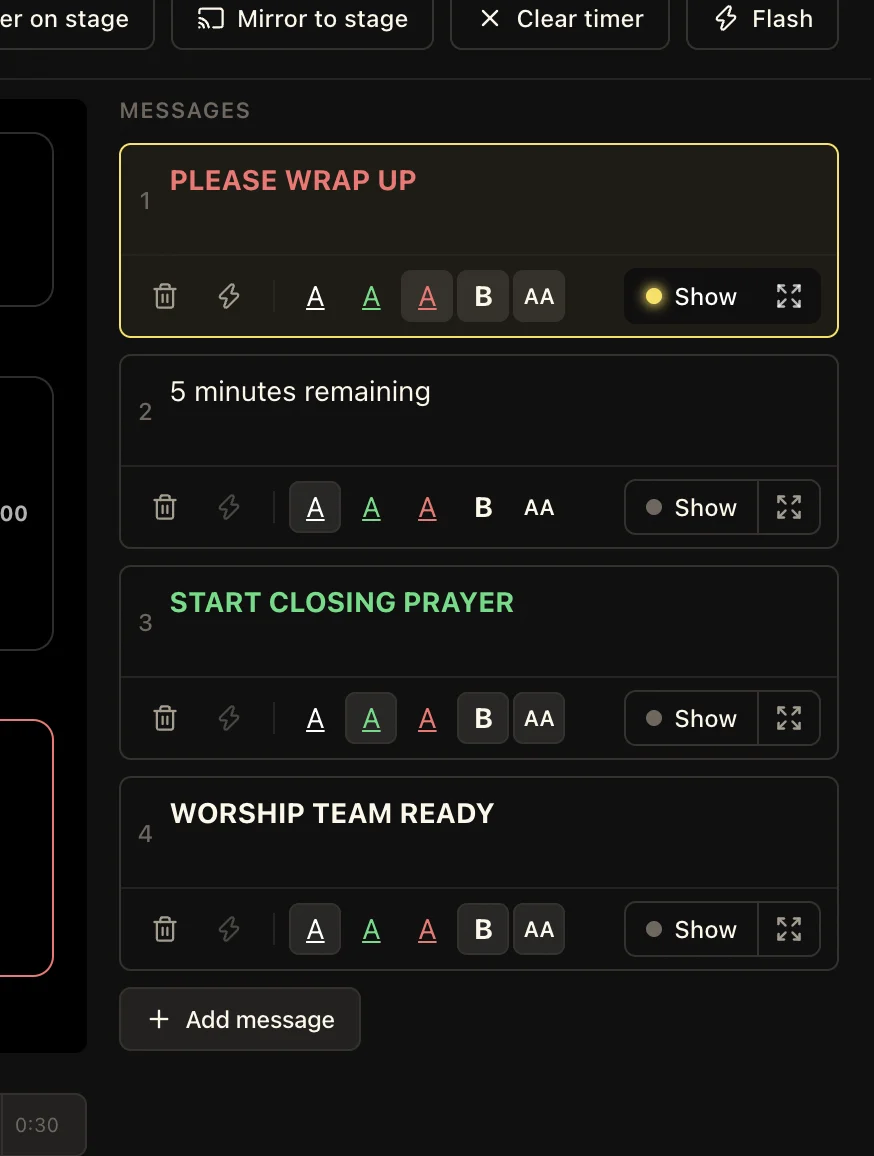
Stage messages let the operator cue a speaker, worship leader, or production team without putting anything on the audience screen. Keep repeatable messages such as “Please wrap up,” “5 minutes remaining,” or “Start closing prayer” ready before the service.
Each message can have its own colour, emphasis, and text size. Show it inside the stage layout, expand it when it needs the whole screen, or flash it when the cue is urgent. Turning one message off does not disturb the slides or timer.
02
Build a stage layout for each team
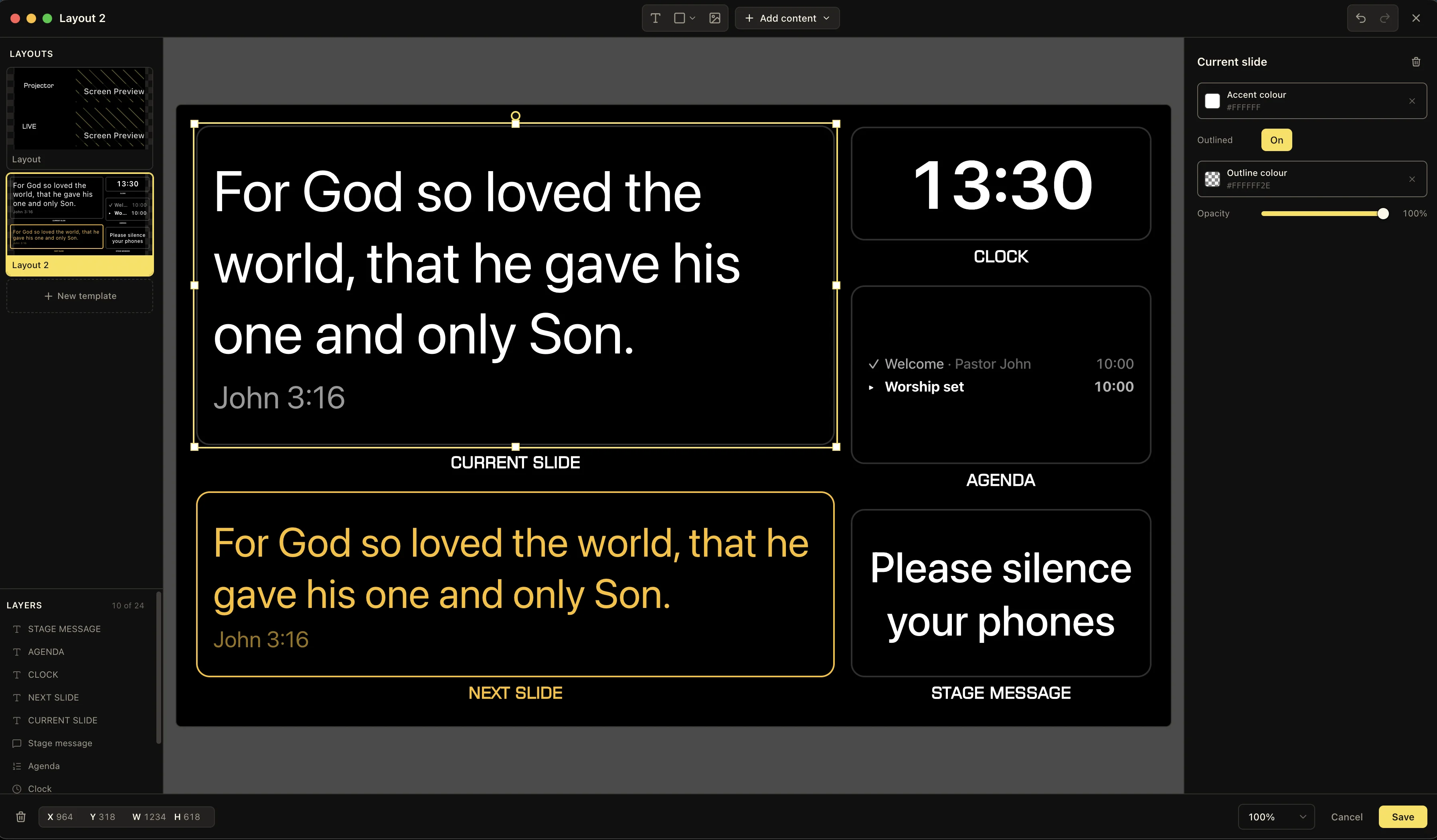
The layout editor turns the stage display into a purpose-built workspace. Place the current slide, next slide, clock, agenda, timer, and stage-message fields exactly where the people on stage expect to find them.
Resize fields on the canvas and tune their accent colour, outline, and opacity in the inspector. Save more than one layout when the worship team, speaker, and backstage crew need different information instead of squeezing every field onto one screen.
03
Check every output with Multiview
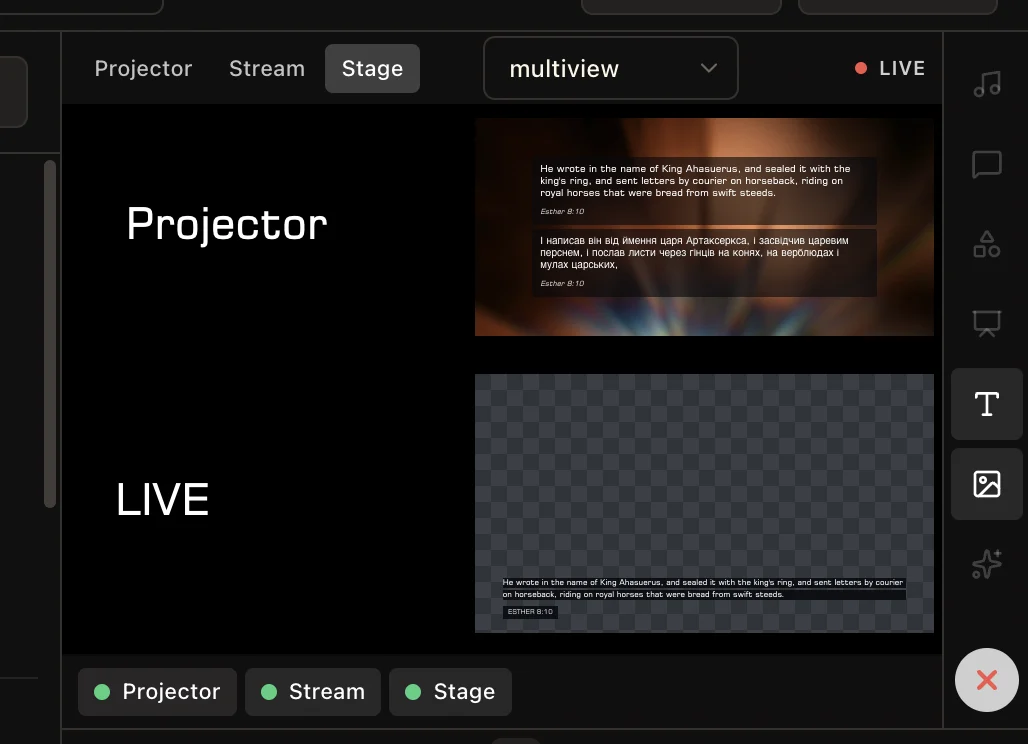
Multiview lets the operator inspect several outputs from one workspace. Keep the projector, livestream, and stage display visible together instead of opening each destination separately or waiting for someone in the room to report a problem.
A quick glance confirms that every output is connected and receiving the intended composition. This is especially useful when the stage layout contains timing and speaker cues that should never appear on the projector or stream.
04
Run stage timers with precise controls
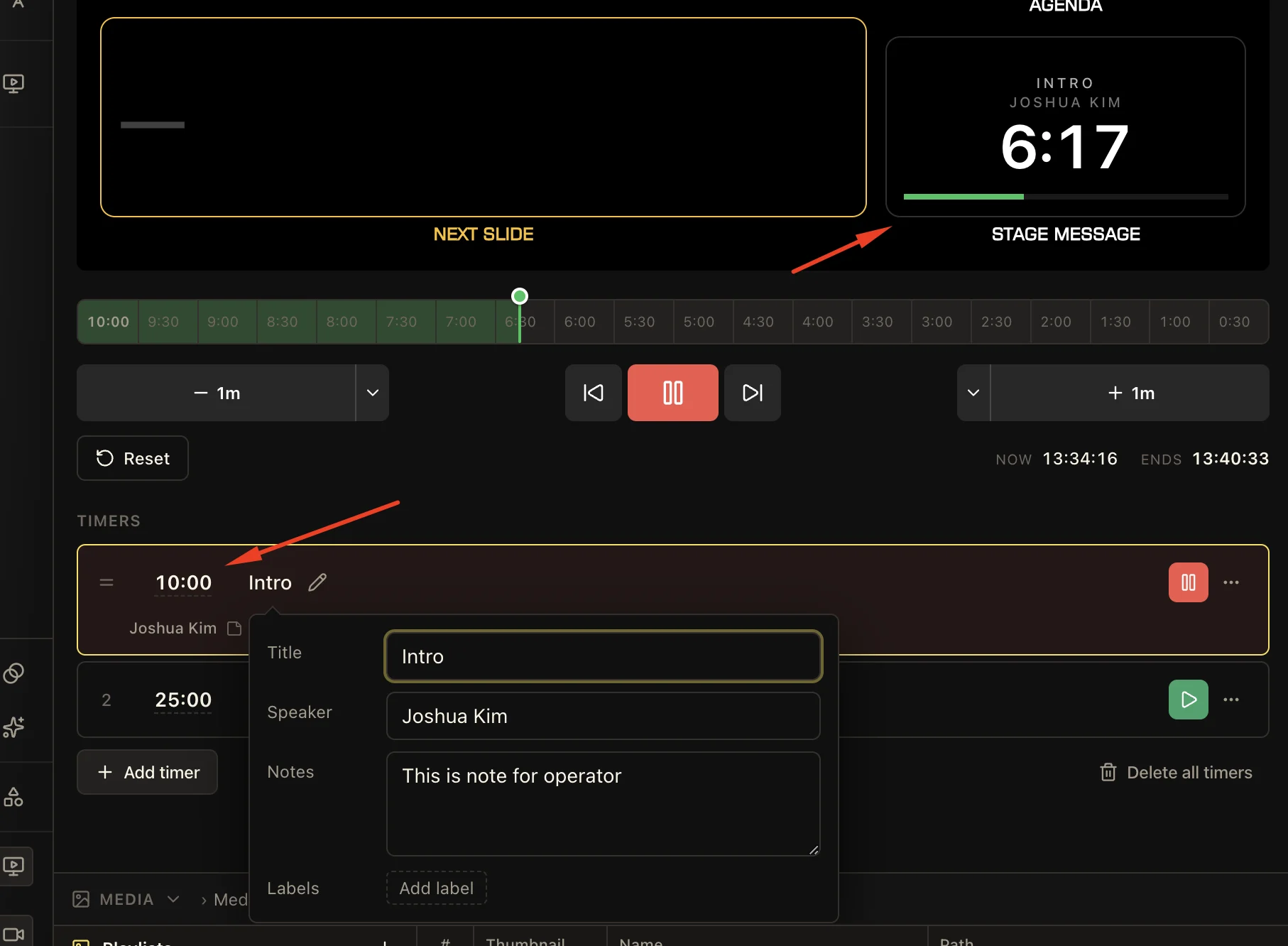
Stage timers are more than a single countdown. Create separate named timers for the introduction, message, announcements, or rehearsal, then attach the speaker and private operator notes so everyone knows what the clock belongs to.
Start, pause, resume, reset, or jump between timers from the console. Add or remove a minute without rebuilding the schedule, and use the progress bar, current time, and calculated end time to see the effect immediately. The active timer can stay visible on stage beside the agenda and slides.
- 01Create a timer with a title, duration, speaker, and any notes the operator needs.
- 02Start it from the timer list and adjust the remaining time in one-minute increments when the service changes.
- 03Show the active timer in the stage layout while keeping its controls private in the console.
Keep these three
The short version
- Send private, styled cues to the stage without affecting the audience screen.
- Build reusable layouts and inspect every destination from Multiview.
- Run multiple named timers with precise controls and useful operator context.