Guide 015 min read
LlamaPresenter - Show Bible Verses
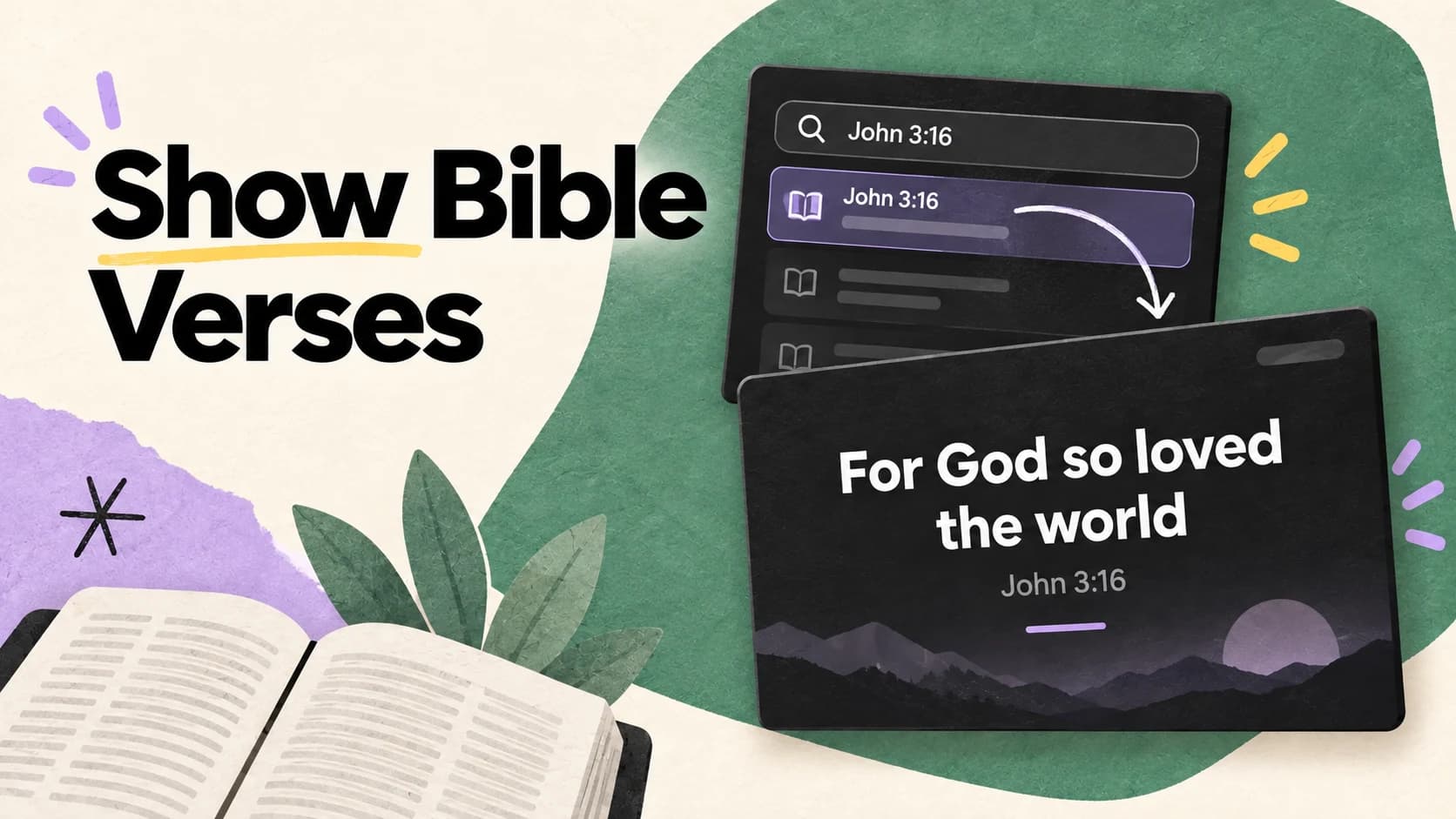
Showing a Bible verse should begin with the reference, not with copying text into a presentation. LlamaPresenter turns a passage into ready-to-present verse cards while keeping the translation, reference, and sequence together.
You can type an exact reference, browse through a book, or search for words you remember. Once the passage is added, organize the reading and choose how scripture should look on each screen.
What this guide helps you do
Move from a reference or remembered phrase to clear, ordered, ready-to-present Bible slides.
01
Add a passage by reference
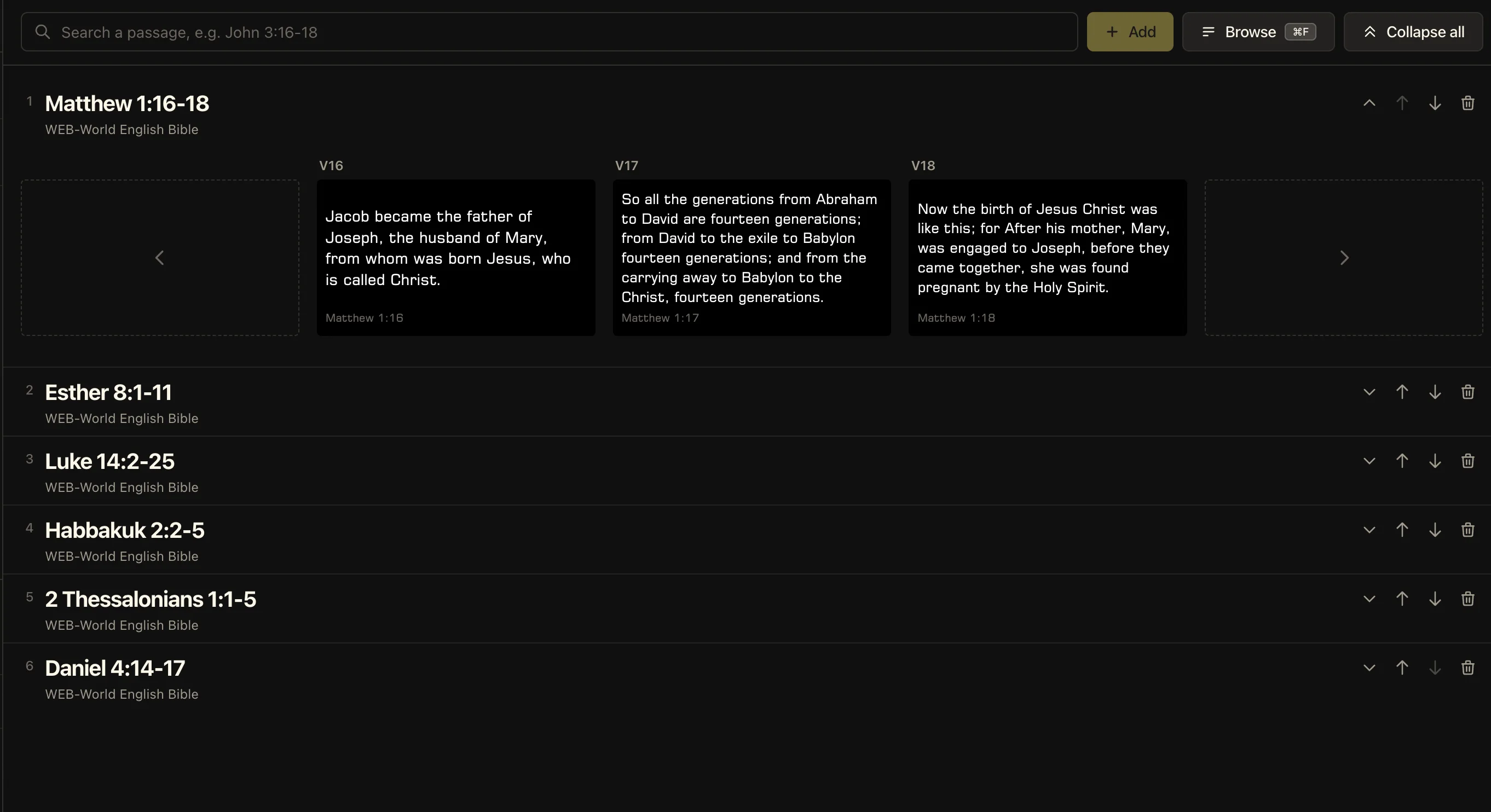
Open the Scripture workspace and type the reference you need, such as “John 3:16” or “Matthew 1:16-18.” Choose Add and LlamaPresenter retrieves the passage from the active Bible translation, creates its verse cards, and selects the first one for presentation.
Add the readings for the service in the order you expect to use them. Each passage remains its own block, so a sermon text, responsive reading, and closing verse can stay prepared in the same workspace.
- 01Choose the Bible translation your service will use.
- 02Type a reference with a single verse, verse range, or chapter.
- 03Choose Add, then select any verse card when you are ready to show it.
02
Choose the translation and its outputs
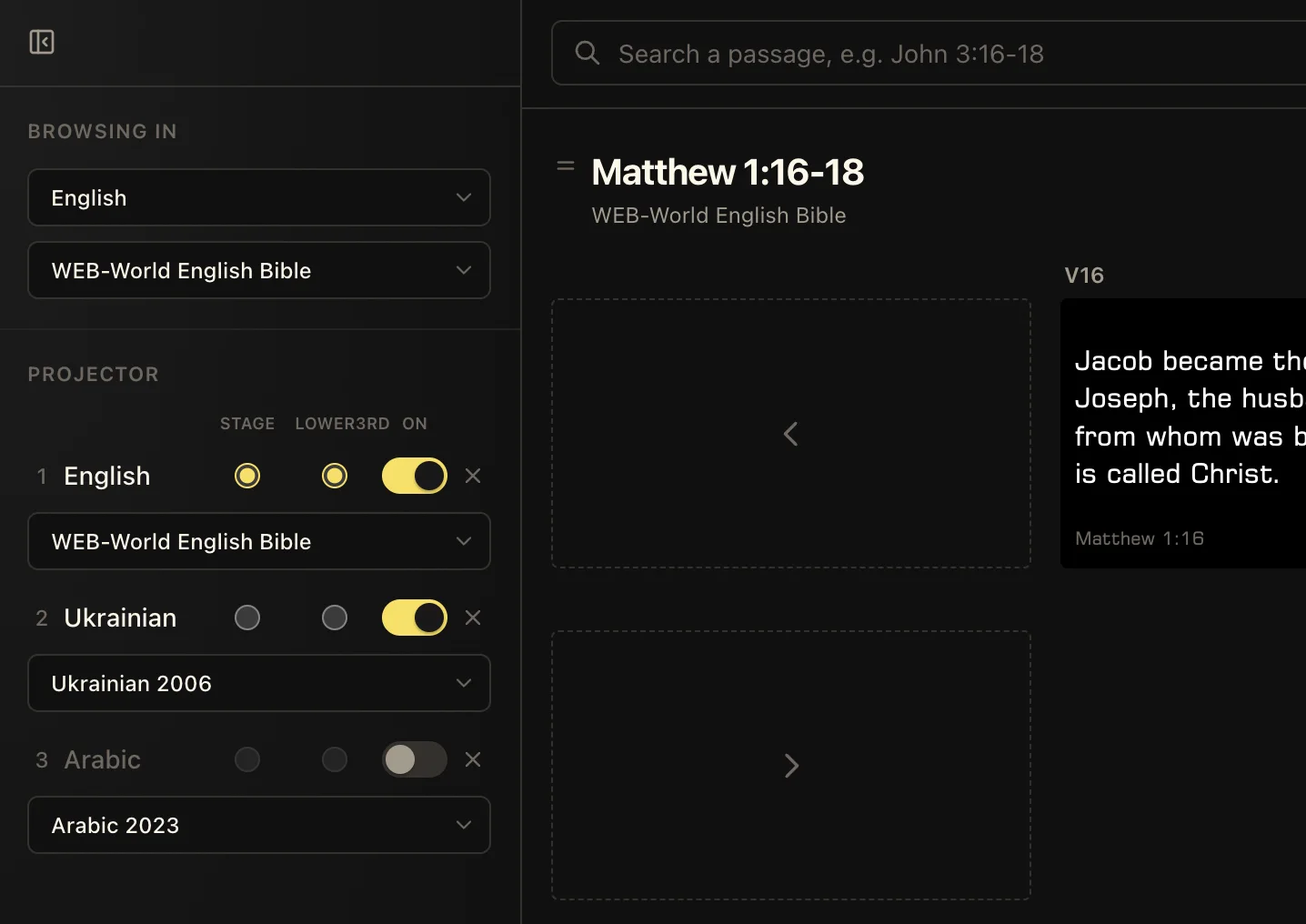
The Browsing in controls decide which language and Bible edition you use while finding passages. Choose the translation your operator should read, then add the reference as usual.
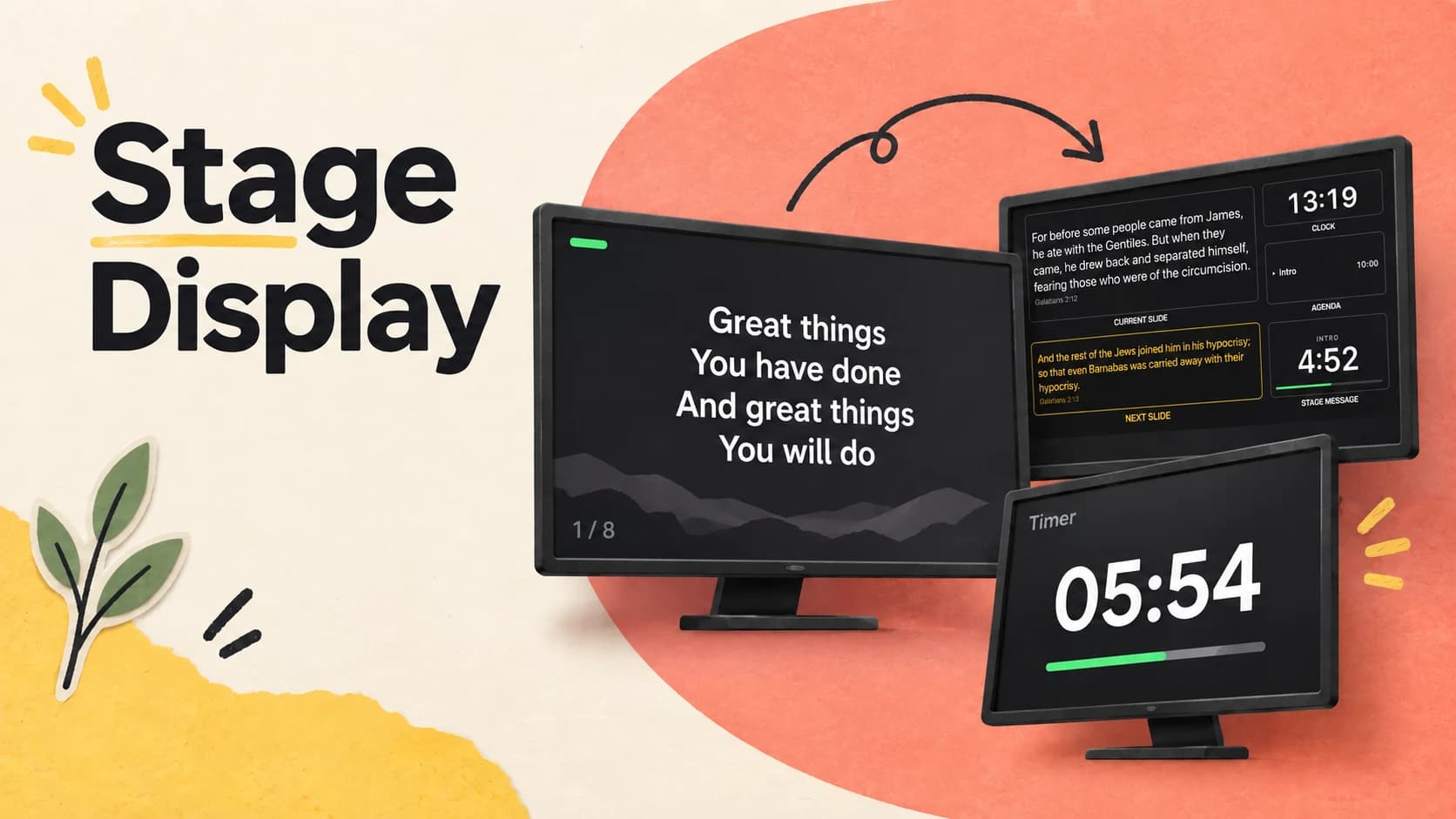
Under Projector, turn each scripture language on or off for the congregation. The Stage and Lower3rd selectors can use a single language even when the projector carries more than one, so each audience receives the version it needs without changing the live verse.
Need several languages together?
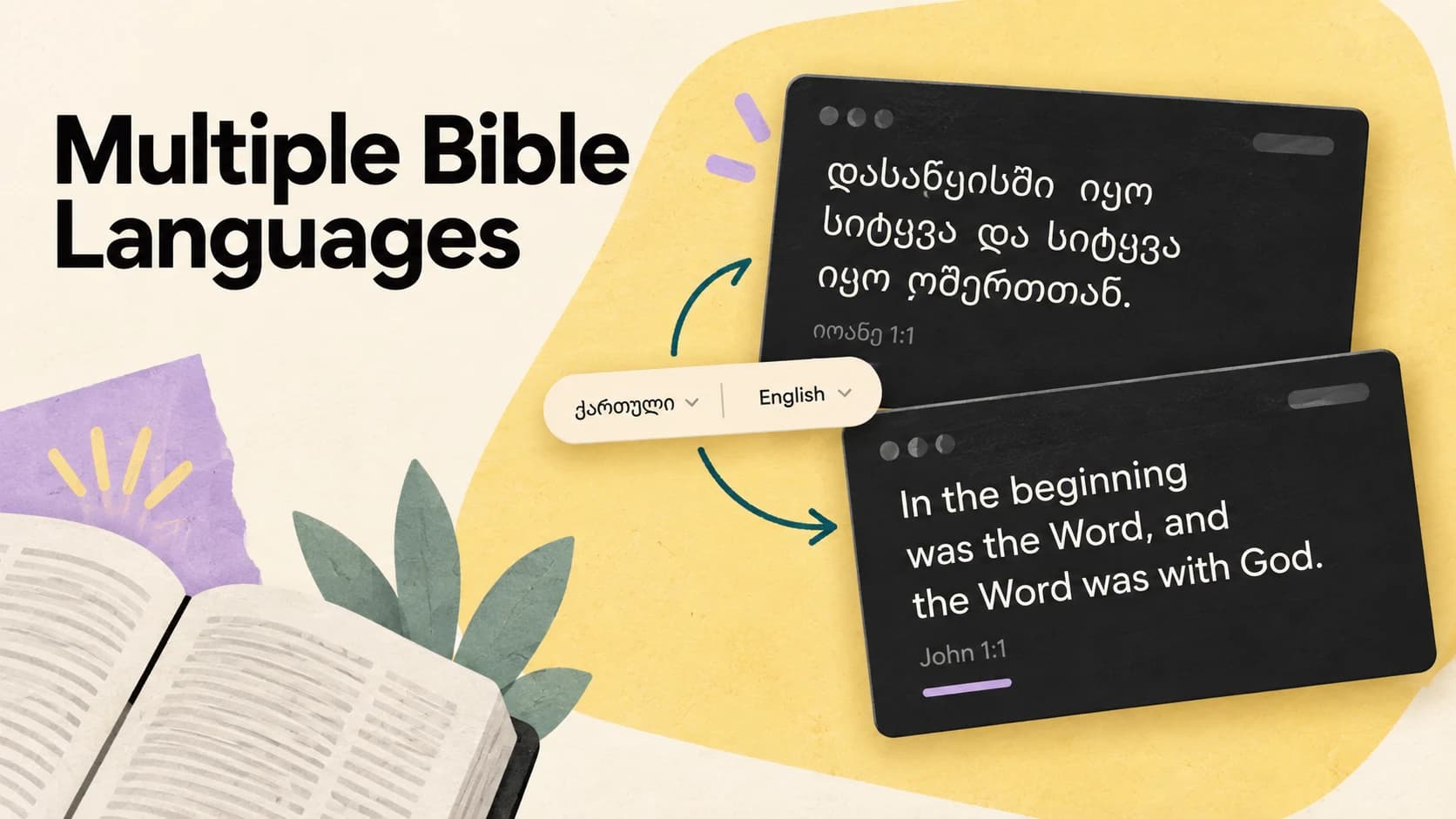
The “Multiple Bible Languages” guide explains how synchronized translations work across the projector, stage display, and stream.
03
Browse a book and select a verse range
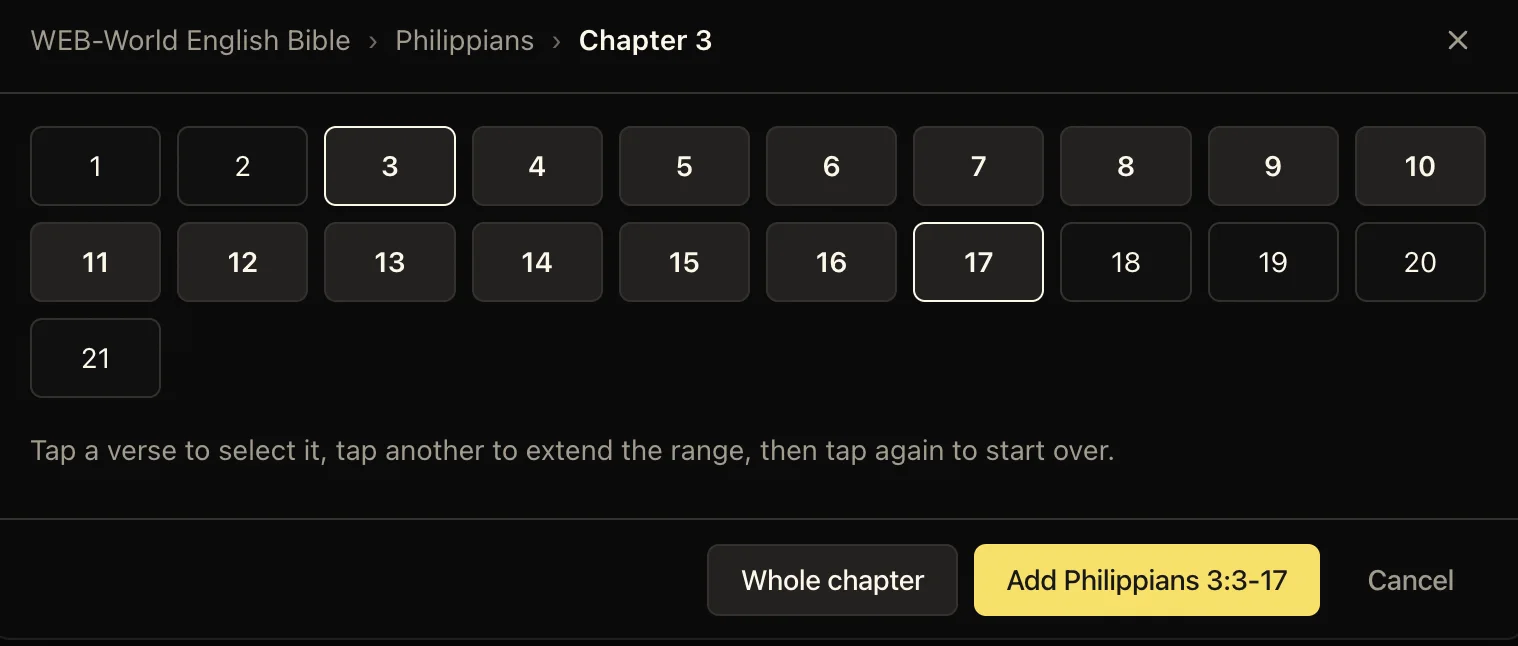
When you do not want to type a reference, choose Browse. Pick a Bible book, choose its chapter, then select the first verse you need. Select another verse to extend the range between them.
Choose the highlighted range to add only those verses, or choose Whole chapter when the reading should include everything. This is useful when a speaker gives you a book and chapter but has not yet settled on the final range.
04
Search for words you remember
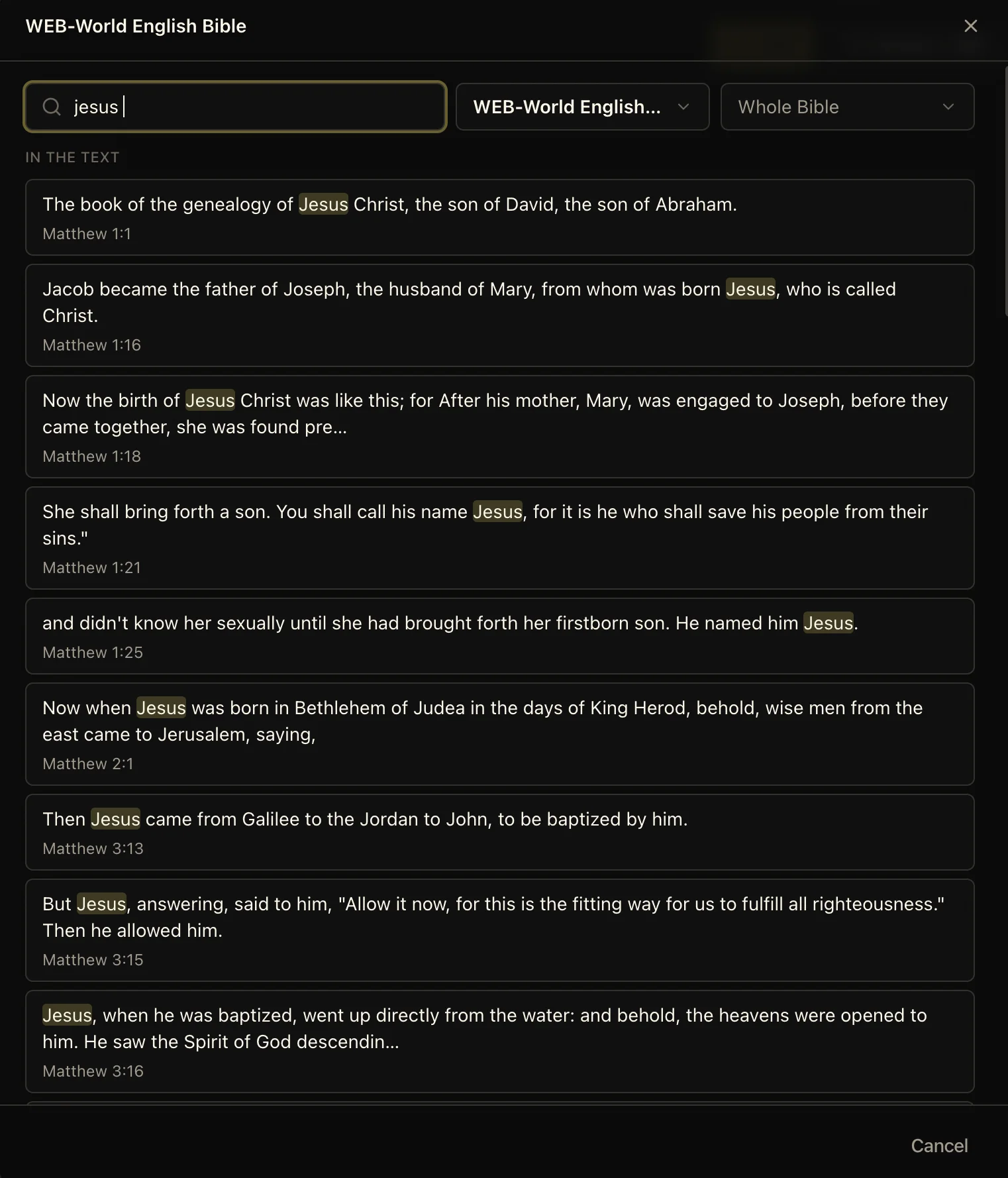
If you remember the wording but not the reference, enter a phrase in the Bible browser. LlamaPresenter searches the text and shows the matching words in context with each result’s book, chapter, and verse.
Limit the search to one translation or one Bible book when the result list is broad. Select a result to add that verse directly to the Scripture workspace.
05
Present one clear verse card at a time
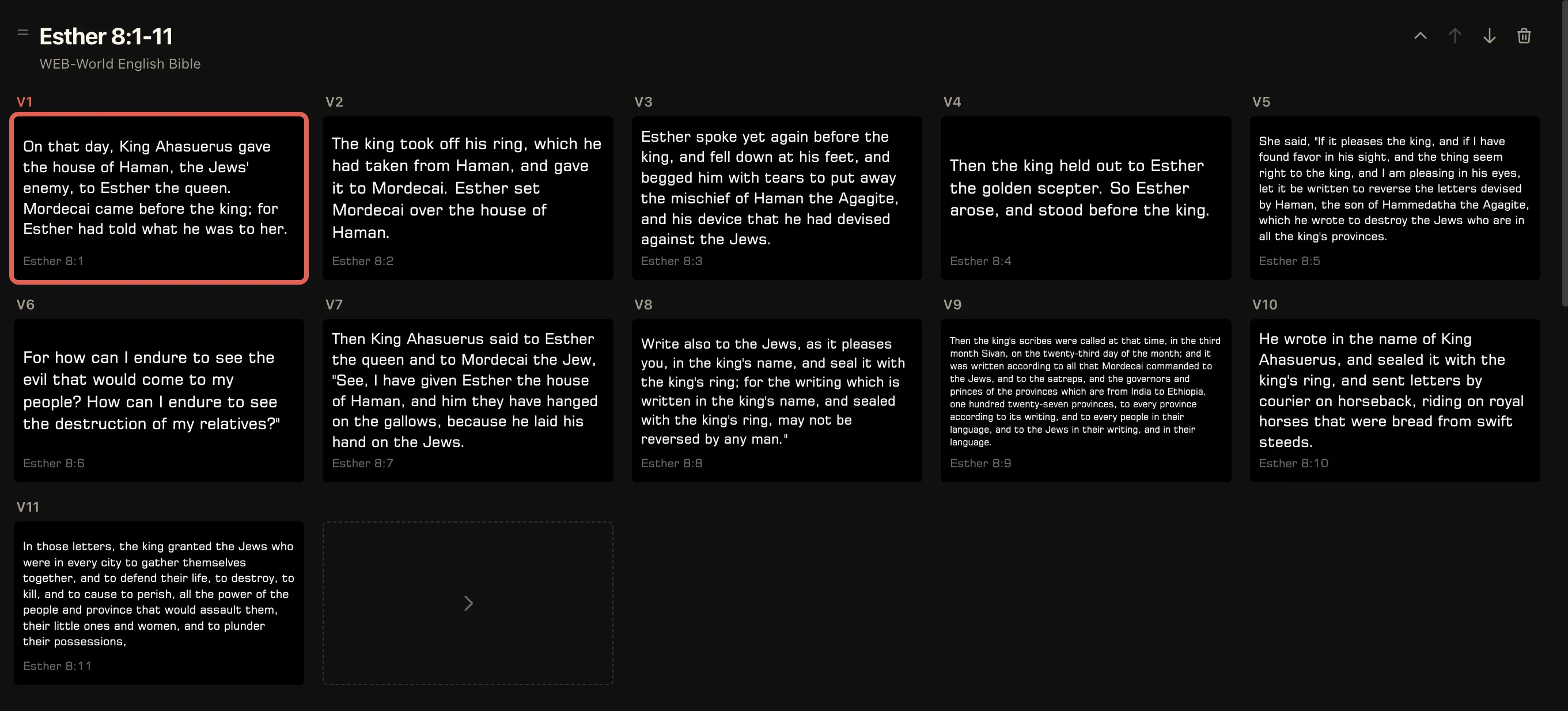
An expanded passage displays its verses as individual cards. Select a card to send it live, then move through the reading in order. The card shows the same verse text and reference the congregation will receive, so the operator can confirm the next cue before selecting it.
Use the tiles at either end to add an adjacent verse when the reading changes. Verse groups can also be joined or split when two short verses belong on one slide or a longer section needs more breathing room.
06
Keep every service reading organized
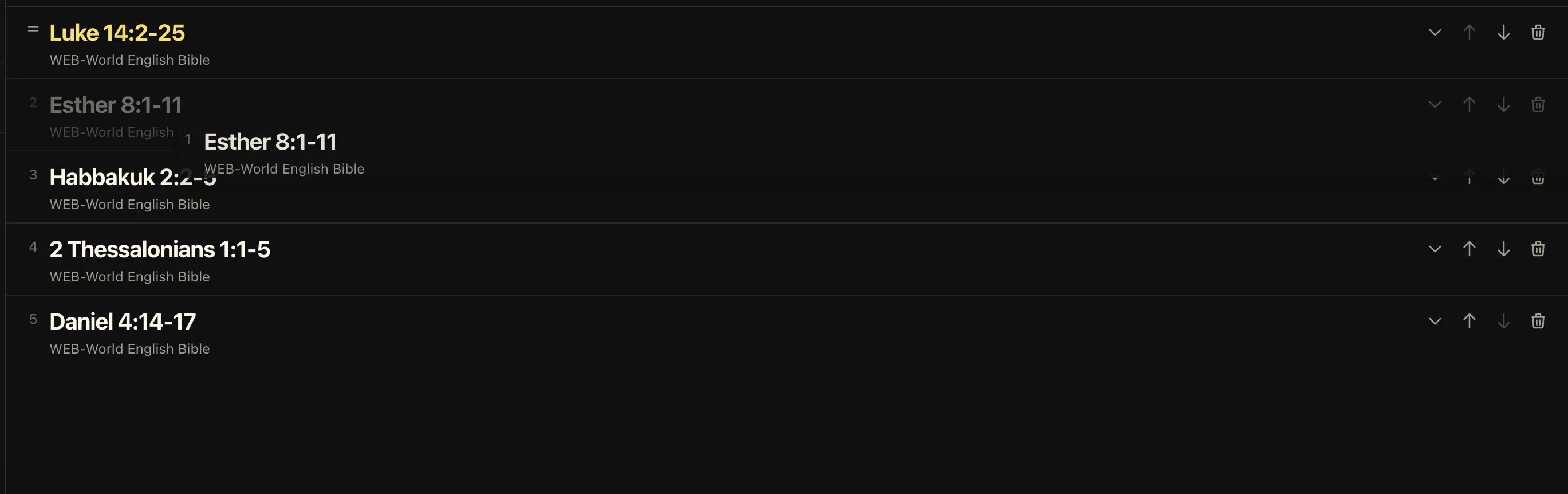
Collapse passages when you only need their titles and translation names. The compact list makes a longer service easy to scan without removing any prepared verses.
Drag a passage or use the arrow controls to change its order. Expand the passage you need, collapse everything else, and remove readings that are no longer part of the service.
07
Choose how scripture appears on screen
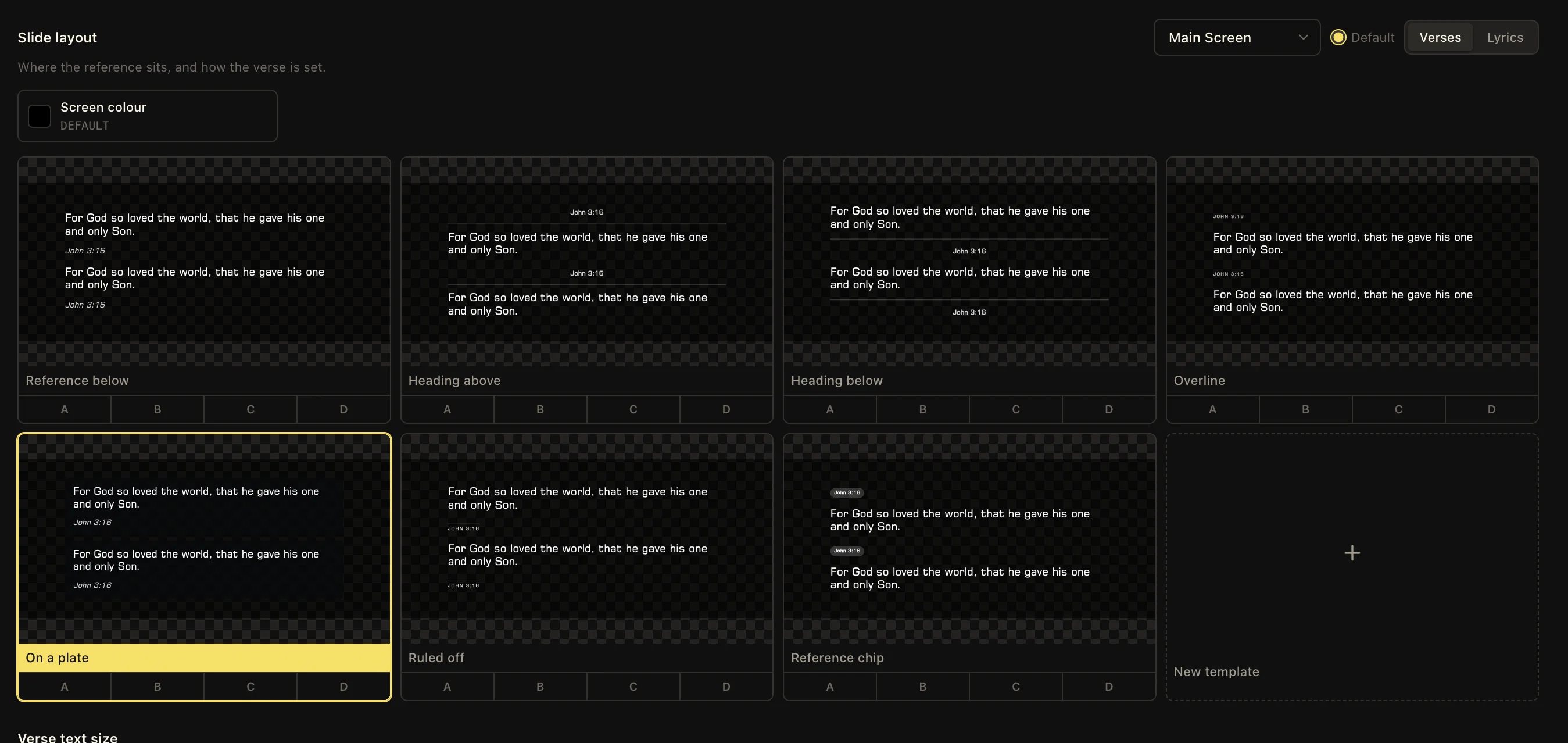
Open Slide layout and select the Verses tab to choose a scripture design. Built-in layouts place the reference below, above, beside, or inside the verse treatment, giving you a clear starting point without designing from scratch.
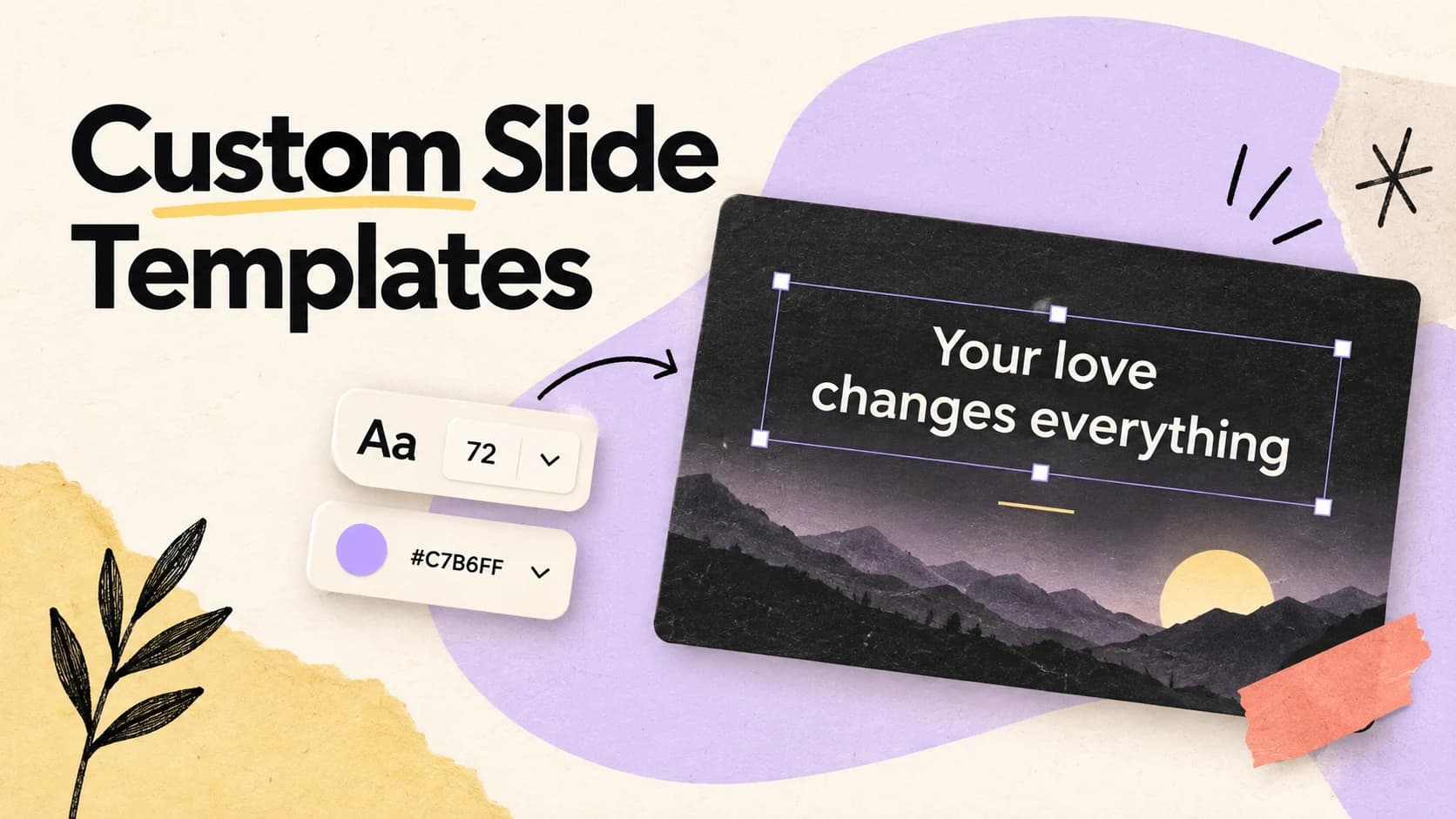
Pick a layout for the Main Screen or another configured screen, then assign useful designs to the A, B, C, and D look positions. You can also create a custom template when the service needs its own typography, spacing, background treatment, or reference style.
Design for the longest verse
Test the layout with a short verse and a long one. The best scripture template keeps both readable without changing the operator’s workflow.
Keep these three
The short version
- Add scripture by exact reference, chapter browsing, or full-text search.
- Organize passages once, then present each verse as a clear live cue.
- Choose a reusable verse layout instead of rebuilding scripture slides.