Guide 076 min read
LlamaPresenter - Presentations
Not every screen belongs to scripture or a song. Churches also need welcome slides, announcements, event graphics, giving instructions, speaker visuals, and simple pre-service loops.
Presentations keep those slides together as reusable decks. You can build a slide from scratch, add pictures or videos, control how each slide enters and leaves, and decide whether it also appears on the stream.
What this guide helps you do
Build announcement decks, add images or videos, and run them by hand or on a timer.
01
Build a deck from blank slides or media
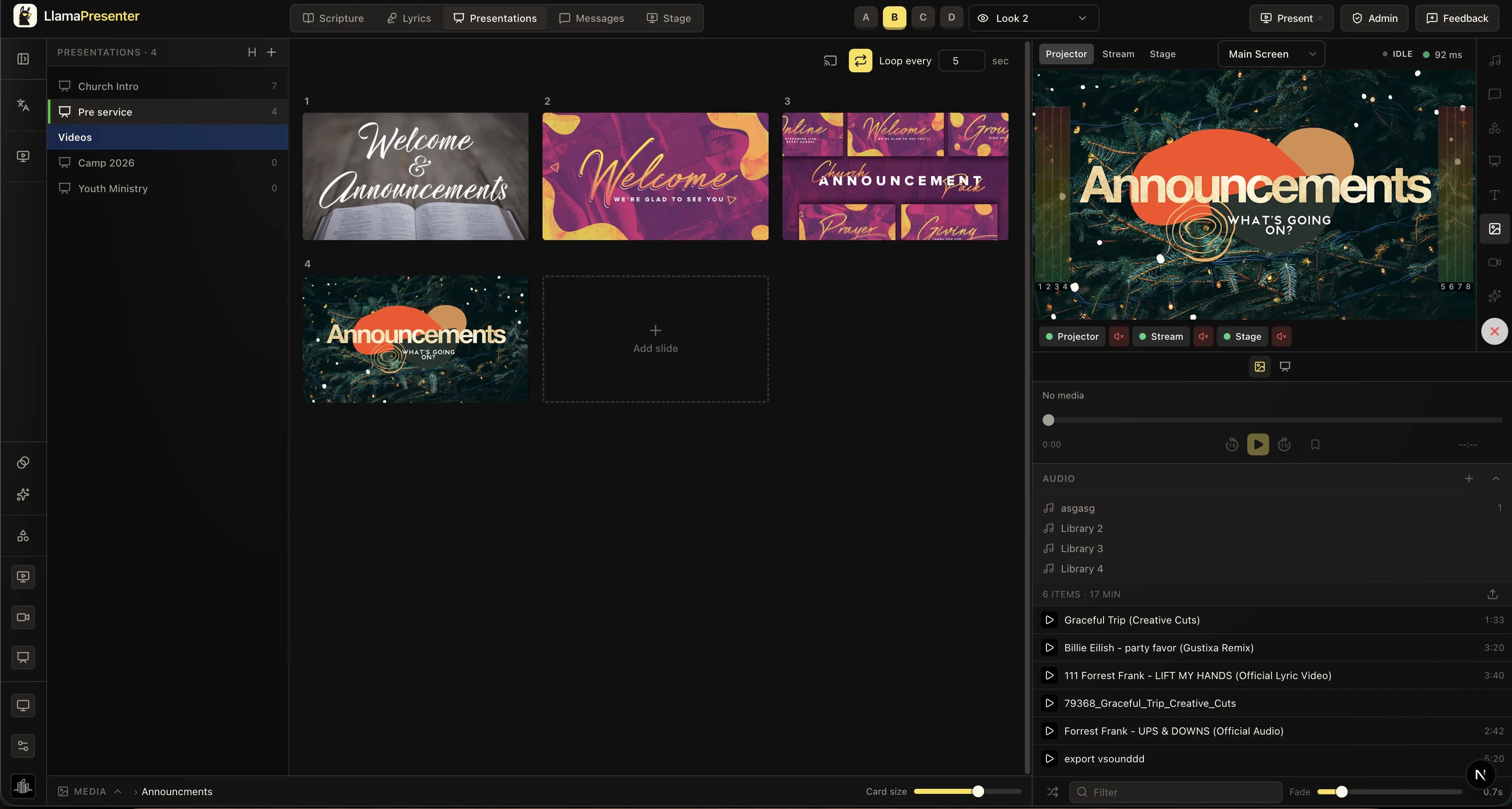
Create a presentation for each part of the service: pre-service, announcements, a sermon series, or a special event. The sidebar keeps the decks in order and shows the number of slides in each one. Headers and colours can separate larger groups when the list grows.
Press Add slide to start with a blank design, or drag pictures and videos from the media library or your computer. Each dropped file becomes its own slide, so a folder of announcement graphics can turn into a ready deck without adding the slides one by one.
02
Choose which presentation slides go to the stream
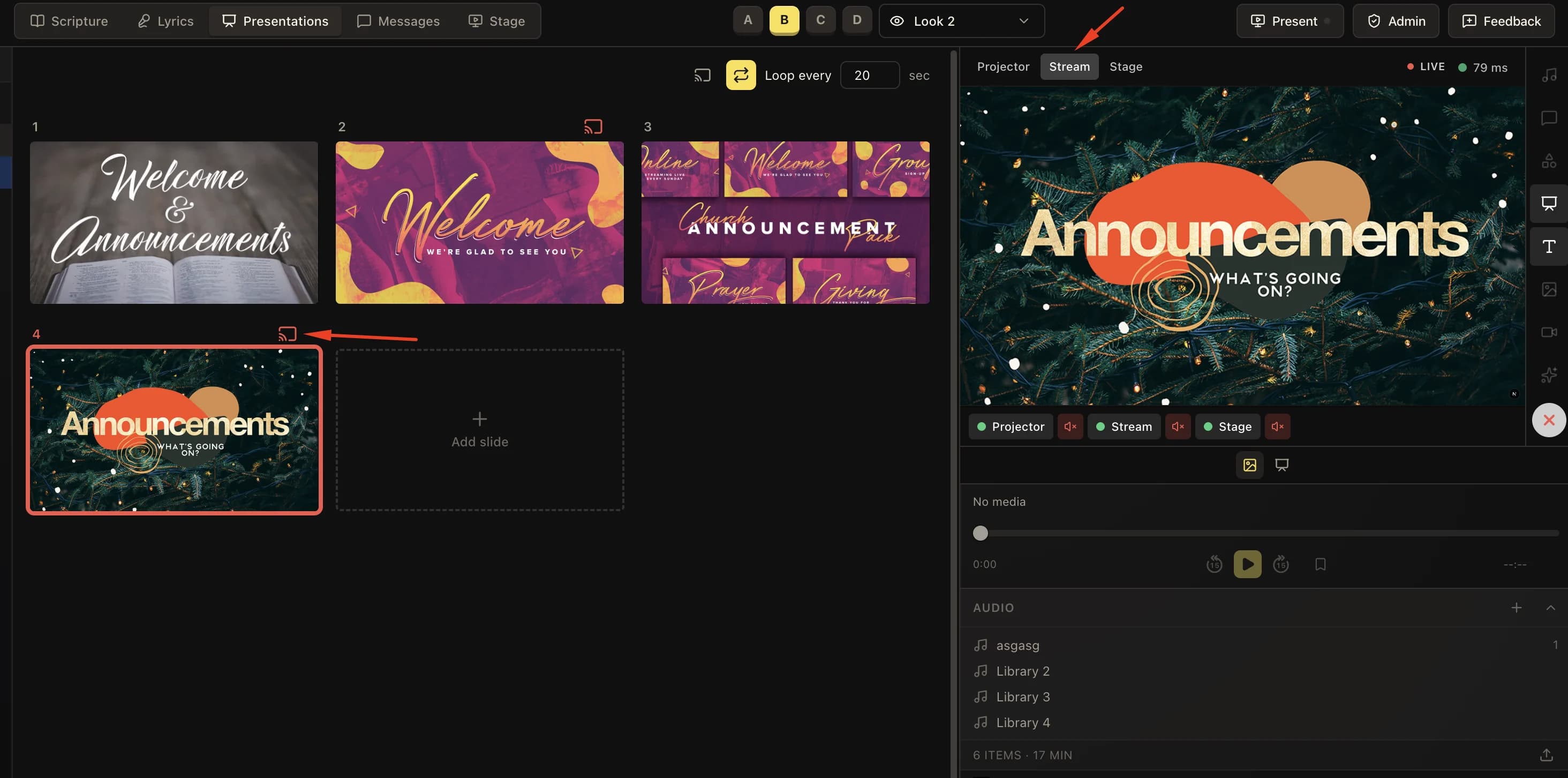
Projector and stream playback can be controlled separately. Use the stream button above the deck to include every slide on the stream at once. This is useful when the online audience should see the same welcome loop or announcements as the people in the room.
For a mixed deck, use the small stream button on an individual slide. Turn it on for slides the online audience needs and leave it off for room-only notices. Open the Stream preview to check exactly what online viewers will see before or while the slide is live.
03
Design each slide and choose where it appears
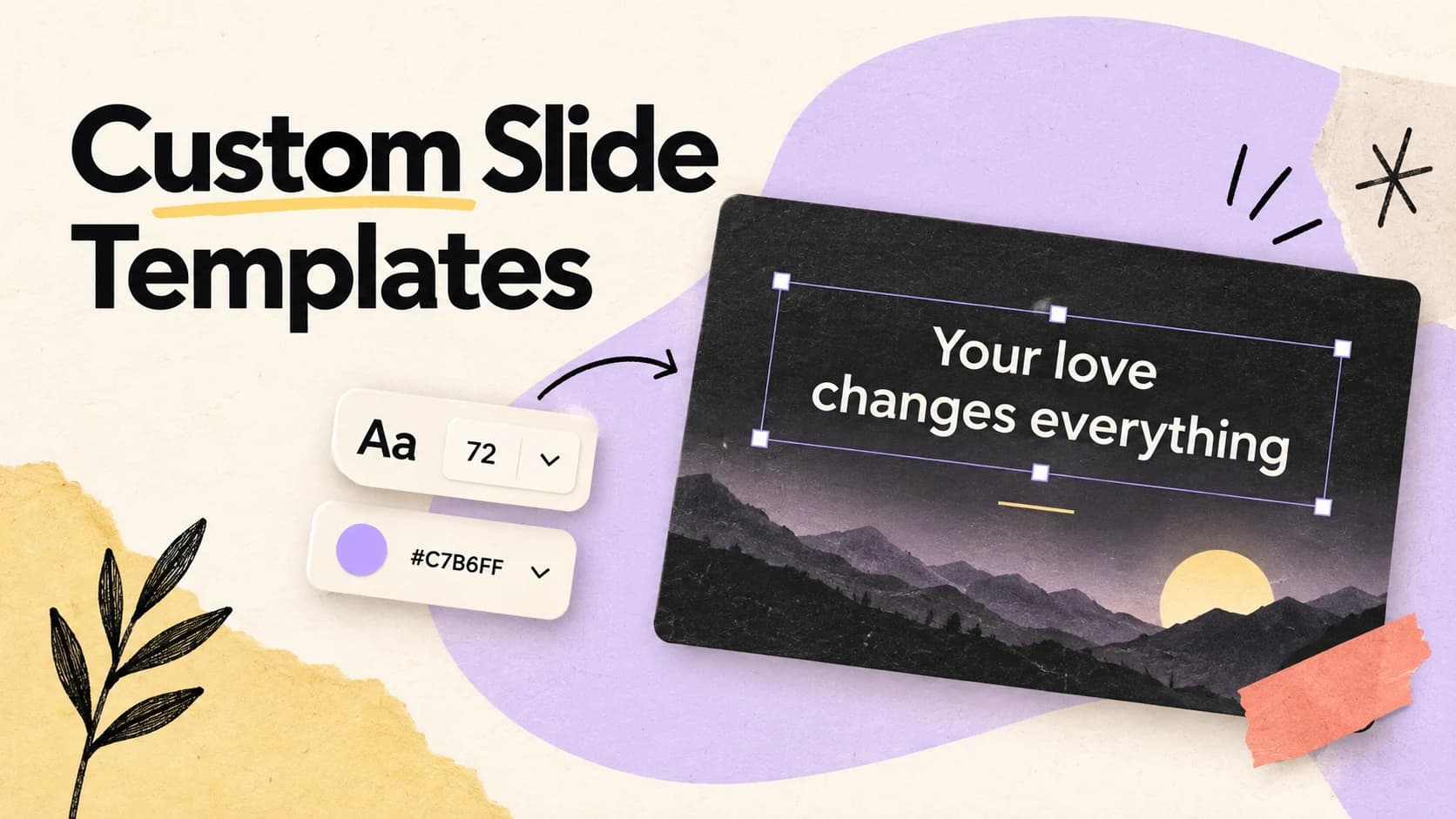
The slide editor can combine text, shapes, and pictures on the same canvas. Text can use its own font, colour, alignment, list style, background treatment, and scrolling direction. Copy and paste a text style when several boxes should match.
A slide can follow the main presentation transition or use its own entrance and exit. That lets an ordinary deck share one clean transition while a video or special announcement uses different motion.
Videos behave as full-screen slide backgrounds. Set a video to stop or loop, then use the Video Inspector when that slide needs its own trim or playback settings. Those changes stay with the slide and do not change the source file in the media library.
Use slide-level controls only when needed
Start with one presentation transition and one output plan. Override a slide only when a video, announcement, or special moment needs different behaviour.
04
Run slides by hand or loop them automatically
Click a slide to put it on screen. The live slide gets a clear outline, and clicking it again clears the presentation. Reorder slides by dragging them, or select several slides together for group actions such as deletion.
For a lobby or pre-service screen, turn on Loop and choose the number of seconds each slide should stay visible. LlamaPresenter moves to the next slide and returns to the first one when the deck reaches the end.
- 01Put the slides in the order the audience should see them.
- 02Choose whether the deck should also appear on the stream.
- 03Run it manually, or set the automatic loop time for an unattended screen.
05
Place presentations inside the service playlist
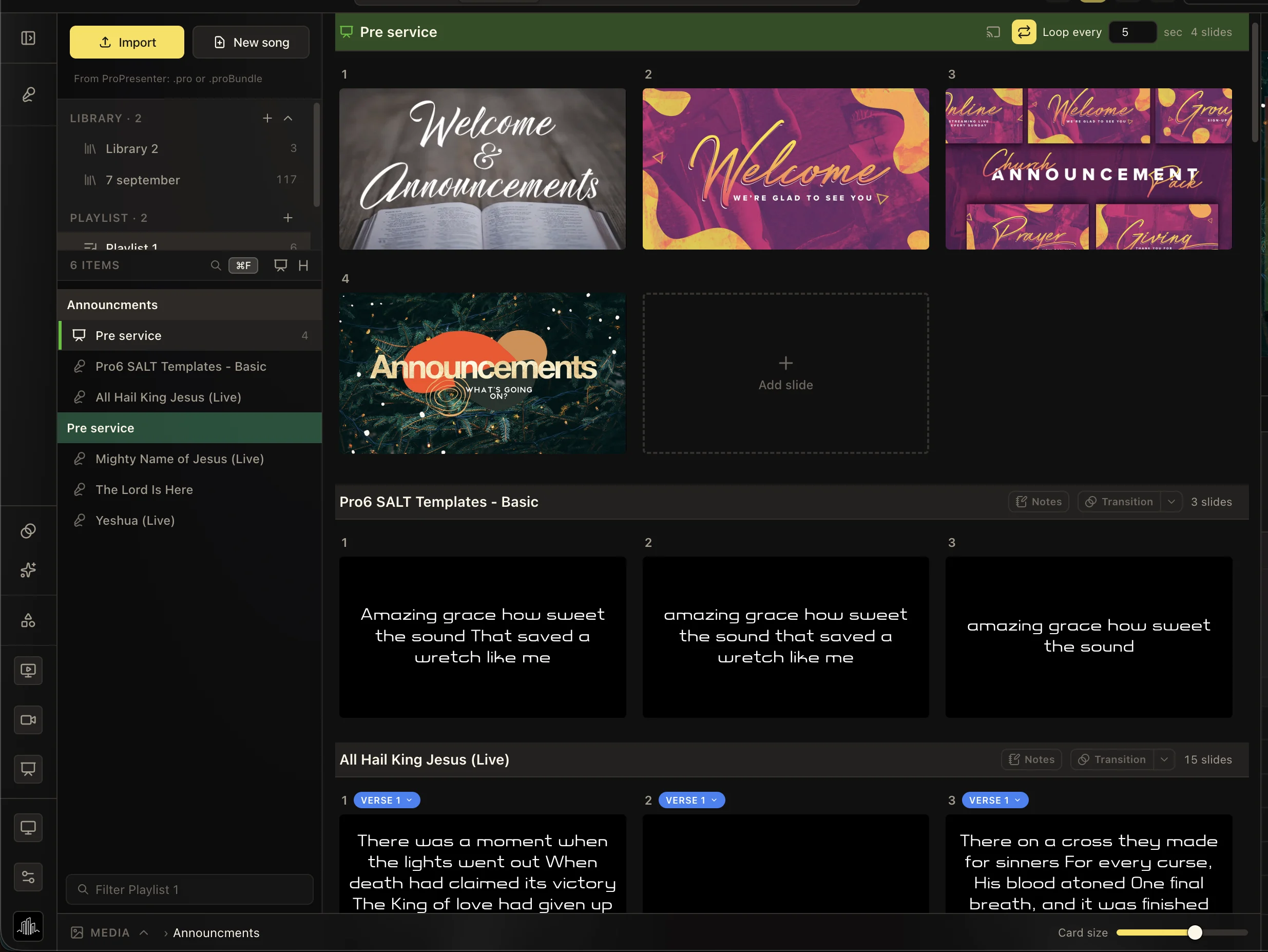
A presentation can sit in the same playlist as songs. Put a pre-service deck before the opening song, insert an announcement deck between service sections, or keep sermon visuals beside the music that follows them.
The deck keeps its own slides, stream setting, and loop control inside the playlist. The operator can move through the whole service in order without switching back to the Presentations tab to find the next visual.
Keep these three
The short version
- Create reusable decks from blank slides, pictures, or videos.
- Send the whole deck to the stream, or include only the slides the online audience needs.
- Run a deck manually, loop it automatically, or place it in the service playlist.