Guide 165 min read
LlamaPresenter - Actions
A change in the service often involves more than one control. Before the service starts, you might need to start a countdown, show welcome messages, and choose what the team sees on Stage. Actions bring those operations together in a named, coloured button.
Build the sequence during preparation, then run it from the Actions panel when the cue arrives. You can also attach a saved action to a song or presentation slide so its steps run when that slide goes live.
What this guide helps you do
Prepare repeatable service cues that coordinate several controls in one click.
01
Find and organize your service cues
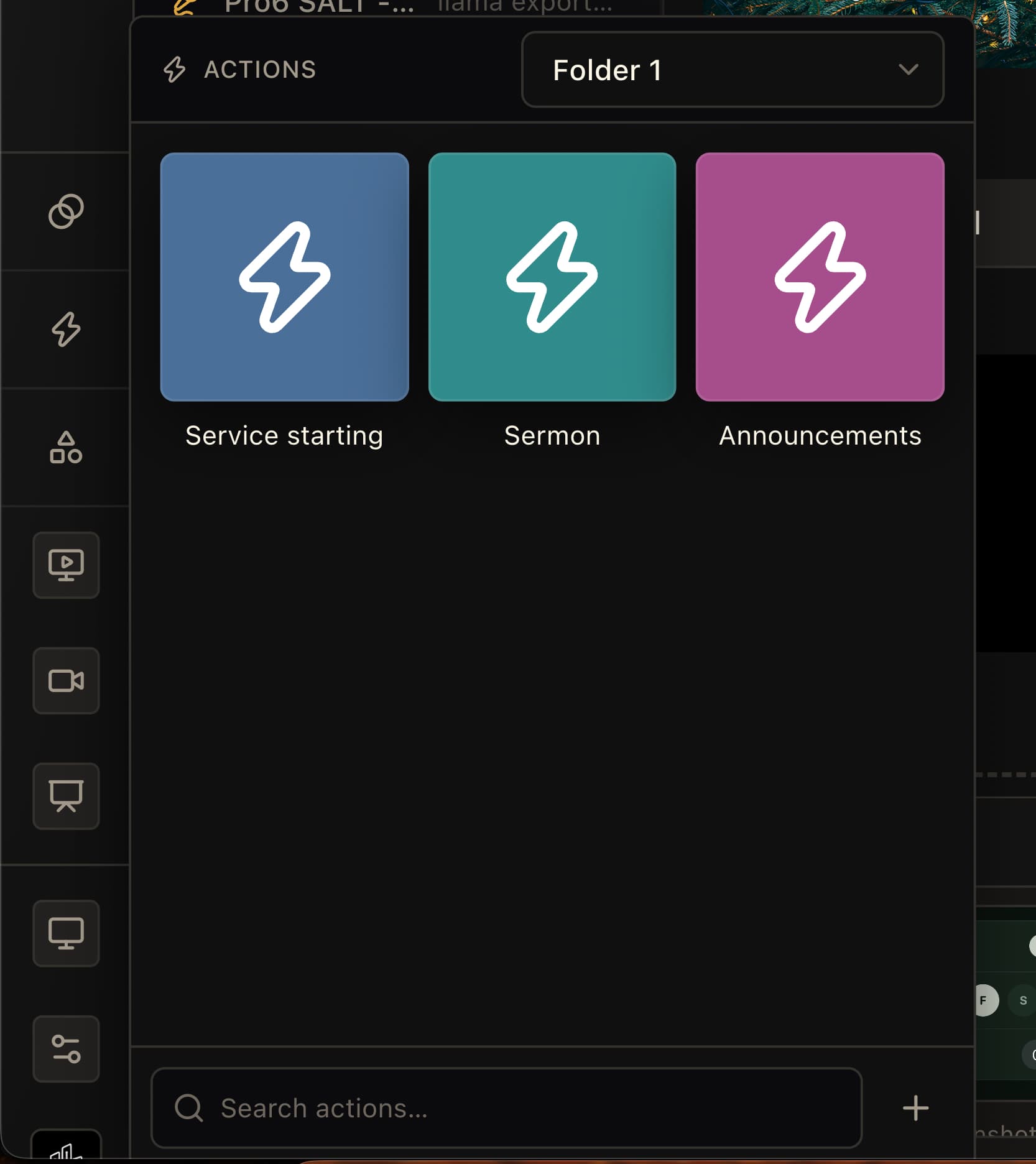
Open Actions from the lightning-bolt control in the sidebar. The panel shows the saved actions in the selected folder as coloured tiles. Names such as Service starting, Sermon, and Announcements make the cue easy to recognize during a service.
Choose a folder from the dropdown, then use Search actions to find a name within that folder. Use New folder in the dropdown to organize different services or teams. Drag tiles to arrange them in the order that makes sense for your operator.
Clicking a tile runs its steps immediately. To change an action, right-click the tile and choose Edit. The same menu lets you rename or duplicate it, and move it to another folder when several folders exist.
02
Create a named action
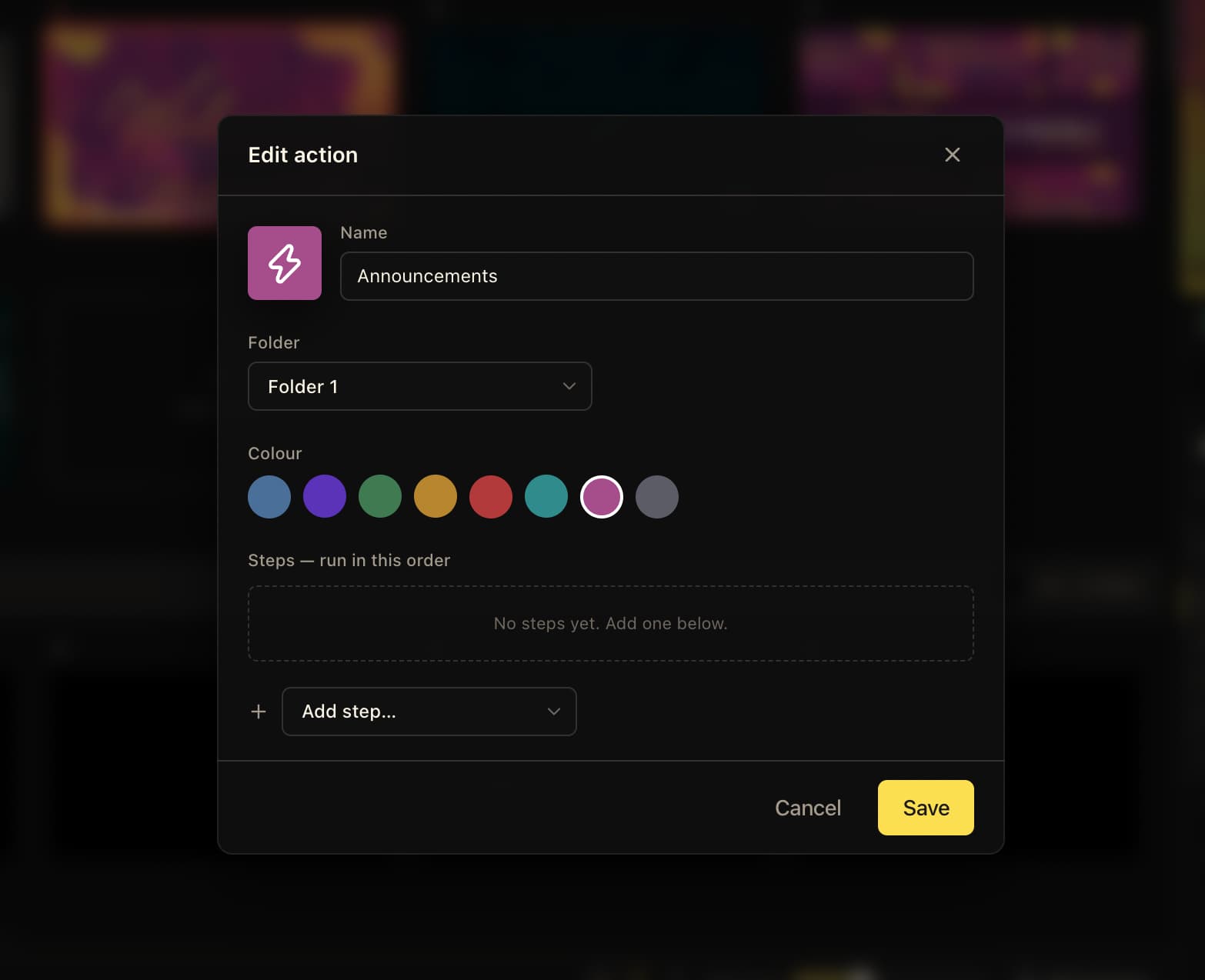
Choose the plus button at the bottom of the Actions panel. If your library is empty, choose New action. The Edit action dialog opens with a new action ready to configure.
Enter a Name that describes the moment you are preparing, then choose a Colour. When you have more than one folder, use Folder to choose where the action belongs. Colour is a visual cue for the operator; the steps determine what the action does.
- 01Open Actions and choose the plus button or New action.
- 02Enter a clear name, such as Announcements.
- 03Choose a colour and, when available, a folder.
- 04Add and configure the steps, then choose Save.
03
Choose the operations the action will run
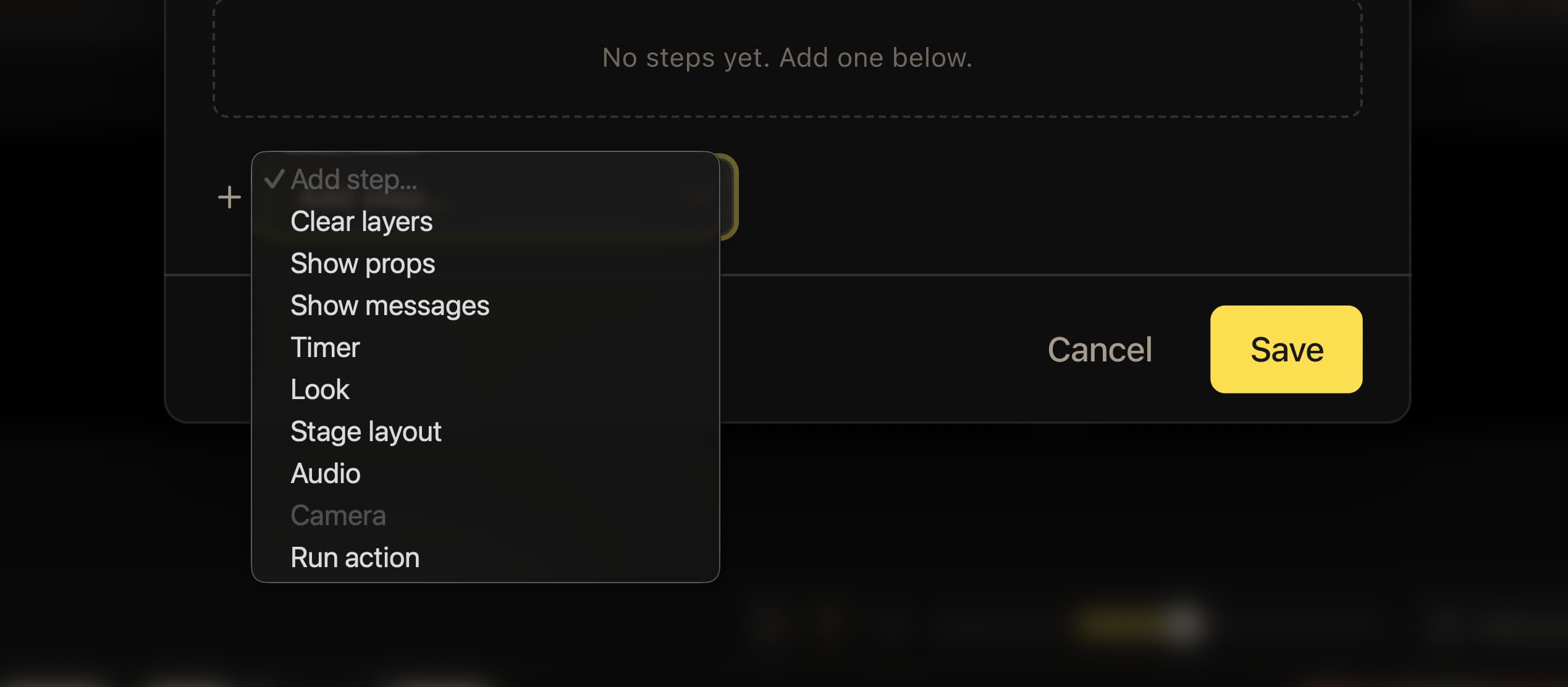
Open Add step to choose an operation. Clear layers lets you select Audio, Messages, Props, Presentation, Lyric/Verse, Media, or Camera to clear. Select only the layers that should come down for this cue.
Show props and Show messages let you select saved items. Timer lets you choose a timer and use Start, Stop, Reset, or Reset & start. Look selects a saved Look, while Stage layout chooses layouts for individual Stage outputs.
Audio selects a track from the music library. Camera selects an available video input. Run action includes another saved action, which is useful for reusing a prepared sequence inside a larger cue.
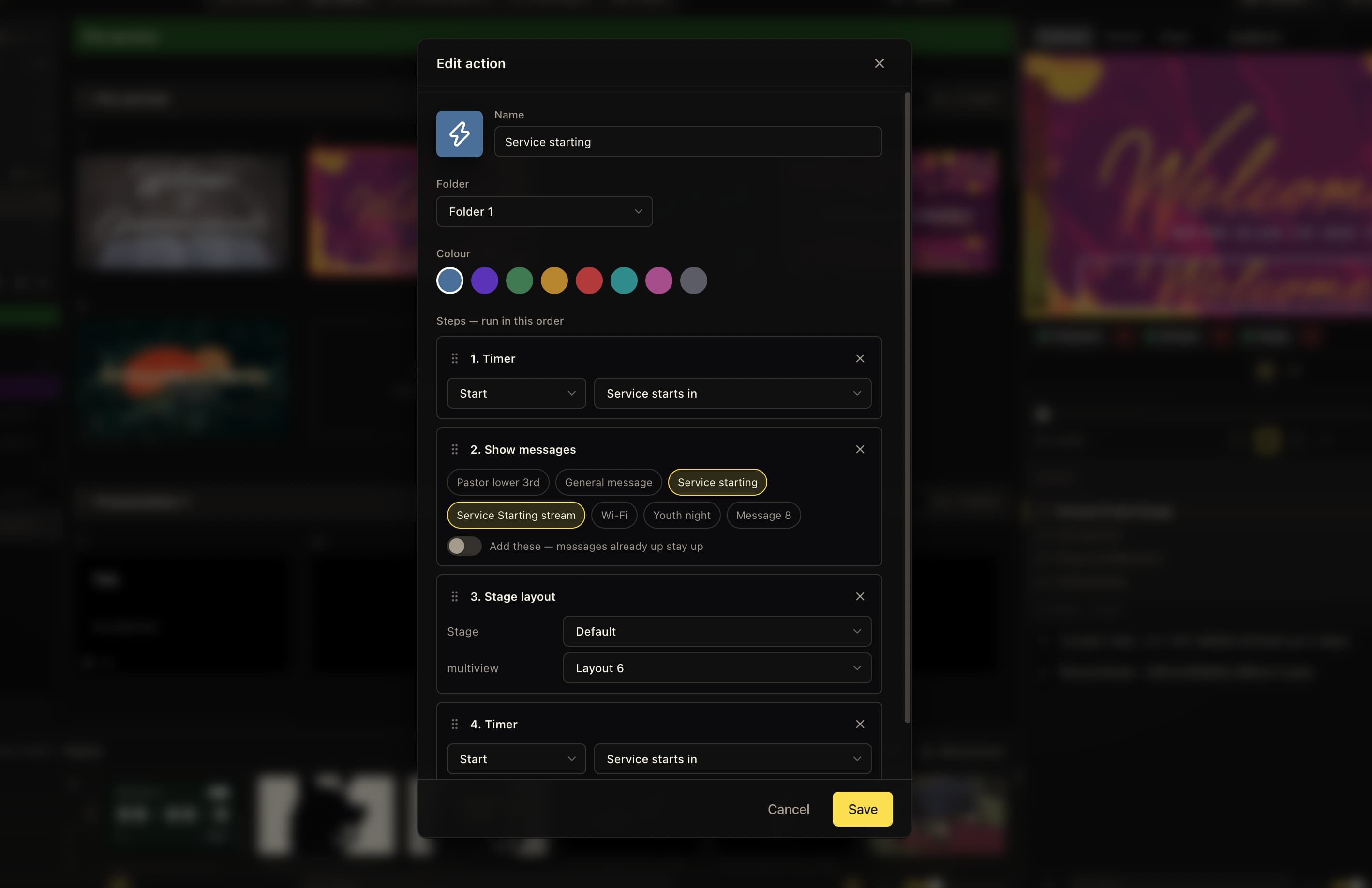
Some choices are disabled until there is a suitable item to select. In the screenshot, Camera is unavailable. Prepare the timer, track, video input, Look, or other action you need before choosing that step. Props and messages are selected from their existing libraries.
04
Build a service-starting sequence
The Service starting example combines a timer, two messages, and Stage layouts. Add a Timer step, choose Start, and select Service starts in. Next, add Show messages and select Service starting and Service Starting stream.
The messages step has two modes. Add these keeps messages already showing and adds the selected ones. Only these brings every other message down, leaving the selected messages. Show props has the same choice for props. Pick the mode deliberately so an earlier announcement does not remain visible by accident.
Add Stage layout and choose the layout for each Stage output. The example uses Default for Stage and Layout 6 for multiview. Choose Unchanged for an output that this action should leave alone. A message’s content and output settings still determine where it appears; selecting it in an action does not assign it to a screen.
The screenshot also includes a second Timer step. Timer steps can repeat when you need to control several timers. For this example, one Start step for Service starts in is enough; add another only when it has a purpose in your cue.
- 01Start the Service starts in timer.
- 02Show the selected service-starting messages, using Add these or Only these as needed.
- 03Choose the Stage and multiview layouts.
- 04Review the order and save the action.
05
Review the order before running the cue
Steps run in the order shown under Steps — run in this order. Drag a step by its grip to move it, or use its remove button to take it out. Timer and Run action can be added more than once; the editor offers one step for each of the other operation types.
Place Clear layers before Show messages or Show props when you want to remove old content and then put the new items up. If you clear those layers after showing the items, the later clear will take them down again.
The list is a sequence of operations, not a timed schedule. Starting a timer does not wait for its countdown to finish before running the next step. Look and Stage layout changes are applied together at the end of the action. Audio is also settled after the steps, so a later Audio clear cancels an earlier track choice.
Choose Save, then rehearse the cue from the Actions panel and check the intended outputs. Saving configures the action; clicking its tile runs it. If a referenced timer, track, Look, input, or action has been deleted, that target may be skipped, so revisit saved cues after changing the underlying items.
Keep reusable actions straightforward
Run action can reuse another action, but avoid circular chains. Nested action calls have a depth limit, so a chain that repeatedly calls itself will not keep running indefinitely.
06
Run an action when a slide goes live
To connect a cue to the service content, right-click a song slide or presentation slide and open Actions. Choose the saved action to attach it; selected actions appear checked in the menu. When several folders exist, the menu groups actions by folder.
The attached action runs when you take that slide live. For example, a sermon title slide can run an action that clears earlier messages and selects the speaker’s Stage layout. Build that action first, then attach it to the slide that should trigger the change.
Choose a checked action again to remove it from the slide, or use Remove all to clear the slide’s attached actions. A track attached directly to the slide takes priority over audio operations in its actions, so rehearse slides that combine both.
Keep these three
The short version
- Name and colour actions around recognizable service cues, then keep them organized in folders.
- Choose the exact targets, message or prop mode, and step order before running an action.
- Run a saved action from its tile or attach it to a slide that should trigger the cue.