Guide 055 min read
LlamaPresenter - Props
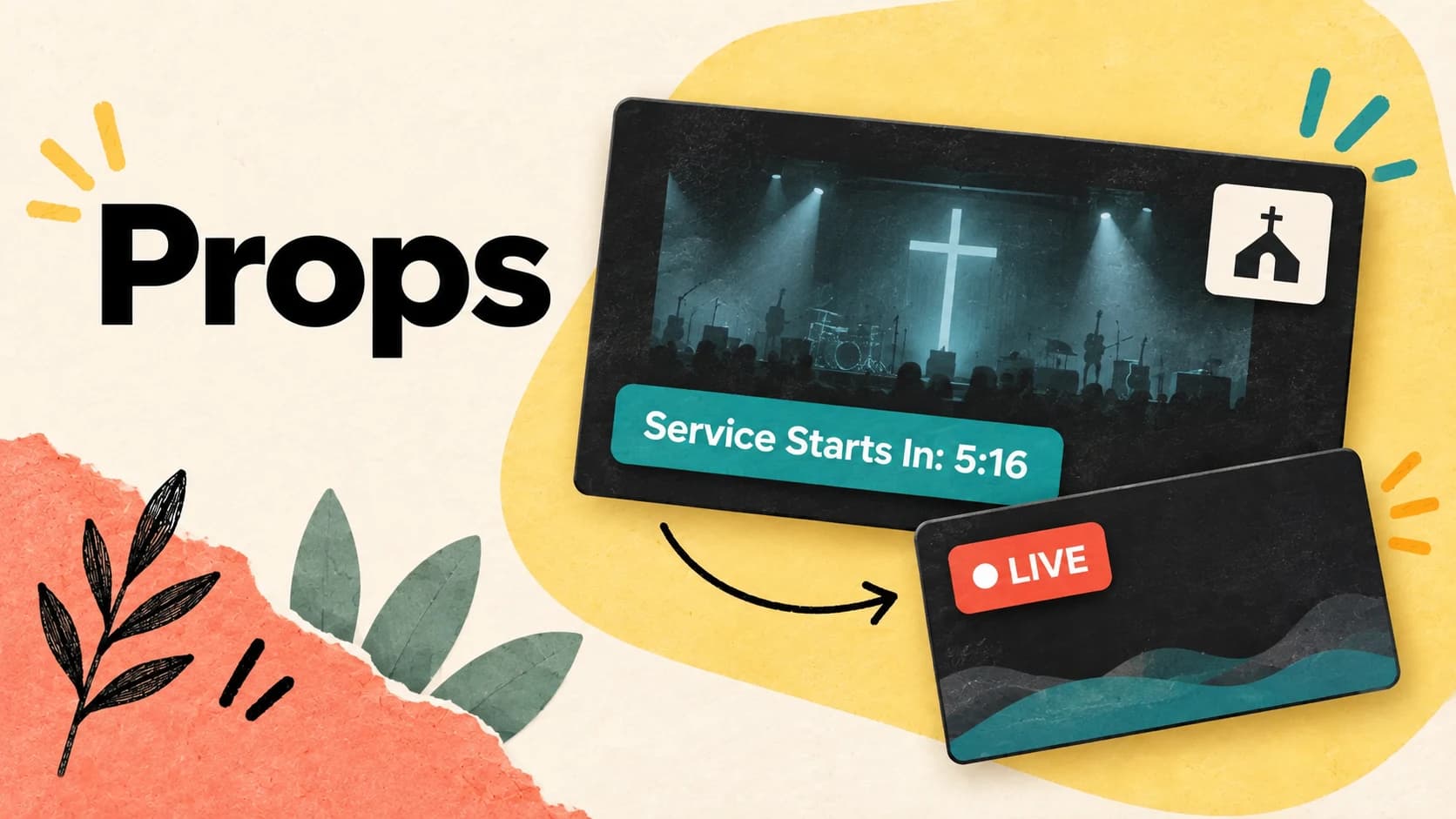
Some graphics should remain on screen while lyrics, scripture, cameras, and presentations continue to change. A church logo, a service-start countdown, or a recurring live graphic should not have to become another slide in the running order.
Props are reusable layers that sit above your live content. Show several together, give each one its own timing and movement, and send it only to the projector, stream, or individual screen where it belongs.
What this guide helps you do
Build persistent live graphics, control their timing, and route each one to the right output.
01
Keep graphics live above changing content
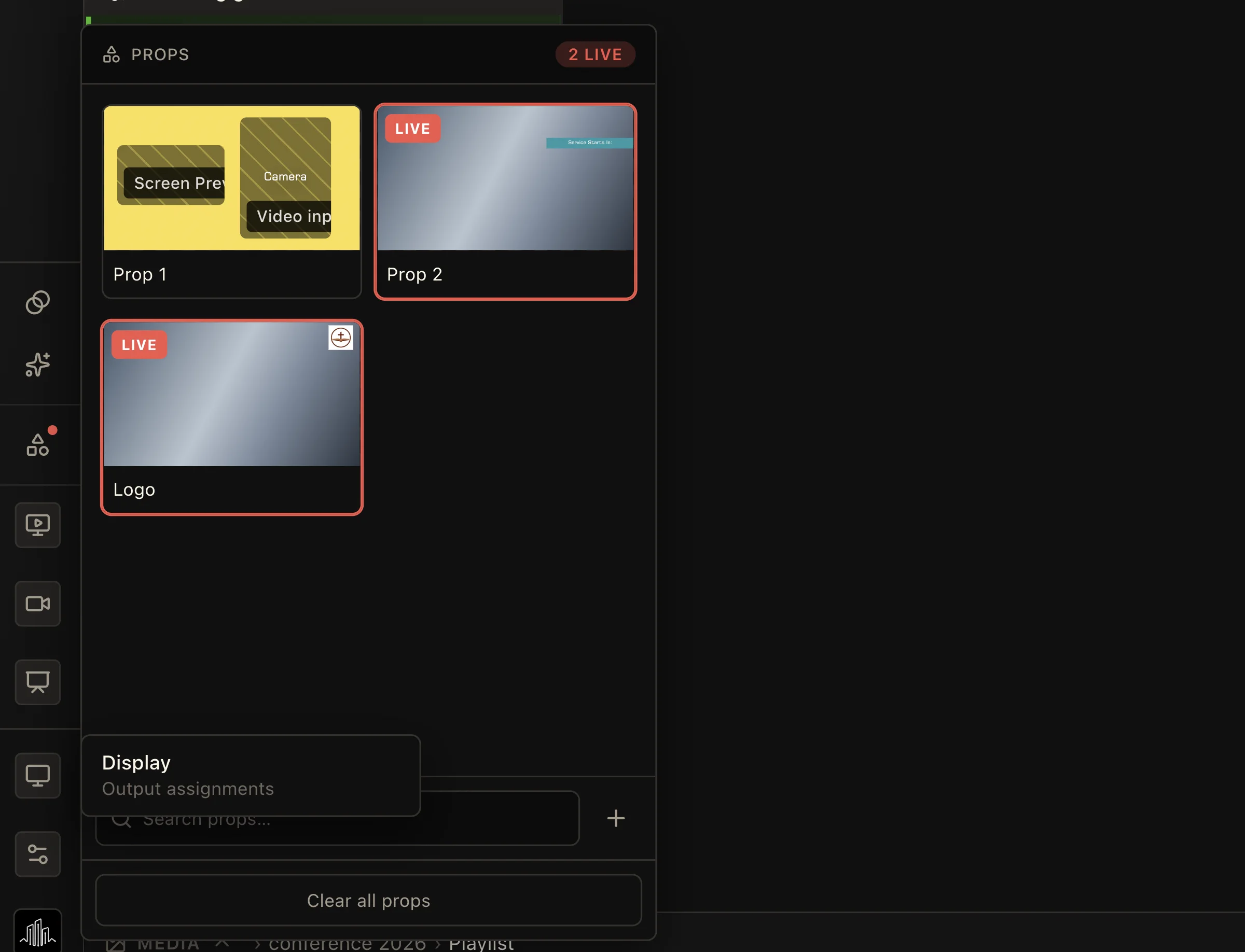
Open the Props panel to see every saved graphic and which ones are already live. Select a prop to show it, and select it again when you want to take it down. Its overlay stays in place while the operator advances lyrics, scripture, media, or presentations underneath it.
Several props can be live at the same time. That means a church logo and a service countdown can remain visible together without being combined into one permanent design. The live count and red outlines make the active layers easy to identify, and Clear all props resets them together when the moment is over.
- 01Choose the Props button in the Studio sidebar.
- 02Select a saved prop to put it live, or use the plus button to create one.
- 03Select an active prop to clear it, or use Clear all props to remove every live prop.
02
Use props for countdowns and church branding
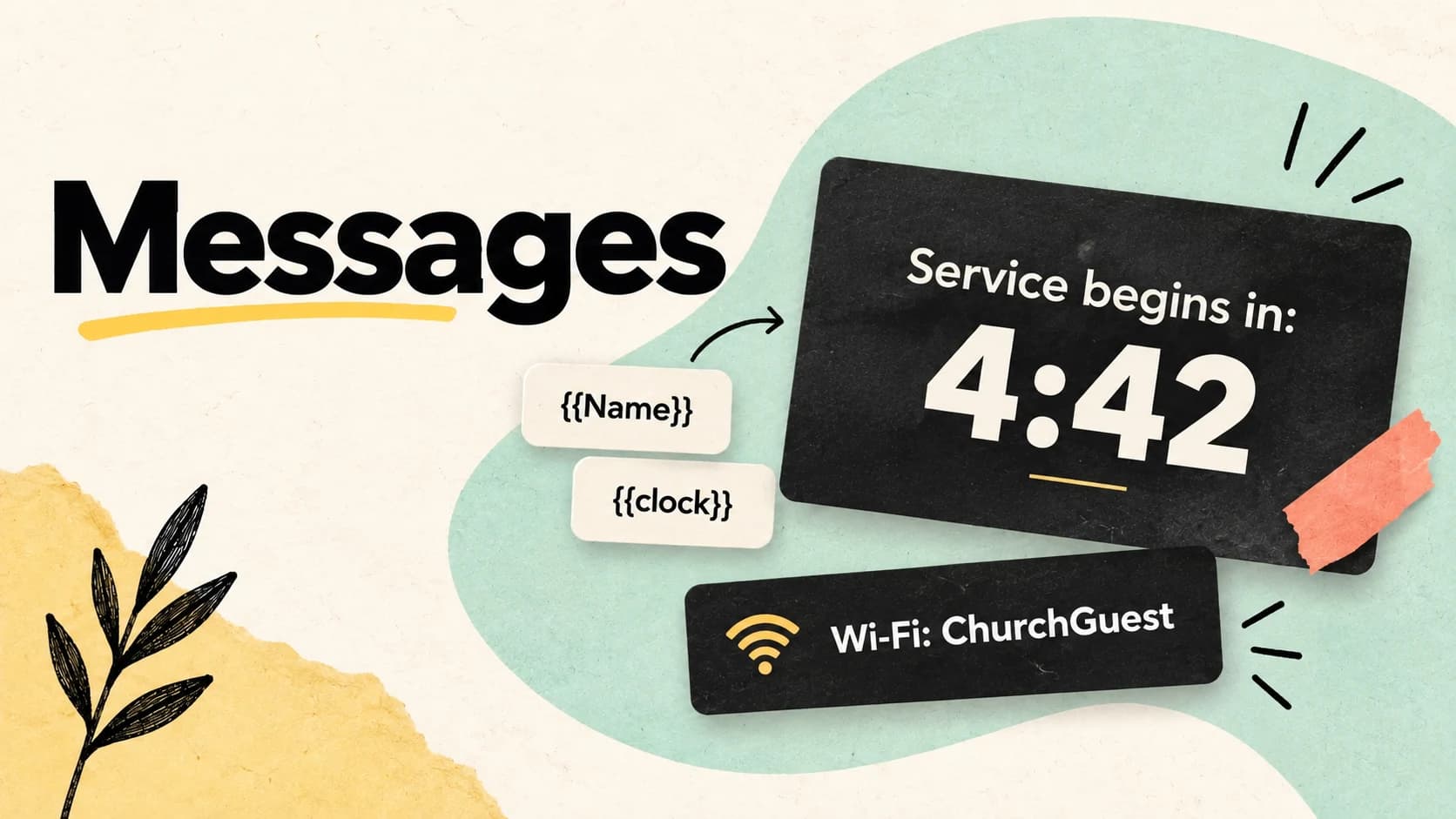
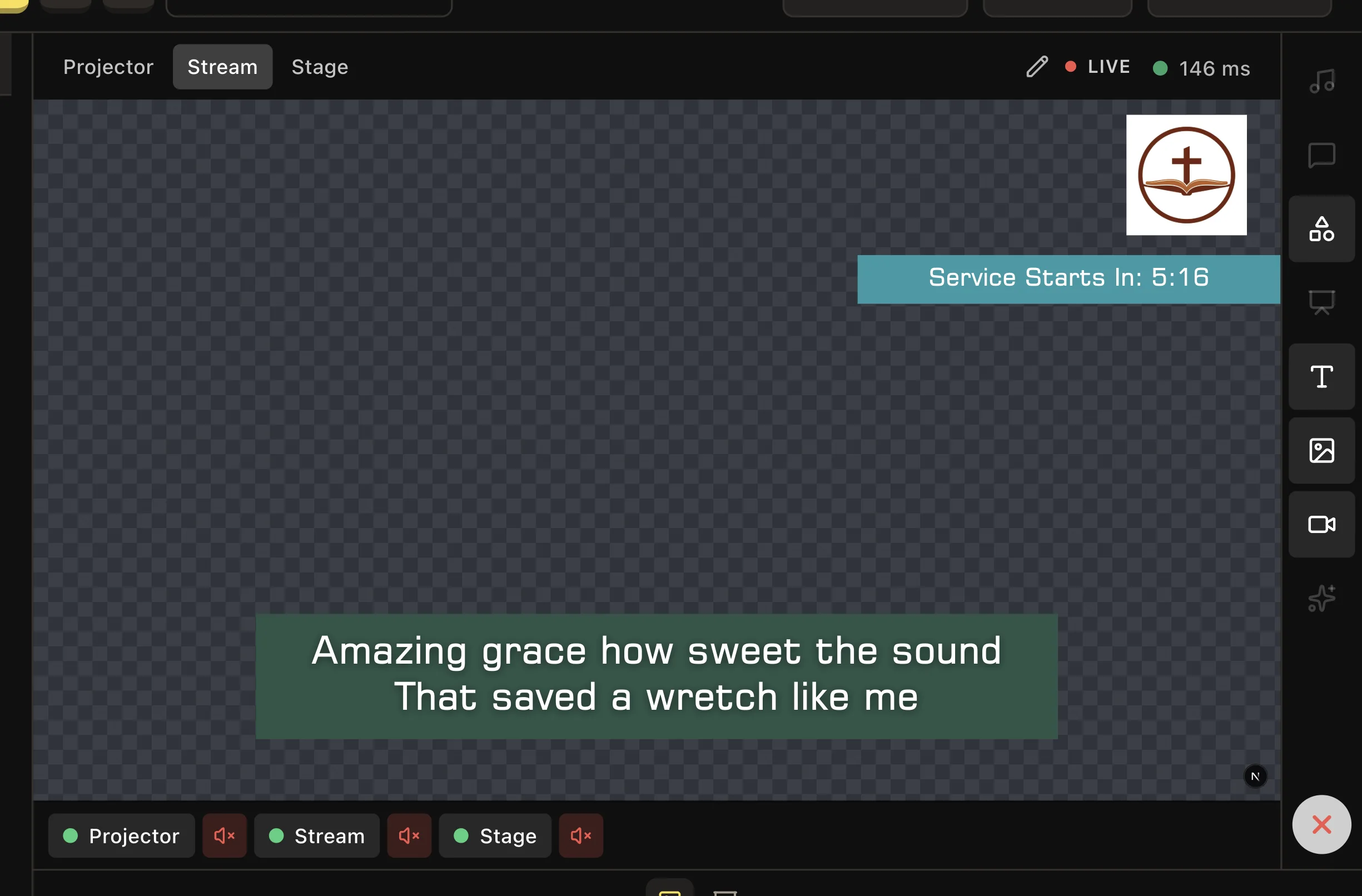
A service-start countdown is a natural prop: it can stay visible as pre-service content changes and disappear when worship begins. Pair it with a church logo to keep the stream branded without adding those elements to every lyric or presentation template.
Props remain independent from the content beneath them. The countdown and logo can stay fixed while the lyrics lower third changes, and clearing either prop does not clear the song that is live.
03
Build reusable camera and media compositions
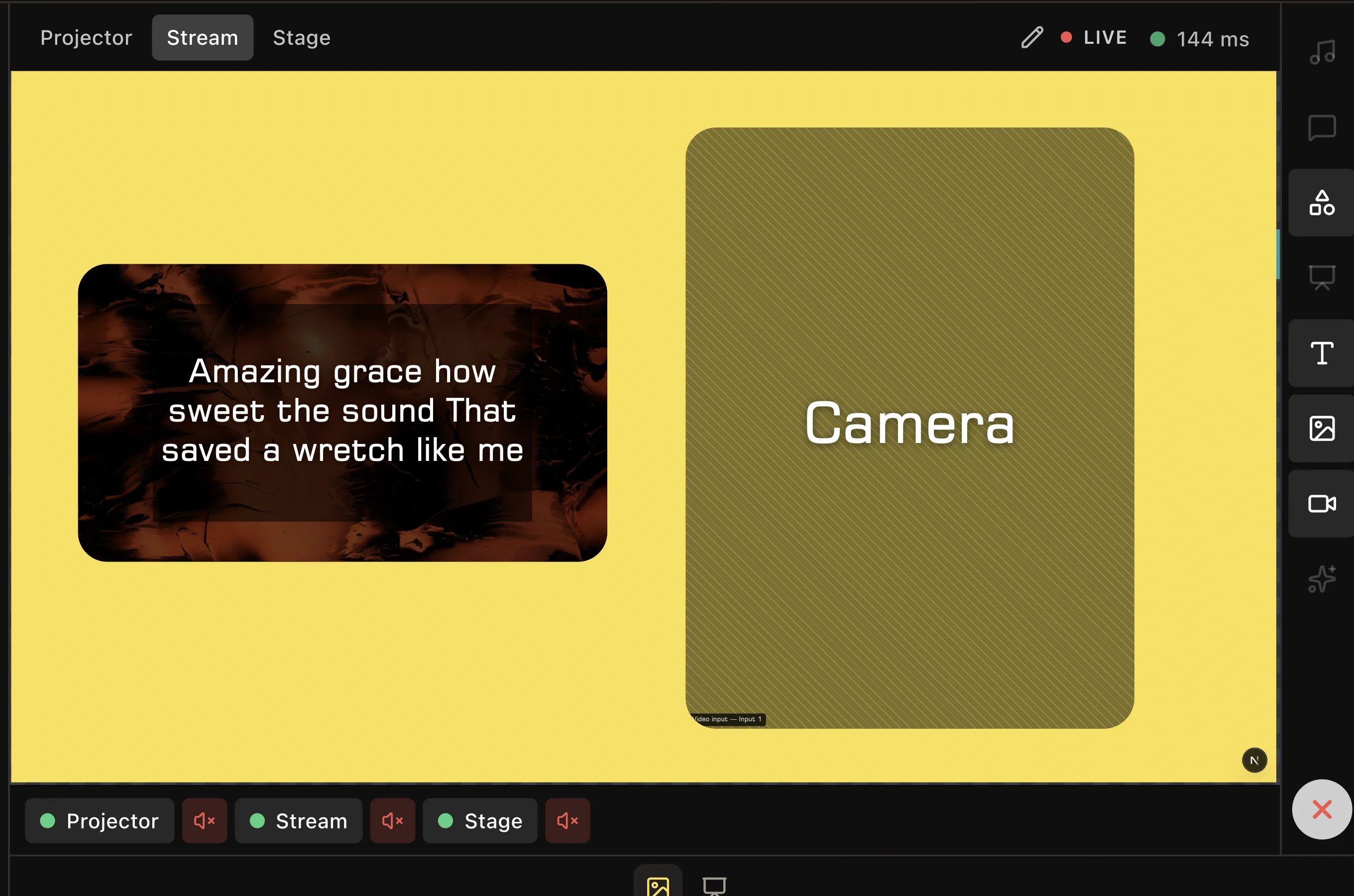
A prop can be a complete composition rather than a single badge. Combine a camera input, screen preview, pictures, shapes, and text into a reusable layout, then bring the whole design on screen as one live layer.
This is useful for an interview, picture-in-picture teaching view, or a special stream layout. The composition stays ready in the Props panel and can appear over the active output without rebuilding its arrangement during the service.
04
Set auto-clear and separate enter and exit transitions
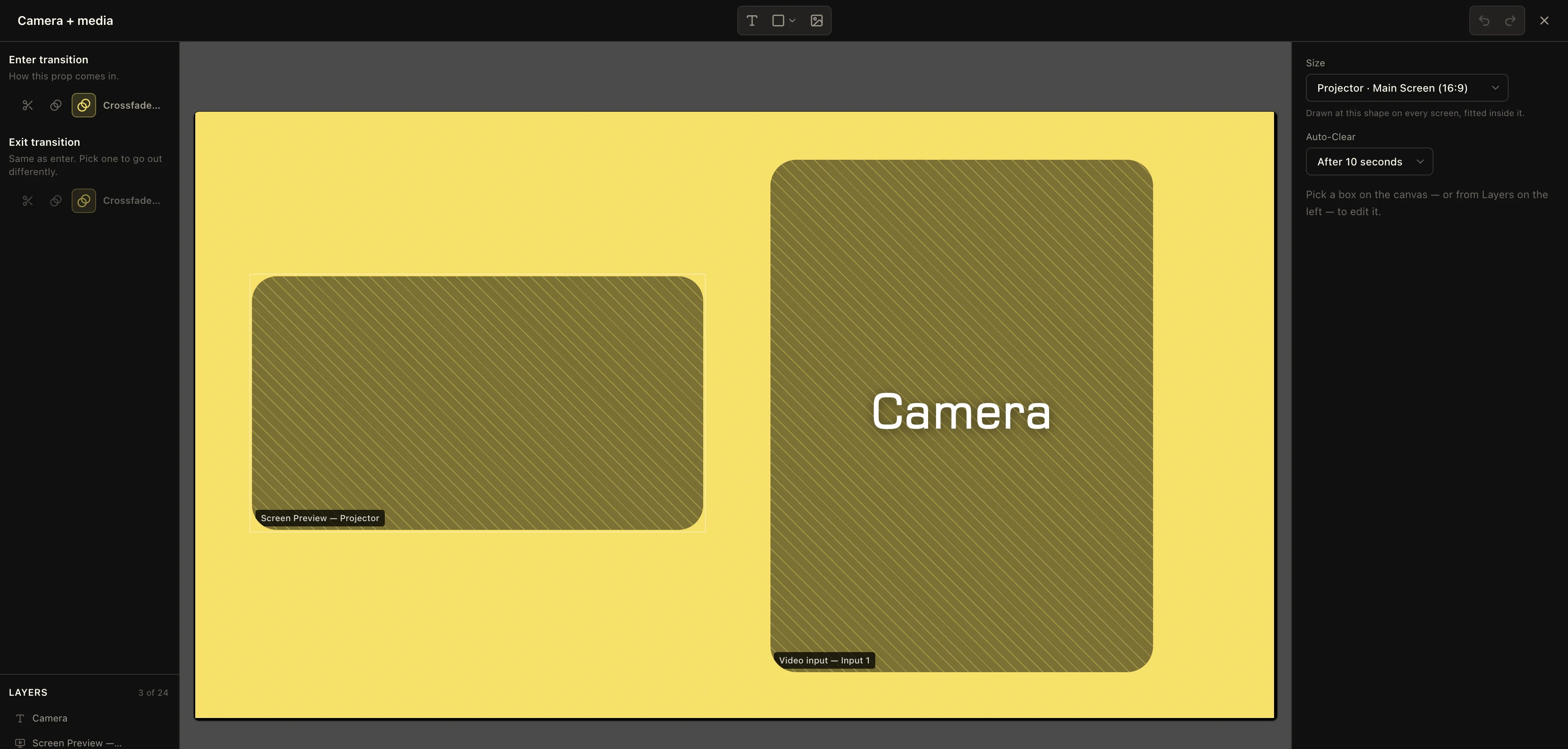
Use Auto-Clear when a prop should remove itself after a set number of seconds. A brief notice, live badge, or temporary graphic can leave on time even when the operator is busy with the next cue. Props without Auto-Clear remain live until someone takes them down.
Choose how the prop enters and exits from the editor. The exit follows the entrance by default, or you can give it a different transition—for example, crossfade in and cut out. This keeps the motion attached to the reusable prop instead of asking the operator to choose it every time.
Match the timing to the purpose
Let a logo stay until it is cleared, but auto-clear a short notice or temporary live graphic so it cannot be forgotten on screen.
05
Show each prop only where it belongs
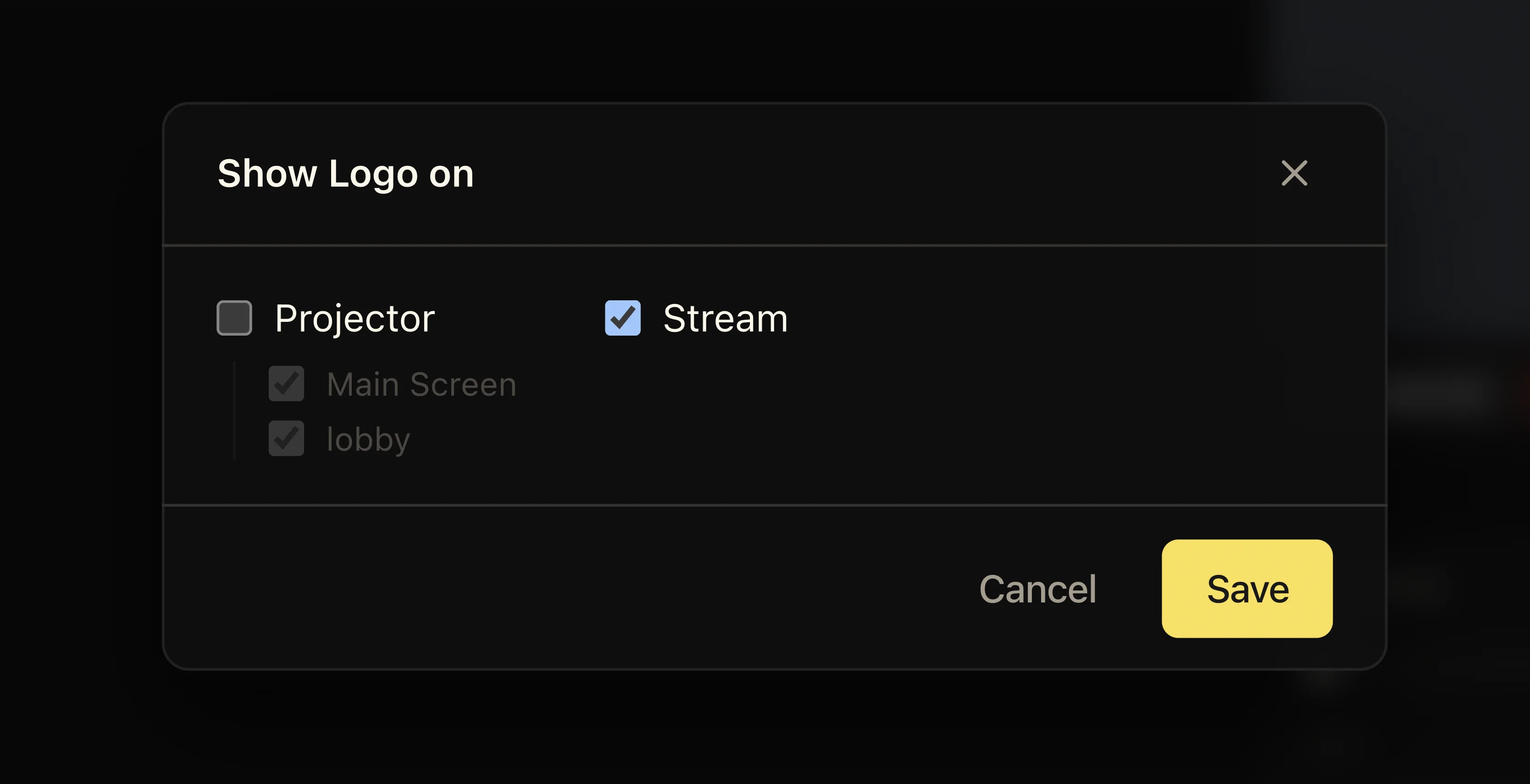
Open Show on to choose whether a prop appears on the Projector, Stream, or both. A church logo can be stream-only while the in-room projector remains clean, and a room notice can go to the projector without appearing in the broadcast.
When an output has more than one screen, choose the individual destinations as well. Send a prop to one projector screen, the lobby, or a specific stream screen while leaving the other outputs untouched.
- 01Open the prop menu and choose Show on.
- 02Turn Projector and Stream on or off for that prop.
- 03When available, select the individual screens that should receive it, then save.
Keep these three
The short version
- Keep logos, countdowns, and composed graphics live while the underlying service content changes.
- Use Auto-Clear and separate enter and exit transitions to control each prop’s full lifecycle.
- Send every prop to the projector, stream, or specific screen that needs it.