Guide 125 min read
LlamaPresenter - Audience Looks
A service can need several output combinations: announcements on one screen, lyrics on another, and a different mix for the stream. Looks save which types of content are visible on each output so you can recall that combination quickly.
The A–D buttons can recall both a visibility Look and assigned text layouts. Set up the routing and styling before rehearsal, then use the same buttons when the service moves from one moment to the next.
What this guide helps you do
Use Looks for content visibility, layouts for text styling, and A–D buttons to recall the combinations you use most.
01
Create a preset for each part of the service
Open the Looks menu beside the A–D buttons in the top bar and choose Edit Looks… to open the preset editor. Select an existing preset or press the plus button beside Presets to add one. Give it a useful name, such as “Pre service,” “Worship,” or “Final.”
Selecting a preset in the editor shows its settings. Make Live activates it. Changes to the currently live preset affect that active Look, so prepare a separate preset when you need to build a different output combination.
02
Choose what each output can show
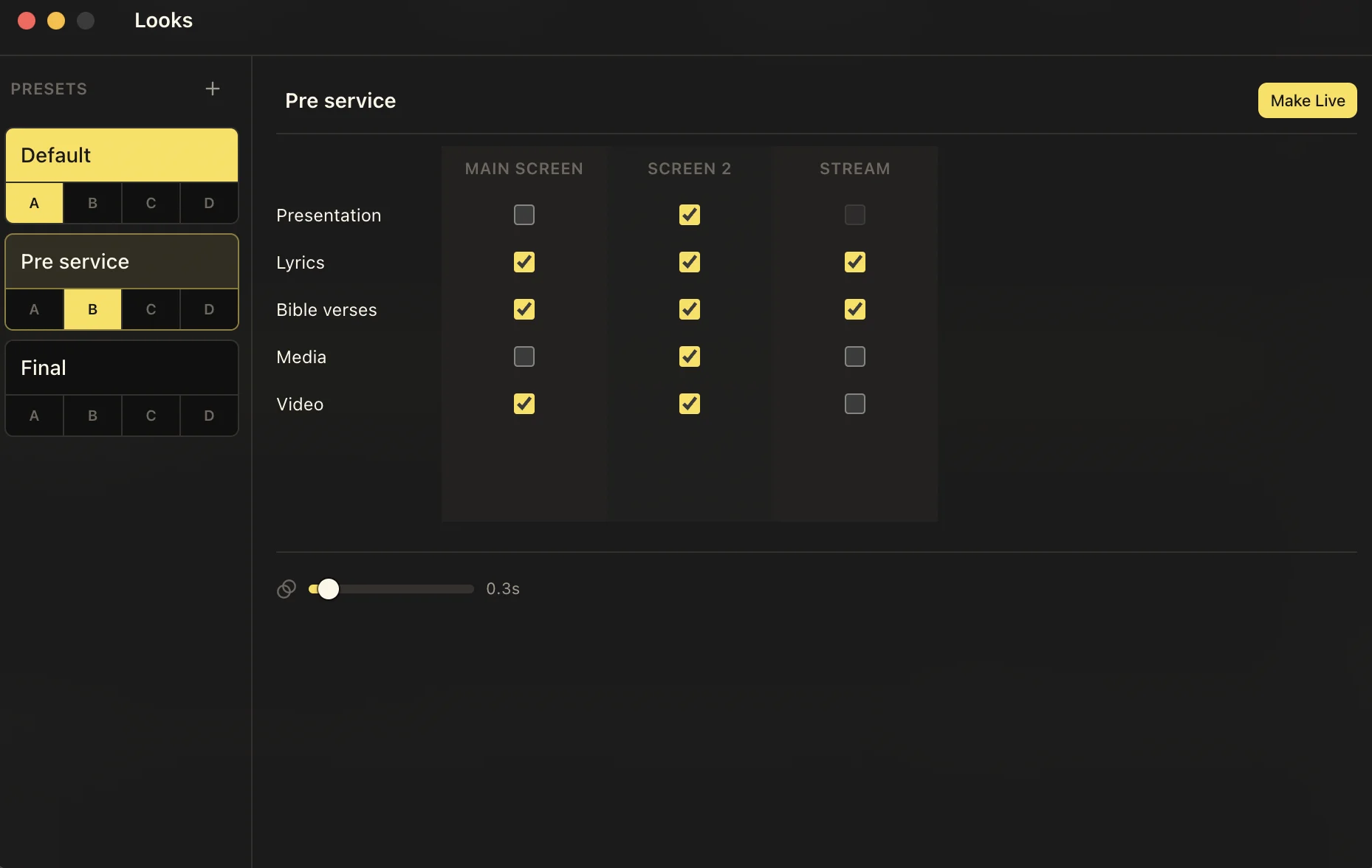
Each column represents an output: Main Screen, any additional screens you have configured, and Stream. The rows control Presentation, Lyrics, Bible verses, Media, and Video. Check an available cell to allow that content type on that output; uncheck it to hide that type there. Presentation is disabled in the Stream column because presentations are routed to Stream from their individual slides.
In the example above, Pre service allows presentations and media on Screen 2 while hiding them on Main Screen. Media is also hidden on Stream. Lyrics and Bible verses are enabled on all three outputs, and Video is enabled on the two room screens. The grid controls visibility; you still choose the slide or media item you want to show in the Studio.
03
Assign Looks to the A–D buttons
Use the A, B, C, or D buttons beneath a preset in the Looks editor to assign its quick-switch slot. The selected letter is highlighted. Assigning the same letter to another Look moves that Look assignment to the new preset; clicking the assigned letter again clears it.
For example, assign Default to A, Pre service to B, and Final to D. Back in the Studio, press the matching top-bar button to activate that Look. You can also select a named preset directly from the Looks menu.
Assign first, activate when ready
The letters beneath a preset configure its shortcut. Use Make Live, the top-bar Looks menu, or the top-bar A–D buttons to activate the preset.
04
Pair a visibility Look with a text layout
A visibility Look controls which content types appear on each output. A text layout controls how lyrics or Bible verses are styled. In the layout picker, use the letters beneath the layout cards to assign layouts to the same A–D slots.
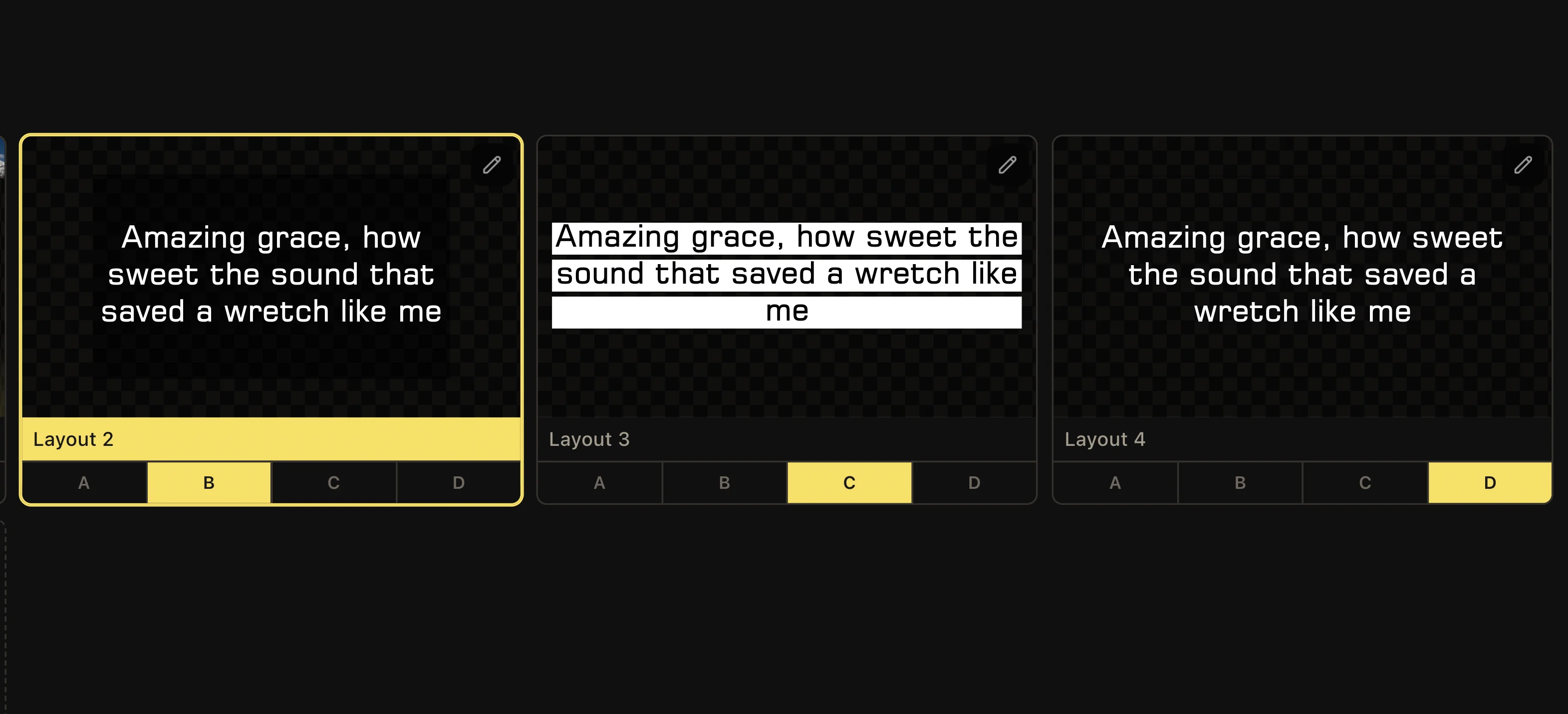
The screenshot shows Layout 2 assigned to B, Layout 3 to C, and Layout 4 to D. Assign a Look to one of those letters as well when you want a single top-bar button to recall both the visibility preset and the assigned layouts. Use the pencil on a layout card to edit its design.
05
Switch from the Studio and check the result
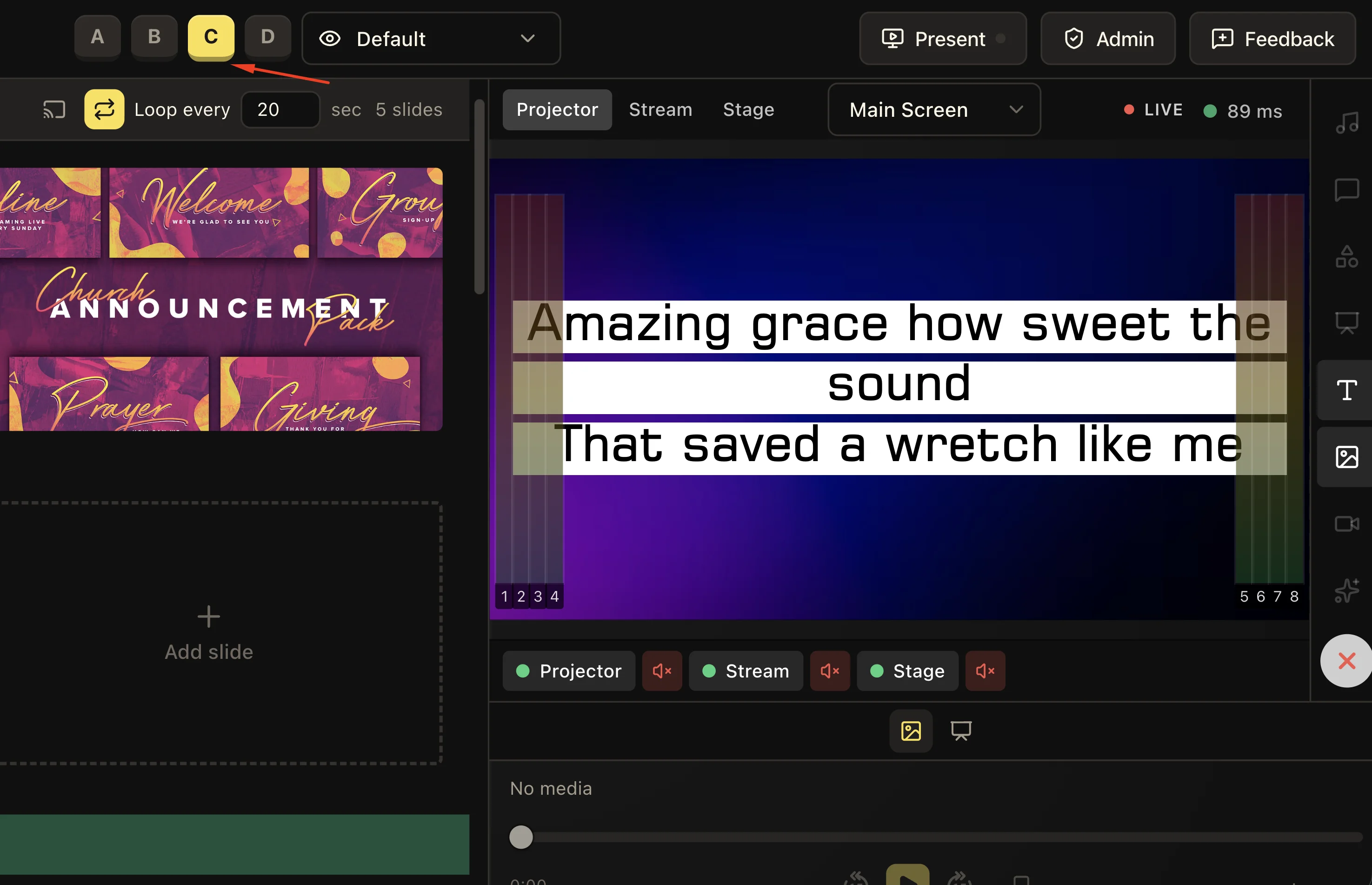
Press an assigned A–D button in the top bar to recall its Look and layouts together. In this example, C is selected and the preview shows the layout with black text on white strips. The Looks menu still reads Default: a layout can change while the visibility preset stays the same.
During rehearsal, switch through each assigned button with representative lyrics, a Bible passage, and media. Inspect the room screens and Stream preview to confirm that both the visible content and text styling match the moment you prepared.
06
Keep your preset list ready for the next service
Right-click a preset to access Make Live, Duplicate, Rename, and Delete. Use clear names so another operator can understand the purpose of each preset, and review the output grid whenever your screen configuration changes.
Duplicate creates a copy and activates it. Account for that activation when preparing presets during a live service, then check its name, screen settings, and shortcut assignment.
Keep these three
The short version
- Create named Looks for the output combinations your service needs.
- Set content visibility independently for room screens and Stream.
- Assign Looks and text layouts to shared A–D buttons for quick recall.
- Rehearse each shortcut and check every output before using it live.