Guide 035 min read
LlamaPresenter - Music
Music often begins before the first slide and continues between the moments everyone notices. Pre-service playlists, reflection tracks, walk-in music, and instrumental beds all need to be ready without taking the operator away from the service.
LlamaPresenter keeps those tracks inside the Studio. Organize the library, start playback from any workspace, prepare exact in and out points, and send each channel where your audio system expects it.
What this guide helps you do
Prepare service music once, then play, shape, monitor, and route it without leaving the presentation workflow.
01
Organize music into service-ready playlists
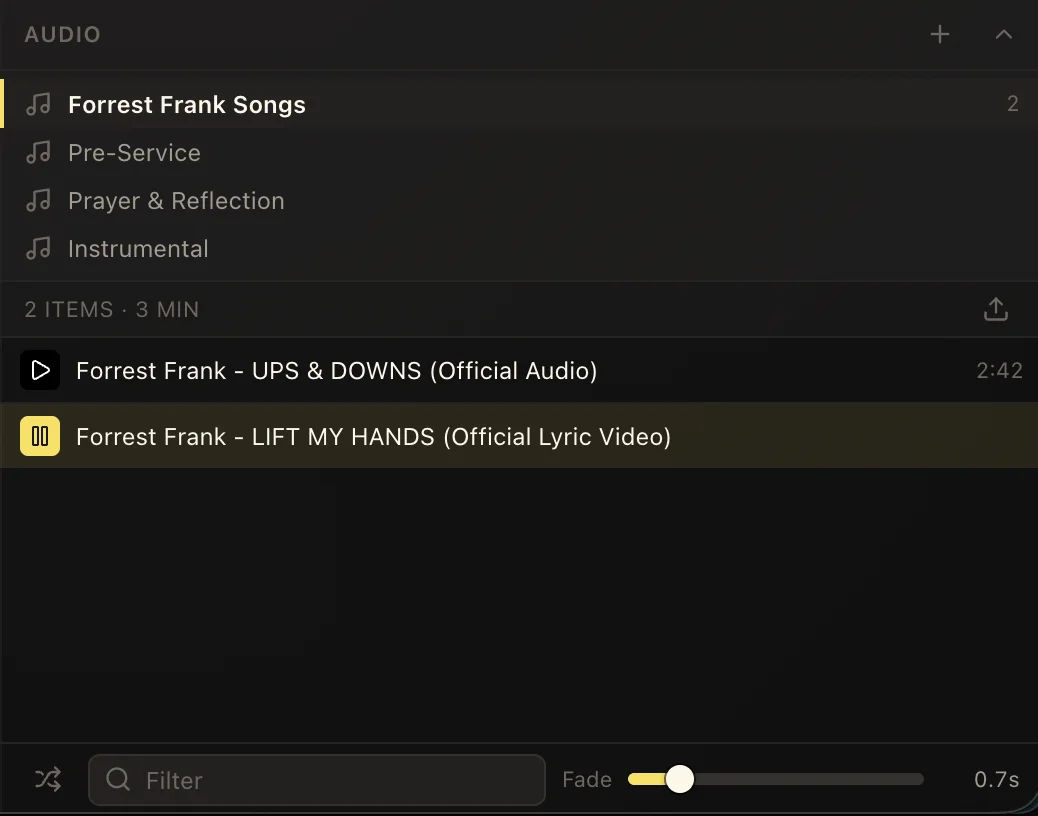
Add audio files to the music library, then group them by the way your team works: Pre-Service, Prayer & Reflection, Instrumental, a special event, or an artist collection. Each playlist shows its track count, while the selected list shows its total running time.
Search narrows the current list when you need one track quickly. Reorder tracks for a planned sequence, use shuffle when the order does not matter, and start or fade a track directly from its row.
- 01Choose the plus button to create and name a playlist.
- 02Import audio files, then place them in the playlist where they belong.
- 03Order the tracks and set the general fade time before the service begins.
02
Control playback without losing the service
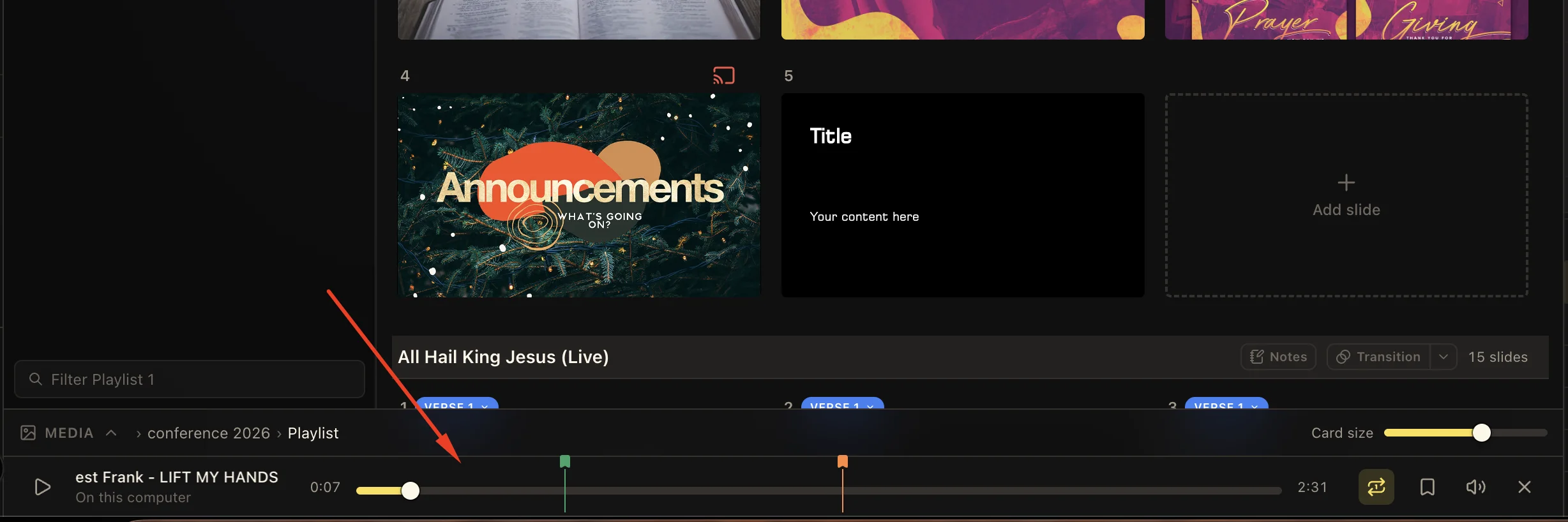
Once a track starts, its player stays docked along the bottom of the Studio. The operator can play or pause, seek through the prepared range, adjust volume, and see the elapsed and remaining duration while slides and media remain available above it.
Colored markers can identify useful moments such as an entrance, speaking point, or musical change. Set what happens at the end of the track to Next, Loop, or Stop, and change that behavior from the player when the service takes a different direction.
Keep a cue attached to the moment
A music track can also be dragged onto a lyric slide, so the track is ready to begin with that part of the service.
03
Watch the output while you present
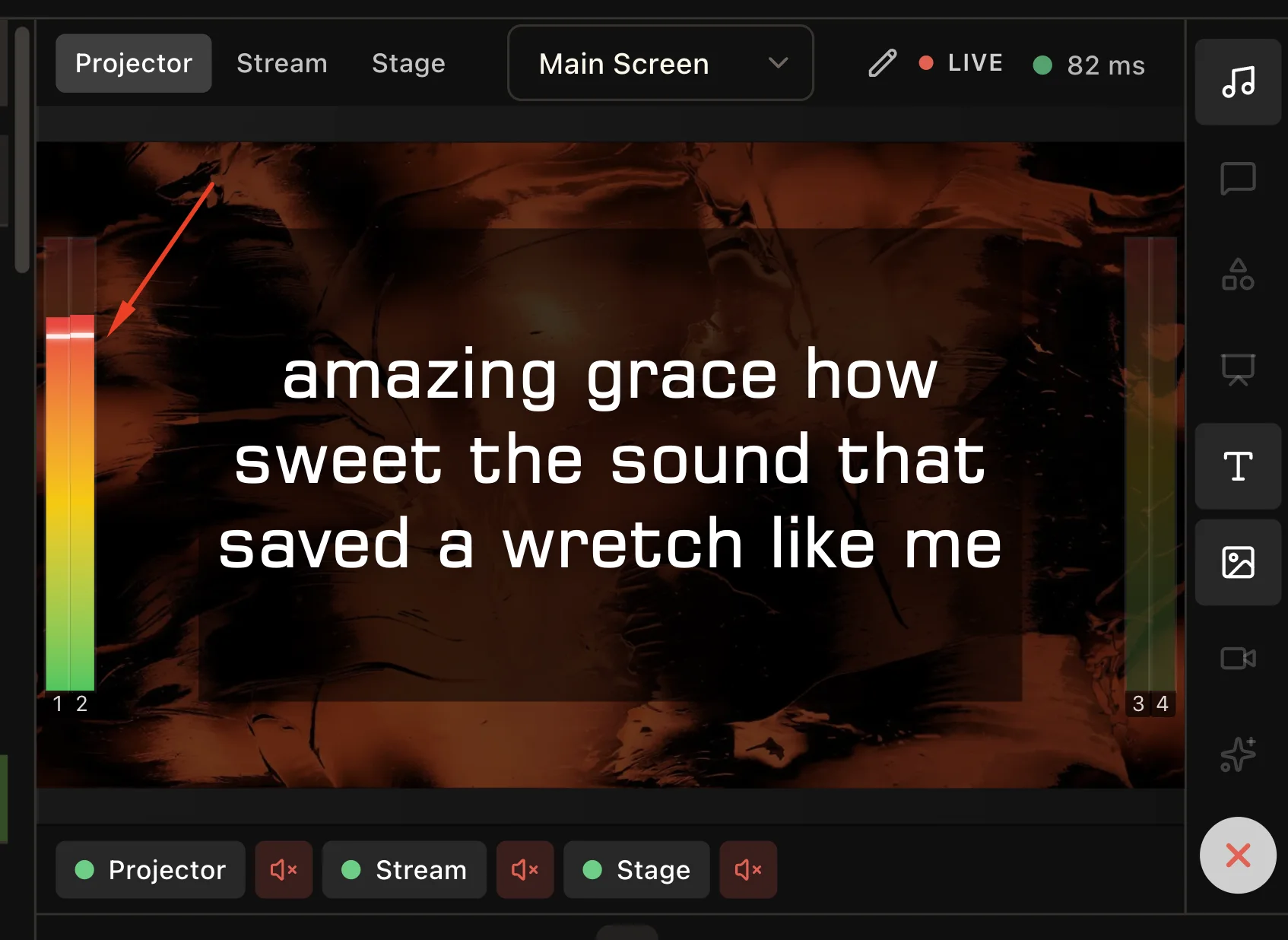
Live output meters sit beside the projector preview and show activity on the configured audio channels. They give the operator an immediate visual check that music is reaching the output and that left, right, or additional channels are behaving as expected.
The meters remain visible beside the content preview, so audio confidence does not require opening another window or covering the slide that is live.
04
Trim, fade, and choose how a track finishes
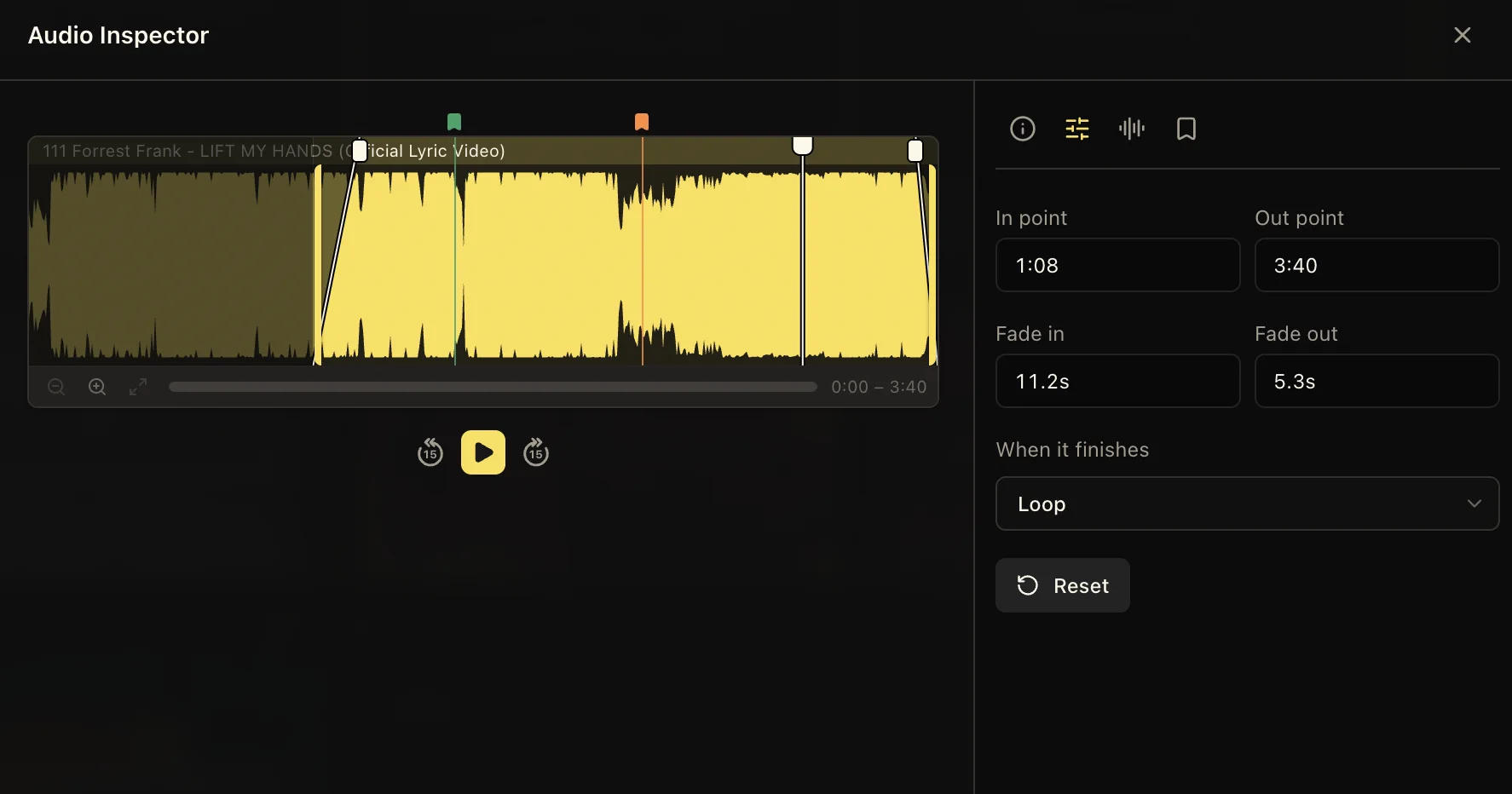
Open the Audio Inspector to prepare the part of a recording you actually want to use. Set an in point to skip a long introduction and an out point to finish before unwanted silence, applause, or a spoken ending.
Fade handles on the waveform shape a smooth entrance and exit, while the numeric controls let you enter exact timings. Then choose whether the track should continue to the next item, loop, or stop when it reaches the out point.
05
Route and mix every audio channel
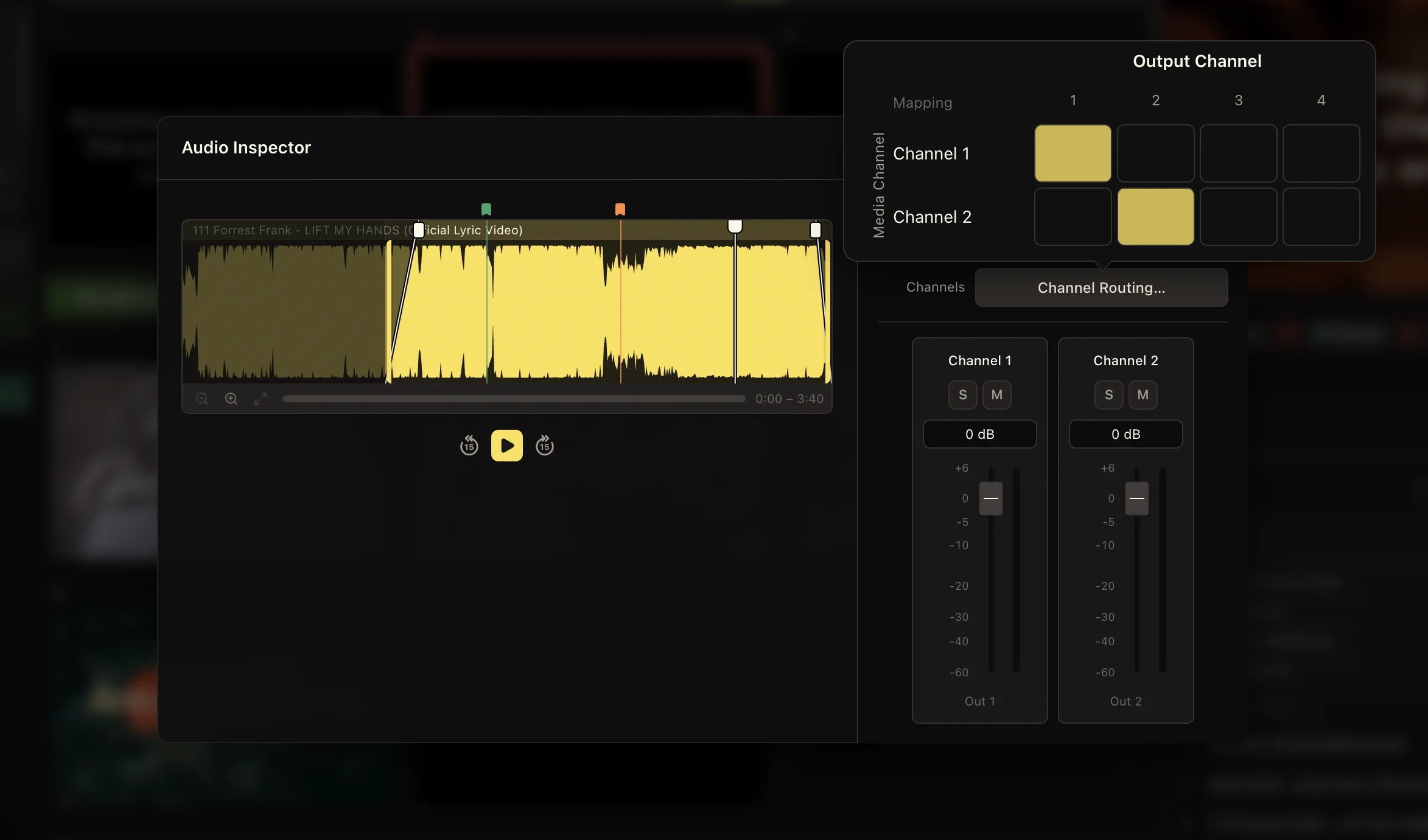
A stereo file does not have to stay locked to the default outputs. Open Channel Routing to map each source channel to the LlamaPresenter output channel your sound system uses. A standard stereo pair can remain on outputs 1 and 2, or be redirected for a different production setup.
Each channel also has its own level, mute, and solo controls. This makes it possible to correct an uneven file, isolate a channel while checking it, or keep a specialized multichannel track from feeding the wrong destination.
Check the whole signal path
Use the inspector preview to verify the file, the routing matrix to verify destinations, and the live meters to confirm what is leaving LlamaPresenter.
Keep these three
The short version
- Organize tracks into playlists that match the shape of the service.
- Set trims, fades, markers, and end behavior before playback begins.
- Monitor and route audio channels without leaving the presentation workspace.